How Far Should You Sit From a 27 Inch Monitor?
Start with a 27 inch monitor viewing distance of 20–30 inches, roughly an arm's length. Adjust text size and screen position until you can read comfortably while sitting upright.
On this page (7 sections)
- How do you set your 27 inch monitor viewing distance?
- Does resolution change the right viewing distance?
- How can you tell if your screen is too close or too far?
- How should you position a 27 inch monitor?
- What if your desk is too shallow?
- What setup mistakes should you avoid?
- Which change should you make first?
Start with a 27 inch monitor viewing distance of 20–30 inches, roughly an arm's length. Adjust the screen and text size until you can read while sitting upright and scan the display without large head movements.
The right spot depends on your eyesight, resolution, desk depth, and work. Treat the range as a starting point, then use the steps below to decide whether you need different settings, a monitor arm, or a different screen size.
How do you set your 27 inch monitor viewing distance?
Measure from your eyes to the screen while sitting in your normal working position. Start within the suggested range, then check a document, website, or spreadsheet you use every day.
Set your chair and keyboard first so your shoulders stay relaxed and your elbows aren't reaching forward. Moving your chair back to escape a close screen can leave your keyboard too far away.
Move the monitor a few inches at a time. Read the middle of the screen, check menus near the edges, and look at your usual full-window layout before choosing a position.
You don't need to keep your eyes fixed in the center. Normal eye movements are expected, but repeated neck turns to read ordinary windows suggest that the screen or your work layout needs adjustment.
For help matching screen size to your space, see what size monitor you need for a home office. Measure the usable desk depth before deciding that a larger display will fit.
A quick check for 27 inch monitor viewing distance
A useful distance lets you read without leaning and use the whole display without pushing your head forward. Check your posture after several minutes of normal work, since your starting position may change once you concentrate.
- Open a page with the smallest text you regularly read.
- Sit back in your usual working posture.
- Enlarge text if you lean forward.
- Move the screen back slightly if its width feels crowded.
- Recheck your keyboard reach after each change.
Does resolution change the right viewing distance?
Resolution changes detail, while scaling changes text size. A higher-resolution screen doesn't automatically belong farther away, and tiny menus aren't a reason to bring it close to your face.
On a 27 inch 4K display, start with the recommended display scaling in your computer's settings. Increase it if menus remain small, then use browser or document zoom for individual apps.
Higher scaling makes interface elements larger and leaves less visible workspace. That tradeoff is useful when it lets you read comfortably without changing your posture.
Keep the monitor at its native resolution when possible. Reducing resolution just to enlarge text can make the image less clear; scaling is usually the better first adjustment.
Who should choose the Dell S2725QS?
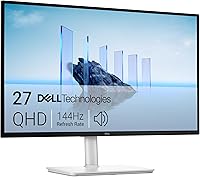
Choose the Dell S2725QS for detailed text and an adjustable stand if you're buying a new monitor. Its 27 inch 4K IPS panel has a 3840 x 2160 resolution, and its stand supports height, tilt, swivel, and pivot adjustment.
Those stand adjustments help you set screen height and angle without adding a separate mount. Its up-to-120Hz refresh rate also suits readers who want smoother scrolling alongside everyday work.
Skip a monitor replacement if your current display already looks clear and only needs repositioning. This Dell also won't solve a shallow desk by itself, because its stand still needs room on the work surface.
If you're choosing between resolution levels, read whether a 4K monitor is worth it for office work. Buy for readable detail at your preferred text size, rather than the smallest interface you can fit onscreen.
How can you tell if your screen is too close or too far?
Your posture and reading habits are better clues than a single measurement. Leaning back can mean the screen is too close, while leaning forward can mean it's too far away or the text is too small.
Check what triggers the movement. If only one app makes you lean in, adjust that app's zoom before changing the whole setup.
If every window looks small, increase system scaling. If text is readable but the display fills too much of your view, move the monitor back and check again.
Avoid changing distance, brightness, and scaling at once. Make one adjustment, use your normal work layout, and keep the change only if it helps.
If the display still feels oversized, read whether a 27 inch monitor is too big. A smaller screen can be the better fit when the desk gives you little room to move back.
How should you position a 27 inch monitor?
Place the monitor directly in front of your main working position, with the top at or slightly below eye level. Keep the keyboard aligned with the screen so you aren't sitting twisted toward either one.
Adjust the angle to reduce reflections while keeping your head upright. If you use glasses that require a particular viewing angle, set the screen where you can read without lifting your chin.
Try the existing stand before buying an arm. An arm helps when the stand blocks useful positioning or takes up space you need beneath the screen.
Who should choose the HUANUO Monitor Arm?
Choose the HUANUO Monitor Arm for flexible daily positioning when your existing stand limits height or angle. It supports compatible monitors weighing 4.4–19.8 lb with 75 x 75 mm or 100 x 100 mm VESA patterns.
It provides height, tilt, swivel, and rotation adjustment, with clamp or grommet mounting. Its stated tabletop thickness range is 0.59–3.54 inches, and HUANUO recommends a wood tabletop with a clear underside.
Skip it if the desk can't take a secure mount, the monitor lacks compatible VESA holes, or its weight falls outside the supported range. Confirm compatibility with your exact monitor model before ordering.
Who should choose the ErGear Monitor Arm?
Choose the ErGear Monitor Arm for reach and cable organization if you regularly reposition your display. It supports 13–34 inch screens up to 19.8 lb with the same 2 VESA patterns noted above.
It offers height adjustment up to 17.5 inches and reach up to 18.1 inches. That reach describes arm movement, so don't assume it will push your screen farther behind the desk.
The C-clamp fits desktops 0.39–2.56 inches thick, while the grommet mount fits 0.39–2.95 inches. Skip it if those limits exclude your desk or a wall blocks the movement you need.
What if your desk is too shallow?
A monitor arm helps only if it moves the screen into usable space beyond what the original stand allows. A deeper work surface or smaller monitor is the better choice when rear clearance remains limited.
Measure the desk edge, wall gap, and mounting area before buying. Check for drawers, support rails, or panels beneath the desktop that could block a clamp.
Don't let a monitor base hang over the edge or balance it on loose objects. Keep enough space for the keyboard and mouse so moving the display doesn't create a new reach problem.
For more arrangement help, see our monitor setup and fixes guide. If you're replacing several parts of the workspace, our home office monitor guide explains the wider choices.
What setup mistakes should you avoid?
Avoid using distance to compensate for small text or glare. Fix the setting or light source first, then judge where the screen belongs.
Don't force two full-width windows side by side if both become hard to read. Enlarge the active window, adjust app zoom, or switch between tasks instead.
Keep screen brightness comfortable beside the surrounding room. Position the display to avoid strong window reflections, and use blinds or move a lamp when tilting the screen doesn't help.
Take regular breaks from close screen work and look farther away. If discomfort keeps returning despite setup changes, seek advice from an eye care professional.
For care, switch the screen off and follow its cleaning instructions. Use a clean, soft cloth, avoid spraying liquid directly onto the panel, and leave cable slack so arm movement doesn't pull on ports.
Which change should you make first?
Choose your 27 inch monitor viewing distance by fixing readability first, then checking posture and available desk space. If your current screen is clear, start with scaling and stand adjustments before buying anything.
Choose the Dell S2725QS when you want a new 4K display with an adjustable stand. Choose the HUANUO arm when its mounting fit suits your desk, or the ErGear arm when its stated reach and cable clips meet your needs.
If no position leaves enough room to sit and work comfortably, reconsider screen size or desk depth. Use what size monitor you need for a home office for the wider decision, then compare 27 inch vs 24 inch monitors before replacing the display.
Frequently asked questions
How far away should you sit from a 27 inch monitor?
Start around 20–30 inches from your eyes to the screen, roughly an arm's length. Adjust until you can read text while sitting upright and scan the display without large head movements.
Use text scaling if small menus make you lean forward, rather than treating the starting distance as a fixed rule.
Is 27 inches too close for a 27 inch monitor?
No, a viewing distance of 27 inches is a reasonable starting point for a 27 inch monitor. Keep it there if text is readable and your posture stays relaxed.
Move the screen back slightly if its width feels overwhelming, then enlarge text as needed so the extra distance doesn't make reading harder.
Should a 4K monitor sit farther away?
A 4K monitor doesn't automatically need to sit farther away than another monitor of the same size. Set distance for a comfortable view of the screen, then adjust display scaling for readable text.
Higher resolution can make letters look finer, but it doesn't remove the need to choose a suitable text size.
How do I change monitor distance if my desk is shallow?
A compatible monitor arm can help if its movement lets the screen sit farther back than the original stand. Check rear clearance, desk construction, mounting space, and monitor compatibility before buying.
If the screen still sits too close, a deeper desk or smaller monitor is a more useful change than adding another mount.