27 Inch vs 24 Inch Monitor: Is Bigger Better? (October 2026)
For the 27 inch monitor vs 24 inch choice, pick 27-inch QHD or 4K for side-by-side work and 24-inch Full HD for a compact desk. Match resolution and scaling to a text size you can read comfortably.
On this page (10 sections)
- 27 inch monitor vs 24 inch: which size should you choose?
- Does a bigger screen give you more usable workspace?
- Which size looks sharper at Full HD?
- Which of these Dell monitors suits your work?
- What viewing distance and position work best?
- What should you check before connecting a new monitor?
- How do you keep either size comfortable and clear?
- Which buying mistakes should you avoid?
- Is 24 inches or 27 inches better for your home office?
- What should you buy: a 27-inch monitor or a 24-inch monitor?
Choose 27-inch QHD or 4K for side-by-side work, or 24-inch Full HD for a compact desk. The 27 inch monitor vs 24 inch decision comes down to readable workspace, desk fit and how many apps you use together.
A larger screen can make a spreadsheet easier to scan or give two documents more breathing room. A smaller screen leaves more space for a laptop, notebook or speakers without crowding your keyboard.
Start with the task that feels cramped now. If you're constantly switching between reference material and a document, extra workspace helps; if one browser window fills your day, a smaller display can be enough.
27 inch monitor vs 24 inch: which size should you choose?
Choose 27 inches for more room to work and 24 inches when desk space is the limit. Then choose the resolution that keeps text clear at your preferred size.
At the same 16:9 shape, a 27-inch screen has about 27% more display area than a 24-inch screen. That extra physical area doesn't automatically mean more spreadsheet cells or browser content.
Resolution supplies the pixels, while scaling sets how large text and controls appear. Consider all three together instead of buying on diagonal size alone.
How should you compare 27-inch vs 24-inch monitor sizes?
Compare complete monitor dimensions, not just screen diagonals. Bezels and stands affect the space a monitor occupies on your desk.
The S2725QS is 24.08 inches wide and 7.89 inches deep, while the S2725DSM is 24.07 inches wide and 7.95 inches deep. The SE2426H is 21.21 inches wide and 7.04 inches deep.
Mark those footprints with paper or tape, then place your keyboard and mouse where you normally use them. Include cable space behind the screen and check that the monitor won't force you too close.
For a fuller fit check, read whether a 27-inch monitor is too big.
Does a bigger screen give you more usable workspace?
A bigger screen gives you more physical area, but higher resolution is what can add room for content. Scaling determines how much of that room remains available.
At identical resolution and scaling, a larger screen shows the same content at a larger physical size. This can help readability, but it won't add columns to a spreadsheet.
Moving from Full HD to QHD gives you more pixels across both directions. That creates room for wider documents or a reference window beside your main app, provided text remains readable.
What does display scaling change?
Display scaling enlarges text, buttons and other controls without lowering the screen's native resolution. Higher scaling uses more pixels for each item, leaving less room for content.
For example, 4K at 200% scaling has roughly the same logical workspace as Full HD at 100%. Text and supported interface elements can still look finer because more pixels draw them.
Start with your operating system's recommended scaling, then open your usual apps. Judge the result by comfortable reading and useful window layouts, rather than by how much tiny text you can squeeze onto the screen.
Which size helps with spreadsheets and documents?
A 27-inch QHD or 4K screen is the stronger choice when you compare files or keep reference material open beside your work. A 24-inch display suits writing and email when one main window is enough.
Try a realistic layout: a document beside a browser, or a spreadsheet beside an invoice. If both windows become too narrow, the extra workspace has a clear purpose.
For very wide sheets, more screen space won't replace good zoom settings, frozen headers and hidden unused columns. Use those tools before assuming a larger monitor will solve every layout problem.
Which size looks sharper at Full HD?
Full HD looks denser on a 24-inch screen than on a 27-inch screen at the same viewing distance. The larger screen spreads the same number of pixels over more area.
Full HD at 27 inches can still suit someone who wants larger text and sits farther back. For close reading of small text, QHD or 4K is the better direction.
Avoid lowering a monitor's resolution just to enlarge controls. Keep its native resolution and adjust scaling or app zoom first, since a lower resolution can soften text.
Should you choose QHD or 4K at 27 inches?
Choose QHD for everyday multitasking or 4K for finer text and detail. QHD has fewer pixels for your computer to drive, while 4K gives supported text and images more detail at a similar apparent size.
A 4K screen doesn't mean you must use tiny controls. Scaling can preserve readable menus while keeping the benefits of the denser display.
For photos or design, resolution is only part of the choice. Color requirements and your workflow also matter, so don't assume more pixels alone make a screen suitable for color-critical work.
Read whether a 4K monitor is worth it for office work if you're deciding how much that extra detail matters.
Which of these Dell monitors suits your work?
Choose the S2725QS for detailed desk work, the S2725DSM for mixed work and gaming, or the SE2426H for a smaller setup. Each solves a different problem, so the highest score doesn't make one model the right fit for every desk.
Dell S2725QS: choose it for fine text and detail
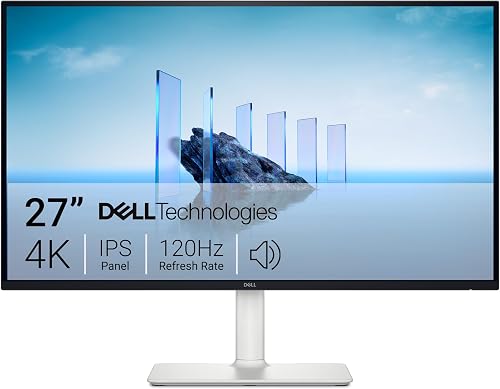
The S2725QS suits readers who spend long stretches with documents, detailed images or dense interfaces. Its 3840 x 2160 IPS screen gives you the highest resolution of these three options.
It supports up to 120Hz and FreeSync Premium, and it includes built-in speakers. The refresh rate adds scope for smoother motion, but fine detail is the main reason to choose it here.
Skip this model if your computer can't supply your intended display mode or your work rarely benefits from added detail. Also skip it if your desk forces the screen too close, since resolution can't fix a poor physical fit.
Dell S2725DSM: choose it for a shared work and gaming desk
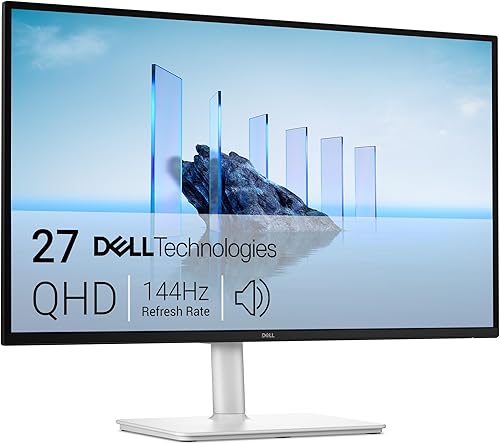
The S2725DSM suits someone who wants two useful work windows and also plays games on the same screen. Its 2560 x 1440 IPS display, 144Hz refresh rate and FreeSync support fit that mix.
Dual 3W speakers can handle basic desk audio without separate speakers taking up space. Choose based on the whole setup rather than treating audio as a reason to change screen size.
Skip it if your priority is the finest text available among these models. It also won't solve a crowded desk, since its overall width is almost identical to the S2725QS.
Dell SE2426H: choose it for one main app and limited space
The SE2426H suits a small workstation, a study desk or a setup that must leave room for a laptop. Its 23.8-inch IPS screen runs at 1920 x 1080 and supports 144Hz with FreeSync.
That makes the smaller option useful for more than basic office work. Screen size alone doesn't determine how smooth motion can look.
Skip it if your daily work involves comparing full documents or viewing many spreadsheet columns at once. Its tilt-only stand also deserves attention if your desk and chair heights leave the screen too low.
What viewing distance and position work best?
Start around an arm's length away, then adjust for readable text and an easy view of your main work. You shouldn't need to lean forward or repeatedly turn your head to follow normal tasks.
Center the monitor on your usual seated position, with the top of the display around eye level or slightly below. Position frequently used windows near the middle instead of scattering them across the corners.
A shallow desk may make a smaller screen easier to place. A deeper desk gives you more freedom to move a larger screen back while keeping your keyboard within comfortable reach.
Follow our guide on how far to sit from a 27-inch monitor for a more detailed position check.
Can a monitor arm improve the fit?
A compatible monitor arm can free desk surface and provide more placement options. It doesn't reduce screen width or create distance beyond the space your desk and wall allow.
Check the exact monitor's mounting support, the arm's weight range and the desk's clamp or mounting requirements. Don't assume that every screen supports the same mount.
Both 27-inch models here offer height, tilt, pivot and swivel adjustment on their included stands. Try those adjustments before deciding you need another accessory.
What should you check before connecting a new monitor?
Check ports, supported resolution and refresh rate before buying. Your computer, dock, adapter and cable all need to support the display mode you want.
Both 27-inch models offer HDMI and DisplayPort; the SE2426H has two HDMI inputs. Match those connections to your computer rather than assuming any adapter will carry every resolution and refresh rate combination.
After connecting, select the monitor's native resolution in your operating system. Then check the refresh-rate setting separately, since connecting the screen doesn't always select its highest supported rate.
Laptop users should also check how a dock handles multiple displays. A connection that works for one screen may support different modes when a second display is attached.
Our home office monitor guide covers broader setup choices if ports and desk equipment are part of your decision.
How do you keep either size comfortable and clear?
Use readable text, suitable brightness and a clean screen to get more from either size. These daily adjustments matter even after you've chosen the right resolution.
Match brightness to the room so a white document doesn't look like a light source beside your desk. Move the screen or nearby lights if reflections cross the area where you read.
Use app zoom for a dense webpage or document instead of changing the entire display setup for one task. If every app feels too small, change system scaling.
For cleaning, turn the monitor off and use a clean, soft microfiber cloth. Follow Dell's care directions for damp cleaning, avoid spraying liquid directly onto the screen and don't press hard on the panel.
Which buying mistakes should you avoid?
Avoid choosing size before checking readable workspace. A screen that fits more content only helps if you can read that content comfortably.
- Buying 27 inches at any resolution: Full HD and 4K on the same screen size serve different priorities.
- Treating refresh rate as workspace: Smoother motion doesn't add document space or sharpen static text.
- Ignoring stand height: A screen can fit the desk footprint and still sit too low.
- Expecting 4K to add four times the usable room: Scaling changes how much content fits.
- Assuming two smaller screens always fit better: Two stands, cables and screen widths can crowd a desk more than one larger display.
Also consider what you'll keep beside the monitor. A laptop on a stand, a paper tray or a large mouse area can change the best size even on a wide desk.
Use our guide to choosing a monitor for a home office to turn those needs into a short buying checklist.
Is 24 inches or 27 inches better for your home office?
Choose 24 inches for a focused, space-saving workstation or 27 inches for regular comparison work. Think about a normal hour at your desk rather than an occasional task.
For email, calls and writing in one window, a smaller display can leave useful room for paper notes. For research, coding with reference material or spreadsheet work, a larger high-resolution screen can reduce window switching.
If a laptop already acts as your second display, consider which screen will hold your main work. Put the primary display in front of you and the less-used screen to the side.
Our guide to choosing a monitor size for a home office covers other sizes. For more choices within the larger size, see our best 27-inch monitors for a home office.
What should you buy: a 27-inch monitor or a 24-inch monitor?
For the 27 inch monitor vs 24 inch decision, buy around your most frequent task and the space left after your keyboard and other essentials are in place. Measure first, then choose resolution and scaling around comfortable text.
Pick the Dell S2725QS when fine text and detailed content lead your needs. Choose the Dell S2725DSM for a desk that splits time between multitasking and gaming.
Choose the Dell SE2426H 24-Inch when one main window is enough and desk room matters more than added workspace. If the larger size fits, use our guide to 27-inch monitors and 4K to narrow the resolution choice before ordering.
Frequently asked questions
Is a 27-inch monitor better than a 24-inch monitor?
A 27-inch QHD or 4K monitor is better for comparing documents and viewing detailed content, while a 24-inch Full HD model suits a compact desk. Bigger screens don't automatically fit more content.
Resolution and display scaling determine your workspace, so choose around readable text and the apps you keep open.
Is Full HD enough for a 27-inch monitor?
Full HD can suit a 27-inch monitor if you prefer larger text or sit farther back. At the same distance, individual pixels are easier to notice than on a 24-inch Full HD screen.
For close desk work with small text, choose QHD or 4K for finer detail.
How far should you sit from a 27-inch monitor?
Start around an arm's length away, then adjust until text is readable and you can see your main work without leaning or turning repeatedly. Desk depth, eyesight and text size all affect the right position.
Increase display scaling if controls look too small rather than pulling the screen close.
Does a 27-inch monitor take up much more desk space?
A 27-inch monitor needs more width, but stand depth and shape also affect the space it uses. The models here differ by about 3 inches in overall width.
Measure the complete footprint and leave room for your keyboard, mouse and viewing distance before deciding which size fits.
Is 4K worth it on a 27-inch monitor?
4K is worth considering when fine text and detailed images matter more than keeping the setup simple. Display scaling can make controls readable while retaining fine detail, though it reduces effective workspace.
Check your computer's output support and think about your usual apps before choosing it over QHD.