Computer Monitors for Home Offices: The Complete Guide
The best monitor for a home office depends on your desk, computer and daily work. Start with a 27-inch screen for a balanced workspace, then choose QHD for everyday tasks or 4K for sharper text and more detail.
On this page (11 sections)
- What should you look for in the best monitor for a home office?
- What size monitor fits your desk?
- Should you choose QHD or 4K resolution?
- Which panel type works well for office tasks?
- Do you need a flat, curved or ultrawide screen?
- Which connections should your monitor have?
- How much stand adjustment do you need?
- How do refresh rate and speakers affect work?
- Which monitors suit common home office setups?
- How should you place a home office monitor?
- What is the best monitor for a home office setup?
The best monitor for a home office depends on your desk, computer and daily work. Start with a 27-inch screen for a balanced workspace, then choose QHD for everyday tasks or 4K for sharper text and more image detail.
A monitor that fits one desk may feel cramped on another. Measure the available width and depth, check your computer's video outputs, and decide whether you need one screen for documents or more room for several windows.
This guide covers screen size, resolution, panel type, refresh rate, connections, stand adjustments and placement. For a quick decision based on your desk, use our guide to choosing a monitor for a home office.
What should you look for in the best monitor for a home office?
The best home office monitor fits your work and setup, with size, resolution and connections matched to your needs. Compare panel type and stand movement before focusing on extra features.
Use this checklist to narrow your options:
| Need | What to compare |
|---|---|
| Desk space | Screen width, stand footprint and room for other equipment |
| Clear text | Resolution at the screen size you want |
| Multiple windows | Screen size and whether a wider format suits your work |
| Laptop setup | Video connections and any charging needs |
| Comfortable placement | Height, tilt, swivel and pivot adjustments |
| Occasional video or games | Refresh rate, speakers and adaptive sync |
A higher resolution can show more detail, but it does not guarantee a better setup if text feels too small or your computer cannot drive the display as expected.
A larger screen can help with several open windows, but it needs enough desk depth. If you want a step-by-step way to weigh these choices, our home office monitor selection guide walks through the decision in order.
What size monitor fits your desk?
A 27-inch monitor is a practical starting point for many desks, while 24-inch screens suit tighter setups and 32-inch displays need more space. Your preferred viewing distance and the monitor's stand also affect the fit.
Measure the desk before choosing a screen size. Include room for the stand, keyboard, mouse and anything else you use during work.
| Screen size | Often suits | Check before choosing |
|---|---|---|
| 24 inches | Compact desks and basic tasks | Whether the display gives enough room for your usual windows |
| 27 inches | A balanced everyday workspace | Desk depth and the stand's footprint |
| 32 inches | Large desks and more screen area | Viewing distance, desk width and height |
These are starting points, not strict rules. Two monitors with the same diagonal size can have different bodies and stand footprints, so compare the actual dimensions.
Our guide to what size monitor you need for a home office helps you match the screen to your room. If you are deciding between common sizes, see 27-inch vs 24-inch monitors.
Is a 27-inch monitor too big for a home office?
A 27-inch monitor is not too big when you have room to sit back and position it comfortably. If the screen fills your view or pushes your keyboard too close to the desk edge, a 24-inch model may fit better.
Measure the display area and the stand, then mark the stand footprint on your desk. This helps you see whether the monitor leaves room for your keyboard, mouse and other work tools.
You can also check the distance from your usual sitting position to the screen. Our guide on how far to sit from a 27-inch monitor explains what to consider.
Should you choose QHD or 4K resolution?
Choose QHD for a useful balance of detail and computer demands, or 4K when you want finer detail at the same screen size. The right resolution depends on screen size, your work and how your computer handles the display.
QHD means 2560 x 1440 pixels, while 4K UHD means 3840 x 2160 pixels. At the same screen size, 4K has more pixels, which can make fine text and images look sharper.
More pixels can also make interface elements appear smaller, so you may want to adjust display scaling. Check your computer's supported resolutions and the connection you plan to use.
| Resolution | Consider it for | Keep in mind |
|---|---|---|
| Full HD | Basic work and smaller screens | Less room for fine detail than QHD or 4K |
| QHD | Everyday work on a 27-inch screen | A middle ground for detail and screen space |
| 4K UHD | Fine detail, large screens and image work | Check scaling and computer compatibility |
A 4K screen can suit office work, but it is not essential for everyone. Read whether a 4K monitor is worth it for office work for more on the trade-offs.
Is a 4K monitor worth it for office work?
A 4K monitor is worth considering if you want sharper text or work with detailed images, diagrams or video. Choose QHD if you want a clear everyday workspace and do not need the extra pixel detail.
A 27-inch 4K screen combines that screen size with high resolution. If text looks too small at your chosen viewing distance, display scaling can enlarge interface elements, but it may change how much content fits onscreen at once.
The best 4K monitors for work page compares models in that category. For a size-specific alternative, browse our best 27-inch monitors for a home office.
Which panel type works well for office tasks?
IPS and VA panels can both work for office tasks, but they suit different preferences. Compare viewing angles and contrast, then consider the rest of the monitor's features.
IPS panels are often chosen when the screen may be viewed from different angles, such as when you shift in your chair or share what is onscreen.
VA panels can appeal to buyers who prefer higher contrast, though panel type alone does not establish a monitor's contrast ratio. Compare the specific models rather than assuming every VA screen has higher contrast than every IPS screen.
Panel type does not tell you everything about text clarity or comfort. Resolution, screen size, brightness, room lighting and placement also shape your experience.
See our guide to IPS vs VA monitors for a fuller comparison.
Do you need a flat, curved or ultrawide screen?
A flat screen is a straightforward fit for most desks, while curved and ultrawide screens can suit people who want a wider view. Check the desk width and the shape of your work before choosing a larger format.
A curved monitor may make a wide display feel more natural to view from the center, but compare its actual dimensions and stand footprint. An ultrawide can keep several windows side by side, though some apps and video calls may not use the full width.
If you use spreadsheets or several work windows at once, compare the extra width with your available desk space. Our curved vs flat monitor guide explains the differences, and the best ultrawide monitors for work page covers wide-screen options.
Which connections should your monitor have?
Choose a monitor with a connection that matches your computer's video output. HDMI and DisplayPort are common options, while USB-C can simplify a compatible laptop setup.
Check both ends of the connection before you buy. A port's shape alone does not tell you whether it supports video, charging or the full resolution and refresh rate you want.
For a laptop, USB-C may carry video and charging through one cable if both devices support those features. See what a USB-C monitor is and compare USB-C monitors for work.
For a desktop computer, confirm that the graphics output and monitor input match. If you plan to use an adapter, make sure it supports your intended resolution and refresh rate.
How much stand adjustment do you need?
A monitor stand with height and tilt adjustment gives you more ways to place the screen at a comfortable position. Swivel and pivot adjustments can help if you share the display or want to use it vertically.
An adjustable stand can make a difference when the default position does not fit your chair or desk. Check which movements are available, because some monitors adjust in more ways than others.
If the included stand does not suit your setup, check whether the monitor supports a separate mounting option before planning a desk arm or wall mount. Match the mount to the monitor's mounting points and your desk or wall.
How do refresh rate and speakers affect work?
For documents, email and browsing, a standard refresh rate may be enough. A higher refresh rate can make movement look smoother, while built-in speakers can reduce the need for separate desktop speakers.
A 60Hz display updates up to 60 times per second. Higher refresh rates may be useful for fast motion, scrolling or occasional gaming, but they do not replace the basics of size, resolution and fit.
Built-in speakers may cover simple audio needs when you want fewer desk accessories. If sound quality matters for calls or music, compare the monitor's audio features with the headphones or speakers you already use.
Which monitors suit common home office setups?
Choose a model by matching its resolution, screen size and adjustments to your main work. These examples cover 27-inch QHD and 4K options, plus a larger 32-inch 4K display.
Dell S2725QS for 27-inch 4K home office work
The Dell S2725QS suits buyers who want 4K resolution on a 27-inch screen. It has an IPS panel, HDMI and DisplayPort connections, plus height, pivot, swivel and tilt adjustments.
Its 3840 x 2160 resolution can suit detailed work, while the stand's movement gives you options for placement. It also has built-in speakers and a refresh rate of up to 120Hz.
Dell S2725DSM for QHD and stand flexibility
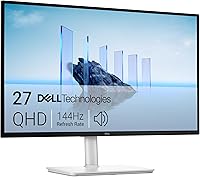
The Dell S2725DSM suits a buyer who wants QHD resolution and a stand with several adjustment options. It has a 27-inch IPS display with 2560 x 1440 resolution, HDMI and DisplayPort connections, and built-in speakers.
Its refresh rate is up to 144Hz, which may appeal if you also use the monitor for fast-moving content. Choose it when QHD fits your work and computer better than 4K.
Samsung ViewFinity S7 for 27-inch 4K
The Samsung ViewFinity S7 suits buyers looking for a 27-inch 4K IPS display with HDMI and DisplayPort. Its 3840 x 2160 resolution can show fine detail, and it includes Eye Saver Mode.
This model has a 60Hz refresh rate. Confirm that the stand offers the adjustments your desk setup needs before choosing it.
Dell S3225QS for a larger 4K screen
The Dell S3225QS suits a buyer who wants a larger 32-inch screen with 4K resolution. It uses a VA panel and includes HDMI and DisplayPort connections, built-in speakers, and height and tilt adjustments.
Its size gives you more physical screen area than a 27-inch display, but first measure your desk and viewing distance. Its height and tilt adjustments offer fewer placement options than the 27-inch Dell models' height, tilt, swivel and pivot adjustments.
How should you place a home office monitor?
Place the monitor straight ahead of your usual sitting position, with enough room to view the whole screen comfortably. Adjust the height and tilt so you can work without craning your neck.
Start with the display centered over your keyboard. If you use two screens, place the main one directly in front of you and the second beside it.
Reduce glare by keeping bright windows or lamps from reflecting directly on the display. You can adjust the screen angle or move the monitor to another part of the desk.
Before settling on a location, check the monitor's depth with its stand attached. Leave space for the keyboard and mouse, and make sure cables can reach your computer without pulling tight.
What is the best monitor for a home office setup?
Choose 27-inch QHD for everyday work, 27-inch 4K for finer detail, or 32-inch 4K if your desk can fit a larger screen. The best monitor for your home office also needs connections and stand adjustments that fit your setup.
Measure first, then narrow the options by resolution and stand movement. For help picking a size, start with what size monitor you need for a home office; to compare models, browse the best 27-inch monitors for a home office.
Frequently asked questions
What is the best monitor size for a home office?
A 27-inch monitor is a useful starting point for many home offices because it balances workspace and desk footprint. Choose 24 inches for a compact desk or 32 inches for a larger view, then measure your desk and viewing distance before deciding.
Is 4K worth it for office work?
A 4K monitor can make text and detailed images look sharper, especially on a 27-inch or larger screen, though you may need display scaling for comfortable reading. Choose QHD if the extra detail matters less than cost or compatibility, and check your computer's supported resolution and refresh rate.
Should I choose an IPS or VA monitor for work?
IPS is a common fit when you want consistent viewing from different angles, while VA can suit buyers who value contrast. Panel type is only one part of the choice, so compare resolution, size, stand adjustments and connections too, using our IPS vs VA guide for more detail.
Do I need USB-C on a home office monitor?
Choose USB-C when your laptop and monitor support the features you need, such as video and charging through one cable. Check the laptop's output and the monitor's power delivery before buying, since HDMI or DisplayPort may be enough if you do not need charging through the display.
Is a 32-inch monitor too large for a desk?
A 32-inch monitor can work well if your desk has enough width and depth for a comfortable viewing distance. Measure the stand footprint and check whether the display blocks other equipment, then compare 27-inch models if the larger screen leaves too little space.