Is a 4K Monitor Worth It for Office Work?
A 4K monitor is worth it for office work if you want sharper text and finer image detail, especially at 27 inches. Choose QHD if you're happy with its clarity and prefer using your usual apps without increasing display scaling.
On this page (8 sections)
- Is a 4K monitor worth it for office work?
- What does 4K change in everyday office work?
- Does screen size affect whether 4K is worth it?
- When is QHD a better choice than 4K?
- Does 4K need display scaling?
- Is 4K useful for long workdays?
- What should you check before choosing a 4K office monitor?
- How do you decide if a 4K monitor is worth it?
A 4K monitor is worth it for office work if you want sharper text and finer detail, especially on a 27-inch screen. QHD is enough if you're satisfied with its clarity and mainly use email, forms, and documents with large text.
The useful comparison is how both resolutions look at your preferred text size. You can enlarge a 4K interface without giving up its sharper edges, so buying 4K doesn't mean living with tiny menus.
Is a 4K monitor worth it for office work?
Yes, 4K earns its place when you read or inspect detail for hours. Its 3840 x 2160 resolution provides more pixels than QHD's 2560 x 1440, helping render letter edges, fine lines, and images more precisely.
Writers, programmers, and people reviewing dense documents may value that clarity even when scaling keeps the workspace about the same size. Spreadsheet users gain more visible cells only if their scaling and zoom settings allow it.
The Dell S2725QS suits someone who wants that detail alongside smoother scrolling. Its 27-inch IPS display supports up to 120Hz, and its stand offers height, tilt, swivel, and pivot adjustment.
Skip this model if routine office work is your only need and you're already comfortable with QHD. If its mix of resolution and motion appeals, our Dell S2725QS review covers the model in more detail.
For the wider choice of sizes and features, start with our home office monitor guide.
What does 4K change in everyday office work?
The main gain is cleaner detail at a readable size, rather than an automatic increase in working space. Your apps and the content inside them determine how much that helps.
- Documents and coding: smoother letter edges can make small text easier to distinguish.
- Spreadsheets: fine gridlines and labels look clearer, while scaling controls how many cells fit.
- Photos and diagrams: you can inspect more detail before zooming in.
- Email and video calls: the benefit is smaller if text is large and images contain little detail.
A higher-resolution screen won't improve a blurry image or turn a low-resolution video call into a detailed one. It can display the available information more precisely, but it can't supply missing detail.
When is a 4K monitor worth it for mixed work and play?
4K makes sense for mixed use when your computer can handle both the desktop and your games. Running office apps at high resolution is a different workload from rendering a demanding 3D game.
Refresh rate also matters: it affects motion and scrolling, while resolution affects detail. Choose the balance that matches your day instead of assuming every 4K display will feel smoother than every QHD display.
Does screen size affect whether 4K is worth it?
Yes, size and viewing distance change how visible the difference is. At the same resolution and scaling, a larger screen makes text physically larger without showing more content.
A 27-inch 4K screen often benefits from scaling because its pixels are closely packed. A 32-inch screen spreads the same pixels over a larger area, making the interface larger at an unchanged setting.
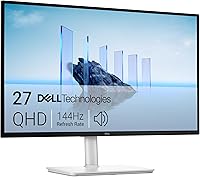
QHD at 27 inches is a useful middle ground for people who prefer a straightforward desktop layout. The Dell S2725DSM pairs that size and resolution with a 144Hz refresh rate, built-in dual 3W speakers, and height, tilt, pivot, and swivel adjustments.
Choose it if smooth motion, flexible positioning, and built-in sound matter more than maximum text detail. Skip it if your main reason for upgrading is sharper lettering; our Dell S2725DSM review explains that alternative.
Use our guide to choosing a monitor size for a home office to match screen dimensions to your desk.
When is QHD a better choice than 4K?
QHD is the better choice when its clarity already meets your needs and other features matter more. An adjustable stand, useful connections, or smoother motion can improve your workday more than extra pixels.
It also suits people who rely on older apps that handle high-resolution scaling poorly. If a key program has tiny controls or blurry text when enlarged, resolve that issue before choosing a screen around it.
The ViewSonic VS2725-2K suits a basic office setup built around HDMI or DisplayPort. It has a 27-inch QHD screen, Flicker-Free technology, and a Blue Light Filter, and ViewSonic backs it with a 3-year limited warranty.
Skip it if sharper 4K text is the goal. If precise height adjustment is essential, confirm the stand's range before choosing it.
Compare the wider options in our guide to 27-inch monitors and 4K screens. Our article on 27-inch monitor viewing distance can help you plan placement before ordering.
Does 4K need display scaling?
Usually, scaling is the right starting point at 27 inches. It enlarges text and controls while keeping the screen at its native resolution.
For example, 4K at 150% scaling gives roughly the workspace of QHD at 100%. The advantage is finer rendering at a similar interface size, rather than more windows.
Start with your operating system's recommended setting, then open a document, browser, spreadsheet, and your most-used work app. Check menus and dialog boxes as well as the main content.
Avoid lowering the monitor's resolution just to enlarge text, since that can soften the whole image. Use system scaling for the interface and app zoom for a document or webpage that needs a separate adjustment.
With 2 displays, set scaling for each screen. Move your usual apps between them to check that text size and window behavior remain comfortable.
Is 4K useful for long workdays?
4K can improve text clarity, but readable sizing and sensible placement matter just as much. You shouldn't need to lean toward the screen to read a menu.
The LG 27UP650K-W suits people who want a detail-focused work screen with adjustable positioning. Its 27-inch 4K IPS panel runs at 60Hz, supports DisplayHDR 400, and covers up to 95% DCI-P3.
Choose it for documents, images, and a desk where height and portrait positioning are useful. Skip it if you specifically want refresh rates above 60Hz for smoother motion.
A wider color gamut doesn't guarantee accurate color in every app. For color-sensitive work, use suitable color settings and color-managed software; for office work, prioritize comfortable text and brightness over vivid presets.
Place the screen to limit window reflections, set its top around eye level or slightly below, and take regular breaks. Adjust brightness to the room instead of leaving it at maximum.
What should you check before choosing a 4K office monitor?
Check the complete connection path, including your computer, dock, adapter, and cable. Each part must support the resolution and refresh rate you want, especially when connecting multiple screens.
Don't assume an HDMI or DisplayPort socket guarantees every display mode. Check the supported output modes for your computer and any dock before ordering.
All 4 monitors discussed here offer HDMI and DisplayPort connections. If laptop charging and video over one cable are priorities, use our guide to USB-C monitors to understand USB-C video and power delivery requirements.
Once connected, select the native resolution and your desired refresh rate in display settings. A high-refresh screen won't provide its full motion benefit if the computer leaves it at a lower setting.
Keep care simple: turn the screen off and use a clean microfiber cloth, lightly dampened if needed. Follow the manufacturer's cleaning instructions, avoid pressing on the panel, and never spray liquid directly onto it.
How do you decide if a 4K monitor is worth it?
A 4K monitor is worth it when text clarity or image detail improves tasks you do every day. Choose based on your actual apps at a comfortable size, then check connections and desk fit.
- Choose the Dell S2725QS for fine text plus smoother scrolling and flexible positioning.
- Choose the LG 27UP650K-W for a 4K work screen when 60Hz meets your needs.
- Choose the Dell S2725DSM when QHD clarity is enough and motion, speakers, and stand adjustments take priority.
- Choose the ViewSonic VS2725-2K for a basic QHD office setup with HDMI and DisplayPort.
Before buying, check your computer's output support and decide how much scaling you'll use. Then compare the best 4K monitors for work against those requirements.
Frequently asked questions
Is a 4K monitor better than QHD for office work?
4K is better for text clarity and fine image detail at the same screen size. QHD remains a sensible choice for routine office apps if you're happy with its sharpness.
Compare both at a comfortable text size, because scaling changes how much workspace you can actually use.
Is 4K worth it on a 27-inch monitor?
4K is worth it at 27 inches if you spend hours reading small text, reviewing detailed images, or working with fine lines. Increase display scaling so letters remain comfortable to read.
If you mainly use large text and simple forms, QHD can meet your needs without the extra resolution.
Does a 4K monitor show more on screen?
A 4K monitor can show more content, but scaling determines how much usable workspace you get. At 150% scaling, its effective workspace is roughly comparable to QHD at 100%, while text has more pixels available for smooth edges.
App zoom and operating system behavior also affect the result.
Do you need a powerful computer for a 4K office monitor?
You usually don't need a high-end computer for documents and browsing on a 4K monitor. Your computer, cable, adapter, and dock must support the desired resolution and refresh rate together.
Multiple displays and 3D games place different demands on the system, so check those needs separately.