Is a 27 Inch Monitor Too Big?
A 27 inch monitor is usually not too big if you have room for a screen about 24 inches wide and can sit roughly an arm's length away. Choose a smaller display if your desk cannot fit both the screen and a comfortable keyboard position.
On this page (7 sections)
- Is a 27 inch monitor too big for a typical desk?
- How far away should you sit from a 27 inch monitor?
- Does resolution change how comfortable 27 inches feels?
- Which of these 27 inch monitors suits your work?
- How should you set up a 27 inch monitor?
- What mistakes make a 27 inch monitor feel too large?
- Is a 27 inch monitor too big for you? Make the final choice
A 27 inch monitor is usually not too big for desk work, provided you can sit comfortably away from it and leave room for your keyboard. Its width and placement matter more than the diagonal size.
Choose 27 inches for a document beside reference material, wider spreadsheets, or sharper text with the right resolution. Choose 24 inches when your desk forces you close to the screen or you prefer one compact window.
Is a 27 inch monitor too big for a typical desk?
A 27 inch monitor usually fits when you have about 24 inches of clear width and enough depth to keep the screen behind your keyboard. Measure the complete monitor and stand before ordering.
The diagonal measurement describes the screen, not its footprint. A shelf above the desk, a wall behind it, or a laptop beside it can limit placement even when the desktop seems large.
The Dell S2725QS measures 24.08 inches wide and 7.89 inches deep. The Dell S2725DSM measures 24.07 inches wide and 7.95 inches deep, while the LG 27UP650K-W measures 24.15 inches wide and 9.42 inches deep.
Use tape or paper to mark the monitor's width and depth on your desk. Place your keyboard, mouse, notebook, and laptop where you normally use them, then check whether your hands still have space.
Don't assume the screen sits directly above the stand's back edge. A stand's shape affects where the panel ends up, so desk depth alone cannot guarantee a comfortable viewing distance.
A monitor arm can free desktop space, but check mounting compatibility, weight capacity, clamp clearance, and reach. Some arms need space behind the desk when folded, which matters if the desk touches a wall.
How far away should you sit from a 27 inch monitor?
Start roughly an arm's length away, then adjust the screen position and text size together. You should be able to read your main window while sitting back in your chair.
Open a real document or spreadsheet rather than judging the fit from the desktop background. Read a paragraph, check a toolbar, and glance at the corners without moving your chair.
Occasional head movement is normal. Repeatedly turning to follow ordinary lines of text suggests that the window is too wide, the screen is too close, or both.
For more placement guidance, read how far to sit from a 27 inch monitor. If space remains tight, compare 27 inch vs 24 inch monitors.
Is a 27 inch monitor too big for a shallow desk?
A 27 inch monitor can be too big for a shallow desk if its stand forces the screen too close. Check the distance from your eyes to the expected screen position while seated normally.
Moving the keyboard to the front edge can create another problem by leaving your hands poorly supported. Try a different monitor position or a compatible arm before sacrificing your typing space.
If you cannot sit back, read clearly, and reach your keyboard comfortably, choose a smaller display. Extra screen area is not useful when the setup makes routine work awkward.
Does resolution change how comfortable 27 inches feels?
Resolution changes text sharpness and usable workspace, while scaling changes the size of words and controls. Neither changes the physical size of the panel.
At 27 inches, 1080p can suit large text and video, but small letters and fine lines look less defined at close range. QHD is a practical choice for everyday office work without needing very small interface elements.
4K adds finer detail, especially around text and images. Use operating-system scaling to make menus readable rather than lowering the screen resolution, which can soften the image.
More pixels do not automatically mean more useful windows. If you increase scaling substantially, you gain clearer text while giving up some of the extra workspace.
See whether a 4K monitor is worth it for office work for that trade-off. The 27 inch and 4K monitor guide covers related choices.
Which of these 27 inch monitors suits your work?
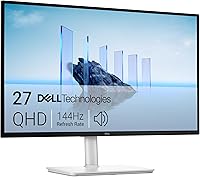
Choose the Dell S2725DSM for everyday multitasking, the Dell S2725QS for detailed work plus smoother motion, or the LG 27UP650K-W for detail-focused work where a standard refresh rate is enough. All 3 need similar desk width, so resolution and use should drive the choice.
Dell S2725DSM: for everyday work and frequent scrolling
The S2725DSM pairs QHD resolution, 2560 x 1440 pixels, with a 144Hz refresh rate. That suits browsers, documents, spreadsheets, and people who value smoother scrolling or also play games.
Its height, tilt, pivot, and swivel adjustments give you several ways to set the screen position. Dual 3W speakers provide built-in audio without separate desktop speakers.
Choose it when you want useful workspace without making fine detail your main priority. Skip it if your main reason for upgrading is the sharper text and image detail available from a 4K display.
Dell S2725QS: for sharp text and smoother motion
The S2725QS combines 4K resolution, 3840 x 2160 pixels, with refresh rates up to 120Hz. It suits people who spend the day reading or editing detailed material and also want smoother movement than a 60Hz screen.
Its IPS panel covers 99% sRGB, and FreeSync Premium supports compatible gaming setups. HDMI and DisplayPort provide connection options, but check which resolution and refresh rate your computer can send through your chosen cable.
Choose it for a mix of detailed office work and entertainment. Skip it if QHD already meets your needs or your computer cannot support the display mode you want.
LG 27UP650K-W: for detailed work and occasional HDR content
The LG 27UP650K-W suits people who want 4K detail and are comfortable with a 60Hz refresh rate. Its IPS panel covers up to 95% DCI-P3, and LG specifies VESA DisplayHDR 400 support.
Those features make it worth considering for image work and HDR viewing alongside office tasks. Color-gamut coverage alone does not establish color accuracy, so color-critical work still calls for suitable calibration.
Choose it when detail matters more than high-refresh motion. Skip it if smoother gaming is a priority or you need the stand to swivel, since its adjustments cover height, tilt, and pivot.
How should you set up a 27 inch monitor?
Set the screen straight ahead, at a readable distance, with its top around eye level or slightly below. Adjust it to your seated position rather than changing your posture to suit the stand.
Start with these steps:
- Set your chair and keyboard position first.
- Center the monitor behind the main typing area.
- Use the screen's native resolution, then increase scaling until menus are comfortable.
- Adjust brightness to suit the room rather than leaving it at maximum.
- Place your main window near the center and check your posture again.
Keep a document beside reference material instead of stretching a page across the full screen. App zoom can enlarge a document independently of system scaling, which helps when only one program feels too small.
Position the display to reduce bright window reflections. Clean it with a soft microfiber cloth, follow the manufacturer's care instructions, and avoid spraying liquid directly onto the panel.
For a wider setup checklist, use our guide to choosing a monitor for a home office.
What mistakes make a 27 inch monitor feel too large?
The most common mistakes are sitting too close, using tiny text, and stretching every app full-screen. Correct those before deciding that 27 inches is the wrong size.
Don't move the monitor far away just to fit the whole screen into view, then lean forward to read. Increase text size and find a distance where you can stay seated naturally.
Don't buy for refresh rate alone if your main task is reading. Resolution, scaling, stand adjustment, and a working connection to your computer have more direct value for that job.
Avoid adding a second full-size screen before planning where your main work will sit. Two wide displays can push your primary window off-center and require more turning than one well-arranged screen.
The complete home office monitor guide helps connect screen size with the rest of your setup.
Is a 27 inch monitor too big for you? Make the final choice
A 27 inch monitor is too big for you when you cannot give it a comfortable position, even after adjusting text size and window layout. Choose 24 inches if the stand crowds your keyboard or the screen remains too close.
Choose the S2725DSM for everyday QHD multitasking, the S2725QS for 4K detail with higher-refresh motion, or the LG for 4K work where 60Hz is enough. A better resolution cannot solve a poor physical fit.
Before buying, mark out the footprint and sit through a normal work task at the planned distance. If you still need to compare sizes, read what size monitor you need for a home office.
Frequently asked questions
Is a 27 inch monitor too big for a desk?
A 27 inch monitor usually fits if you have about 24 inches of clear width and enough depth for a comfortable viewing position. Measure the complete monitor and stand, then allow room for your keyboard and mouse.
A wide desk can still be too shallow for a comfortable setup.
How far away should you sit from a 27 inch monitor?
Start roughly an arm's length away, then adjust the distance and text size together. You should be able to read your main window while sitting back in your chair.
If you lean forward, enlarge text first; if routine work requires frequent head turns, move the screen back or narrow your windows.
Is 27 inches too big for a 1080p monitor?
A 27 inch 1080p monitor can suit large text, video, and work viewed from farther away. At close desk distances, letters and fine lines look less defined than on QHD or 4K screens of the same size.
Choose higher resolution if reading small text is a large part of your day.
Is a 27 inch monitor good for work?
Yes, a 27 inch monitor suits documents, spreadsheets, and a main window beside reference material. QHD offers useful workspace, while 4K adds finer detail with suitable scaling.
Choose a smaller screen if you mainly use one narrow window or cannot position the monitor comfortably on your desk.