What Size Monitor Do You Need for a Home Office?
A 27-inch QHD monitor is the starting point for choosing what size monitor for home office work. Choose 24 inches for a compact desk, 32-inch QHD for larger text at the same scale, or 32-inch 4K for sharper detail and more layout options.
On this page (7 sections)
- What size monitor for home office work should you choose?
- How do resolution and scaling change usable space?
- How much desk space and viewing distance do you need?
- Which of these monitors fits your home office?
- Should you use one large monitor or two smaller ones?
- How should you set up and care for your monitor?
- How do you make the final monitor size decision?
A 27-inch QHD monitor is a practical starting point when deciding what size monitor for home office work to buy. It balances room for side-by-side windows with a size that fits many desks.
Choose 24 inches for a compact workspace, or consider 32 inches when you have room to sit farther back. Decide whether you want larger text, more content on screen, or both, because size and resolution solve different problems.
What size monitor for home office work should you choose?
Choose around your busiest daily task, then check that the screen fits your desk. A monitor should hold the windows you need without forcing you to lean forward or keep turning your head.
| Size | Best fit | Main trade-off |
|---|---|---|
| 24 inches | Small desks, writing, email, and one main window | Less room for reference material beside your work |
| 27 inches | Mixed office work and frequent document comparisons | Needs enough desk depth for comfortable placement |
| 32 inches | Larger text or a broad single-screen workspace | Takes more room, and resolution becomes especially important |
For a mostly single-window routine, a smaller display can keep everything within easy view. If you regularly compare a spreadsheet with an invoice or write beside research notes, extra workspace becomes more useful.
The complete guide to home office monitors covers panel types, connections, and other choices beyond size.
What home office monitor size suits your window layout?
Plan for the apps you use together, rather than the number you have installed. Sketch your usual layout: one full-screen document, two equal windows, or a main app with a narrow reference pane.
Three readable windows need more usable workspace than one window with several tabs. Don't choose a larger screen just to keep every app visible if most of them can stay minimized.
Our 27-inch vs 24-inch monitor comparison helps you judge whether the extra screen area matches your work.
How do resolution and scaling change usable space?
Resolution sets the pixel count; scaling sets how large text and controls appear. Screen size determines how much physical space those pixels occupy.
QHD is 2560 x 1440 pixels, while 4K UHD is 3840 x 2160 pixels. At the same scaling, two QHD displays fit the same content even if one is physically larger.
That makes a larger QHD screen useful when you want bigger text without changing the layout. A larger 4K screen gives you finer detail and more room to balance readable text with multiple windows.
Don't assume you'll use 4K at 100% scaling. Increasing the scale makes text easier to read but reduces how much content fits, so choose settings around readability rather than the smallest possible type.
Read whether a 4K monitor is worth it for office work if text clarity is your main concern. The 27-inch and 4K monitor category has related size and resolution guides.
How much desk space and viewing distance do you need?
Measure the screen's full width and stand depth, then leave room for your keyboard, mouse, and normal sitting position. Diagonal size alone cannot tell you whether a monitor will fit.
Mark the monitor's footprint on your desk with paper or removable tape. Include nearby speakers, a laptop, and any shelf that limits screen height.
Start with the display about an arm's length away, then adjust for readable text and a relaxed posture. A deeper desk gives you more freedom to move a large screen back.
For placement details, see our 27-inch monitor viewing distance guide. If you already feel crowded, whether a 27-inch monitor is too big can help you separate a size problem from a placement problem.
Can a monitor arm make a larger screen fit?
An arm can free desk space, but it cannot shrink the screen. It helps when a bulky base blocks your keyboard, provided the mount and desk are compatible.
Check the monitor's mounting pattern, weight, and the arm's supported range. Also check desk thickness, clamp clearance, and whether the arm can move backward without hitting a wall.
A height-adjustable stand helps you set the screen near eye level. It does not necessarily create more viewing distance.
Which of these monitors fits your home office?
Choose the Dell S2725DSM for a flexible everyday setup, the ViewSonic for a larger QHD view, or the Dell S3225QS for a large 4K workspace. Their differences matter most after you've measured the desk.
Dell S2725DSM: for mixed work on a medium desk
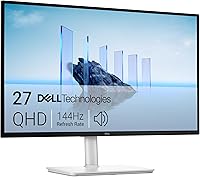
The Dell S2725DSM suits document work, spreadsheets, and a desk that needs flexible positioning. Its stand supports height, tilt, pivot, and swivel adjustments, including portrait placement for long documents.
The monitor measures 24.07 inches wide and 7.95 inches deep. Its HDMI and DisplayPort connections suit compatible computers, while built-in speakers cover basic audio without separate desk speakers.
The 144Hz refresh rate is useful for smoother motion, but it isn't a reason to choose this size for static documents. Prioritize the screen fit and stand adjustments first.
Skip it if you want 4K text detail or a physically larger view at your current scaling. A cramped desk may also call for a smaller display rather than more stand adjustments.
ViewSonic VS3225-2K: for a larger view of familiar layouts
The ViewSonic VS3225-2K suits people who want their existing QHD layout to appear larger. Its IPS panel and 75Hz refresh rate fit everyday documents, browsing, and media.
It measures 28.1 inches wide and 9.1 inches deep, so allow space for the base before choosing it. Dual HDMI inputs, DisplayPort, and built-in speakers support a straightforward desktop setup.
Its 100 x 100 mm VESA mounting pattern provides an alternative to the stand when paired with a suitable mount.
Skip it if you expect more spreadsheet rows than a smaller QHD screen at the same scaling. Choose a higher resolution if extra content or finer text detail matters more than physical text size.
Dell S3225QS: for a large, detailed workspace
The Dell S3225QS suits people who want multiple windows on one large display with finer detail. Its VA panel, height and tilt adjustments, and built-in speakers support a single-monitor work area.
The monitor is 28.05 inches wide and 8.73 inches deep. HDMI and DisplayPort provide video connections, and its refresh rate reaches up to 120Hz.
Confirm that your computer, cable, and any dock support your intended resolution and refresh rate together. You'll also need to set text scaling so menus and documents remain comfortable to read.
Skip it if your desk forces you close to the screen or you mainly want one simple document window. Browse large monitors for home offices if your workspace can accommodate other large-screen options.
Should you use one large monitor or two smaller ones?
Use one large display for a continuous workspace, or two for clearly separated tasks. A single screen avoids a center bezel, while two screens let you keep a call or reference document in its own space.
Two monitors need more width, more cable planning, and computer support for both displays. A laptop having enough sockets does not always mean it supports the display combination you want.
Place your main screen directly ahead if you use it most. If you use both equally, arrange them so you can move between them without repeatedly twisting your torso.
How should you set up and care for your monitor?
Set the native resolution first, then adjust scaling, position, and brightness. Keep the top of the screen around eye level or slightly below, and enlarge text before leaning toward it.
Place the screen to reduce window reflections and match brightness to the room. Very bright settings won't make small text easier to read.
Keep cables loose enough for height adjustments and clear of stand joints. If you're planning a laptop dock, our USB-C monitor guide explains what that connection can do.
For cleaning, turn the monitor off and use a clean microfiber cloth. Follow the manufacturer's care directions, avoid pressing on the panel, and never spray cleaner directly onto the screen.
How do you make the final monitor size decision?
Choose your home office monitor size by the constraint you cannot easily change: desk depth, readable text size, or the windows your work requires. Avoid buying a larger screen to solve a problem that scaling or better placement could fix.
Pick the Dell S2725DSM for mixed work and stand flexibility. Choose the ViewSonic VS3225-2K for larger QHD content, or the Dell S3225QS when a large 4K workspace fits both your desk and computer.
Before ordering, measure the footprint and check display support. Use the 27-inch and 4K monitor guides to narrow your choice once size and resolution are settled.
Sources
- U.S. Occupational Safety and Health Administration: Computer Workstations
- Apple: Use an external display with your Mac
Frequently asked questions
What is the best monitor size for a home office?
A 27-inch QHD monitor is a useful starting point for mixed home office work. Choose 24 inches if desk space is tight or you mainly use one window, and consider 32 inches if you can sit farther back and want larger text or a higher-resolution workspace.
Is a 24-inch monitor big enough for working from home?
Yes, a 24-inch monitor is big enough for email, writing, browsing, and video calls when you focus on one main window. It becomes more limiting when you need documents side by side, so consider your usual window layout before moving to a larger screen.
Is a 32-inch monitor too big for a home office?
A 32-inch monitor is too big if you cannot place it far enough away to read the whole screen comfortably. Measure desk depth and allow room for the stand and keyboard; then choose QHD for larger content at the same scale, or 4K for finer detail.
Should I get one large monitor or two smaller ones?
Choose one large monitor for a continuous workspace, or two smaller monitors when separate screens help you keep reference material beside your main task. Check total width, stand space, and your computer's support for multiple displays, especially if a dock or adapter sits between the computer and screens.