5 Best Portable Monitors for Laptops (October 2026)
The best portable monitors for laptops include the KYY Portable Monitor for mixed-location work, the InnoView Portable Monitor for HDMI desk setups, and the ForHelp Portable Monitor for shared worktables.
On this page (7 sections)
- How we chose the best portable monitors for laptops
- Which portable monitor fits your laptop setup?
- What should you check before buying a laptop screen extender?
- How do you set up a portable monitor for useful extra workspace?
- Which mistakes make a portable monitor less useful?
- How should you care for a portable monitor between work sessions?
- Which portable monitor should you choose for your laptop?
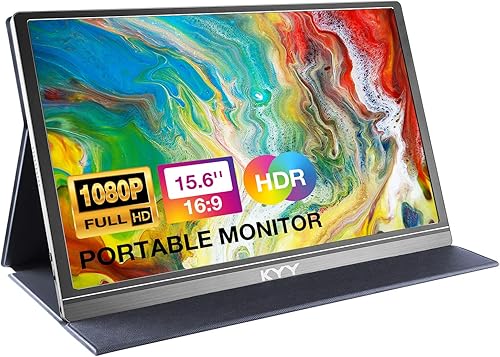
The KYY Portable Monitor is the best portable monitor for laptop users who move between home, shared desks and travel workspaces. It combines flexible connections with a protective cover stand, while Lenovo better suits adjustable desk positioning and Anyuse favors a lighter bag.
Your laptop's ports matter more than small differences between these screens. Before choosing, establish how you'll send video, supply power and support the display on the tables you actually use.
For a broader overview, read our guide to choosing a home office monitor. If you're still weighing the benefit of another screen, our portable monitor buying guide explains which routines suit one.
Our picks at a glance
-
1
-
2

-
3

How we chose the best portable monitors for laptops
Connection flexibility, usable stands and carry weight separate these picks more clearly than screen size. All 5 have a 15.6-inch, 1920 x 1080 IPS panel, so the useful question is how each fits your laptop and working routine.
GearedDaily compared the supplied specifications, accessories and connection requirements. KYY leads for its balance of inputs and practical accessories; the other choices address more specific needs.
A higher position doesn't make a monitor the right fit for every buyer. Lenovo's adjustable stand can matter more than KYY's HDMI option if you work long sessions from a compatible USB-C laptop.
We also kept uncertain details out of the recommendations. Anyuse needs a clearer stand plan, and Lenovo's conflicting weight figures need confirmation before carry weight becomes a deciding factor.
| Product | Best for | Screen | Weight | Connections | Our score |
|---|---|---|---|---|---|
| KYY Portable Monitor | mixed-location work | 15.6 in, 1920 x 1080 | 1.7 lb | USB-C, mini HDMI | 7.9 |
| InnoView Portable Monitor | HDMI desk setups | 15.6 in, 1920 x 1080 | 2.7 lb | USB-C, HDMI | 7.6 |
| ForHelp Portable Monitor | shared worktables | 15.6 in, 1920 x 1080 | About 1.5 lb | USB-C, mini HDMI | 7.4 |
| Anyuse Portable Monitor | light travel bags | 15.6 in, 1920 x 1080 | About 1.4 lb | USB-C, mini HDMI | 7.2 |
| Lenovo L15 Portable Monitor | longer desk sessions | 15.6 in, 1920 x 1080 | 7.0 |
Which portable monitor fits your laptop setup?
Choose KYY for varied workspaces, InnoView for a standard HDMI connection, ForHelp for more cable reach, Anyuse for lighter carrying, or Lenovo for adjustable height. The sections below explain the practical reason to choose each and when to skip it.
KYY Portable Monitor
- 15.6-inch 1920 x 1080 IPS screen
- USB-C and mini HDMI connections
- 1.7 lb
- Cover doubles as a stand
A cover stand, flexible video inputs and supplied connection cables make KYY a practical choice for moving between workspaces.
Pros
- Protective cover doubles as a stand
- USB-C and mini HDMI inputs
- USB-C and HDMI connection cables included
Cons
- No built-in battery
- Cover stand offers limited positioning
KYY: the best portable monitor for laptop work across locations
KYY suits someone who wants a second screen that can move from a home desk to a hotel table without a separate stand. Its 1.7 lb weight, cover stand and choice of USB-C or mini HDMI make it the most balanced starting point here.
The package includes USB-C to USB-C, USB-C to USB-A and mini HDMI to HDMI cables. That gives you the main cable types for either a compatible one-cable laptop connection or an HDMI connection with separate power.
The cover has 2 positioning grooves, so it offers a choice of tilt rather than full height adjustment. Buy it for portable document work, notes beside a meeting or reference material alongside your main application.
Skip KYY if raising the screen is your main goal, or if you expect it to run after being charged. It has no built-in battery and must stay connected to power during use.
Its menu control wheel provides a way to adjust settings without relying on laptop software. If your laptop's USB-C capability is unclear, use our USB-C monitor connection guide before choosing your cable route.
InnoView Portable Monitor
- 15.6-inch 1920 x 1080 IPS screen
- USB-C and standard HDMI connections
- Landscape and portrait use
- 2.7 lb
Standard HDMI suits workspaces already equipped with HDMI cables, while the cover stand supports flexible document layouts.
Pros
- Standard HDMI input
- Protective cover doubles as a stand
- Landscape and portrait modes
Cons
- Power adapter is not included
- Heavier than several other picks
InnoView: a practical fit for existing HDMI workspaces
InnoView makes sense if your laptop or desk setup already uses standard HDMI cables. Its full-size HDMI input avoids the need for a mini HDMI connector at the screen, and its USB-C inputs give compatible laptops another connection route.
The protective cover doubles as a stand, with 2 grooves for tilt. Landscape and portrait use make it worth considering for someone who switches between ordinary desktop work and longer documents.
At 2.7 lb, this is the least appealing of the clearly specified weights for someone counting every item in a travel bag. Choose it for occasional carrying or a moveable desk setup rather than for the smallest possible daily load.
Plan power before buying: InnoView does not include a power adapter and recommends one rated at 15 W or more. Its HDMI route also requires a separate power cable, so don't assume an existing video cable completes the setup.
InnoView supports power pass-through, but confirm the requirements for your laptop before depending on it for charging. Skip it if the main attraction is reducing bag weight or avoiding extra power accessories.
ForHelp Portable Monitor
- 15.6-inch 1920 x 1080 matte IPS screen
- USB-C and mini HDMI connections
- About 1.5 lb
- Cover doubles as a stand
Longer supplied cables give you room to place the screen around a shared worktable, and the matte panel suits everyday document work.
Pros
- Longer supplied connection cables
- Matte screen surface
- Magnetic cover doubles as a stand
Cons
- Cover offers two viewing-angle grooves
- Mini HDMI connection needs the matching cable
ForHelp: useful cable reach for flexible placement
ForHelp suits a shared worktable where the monitor can't always sit directly beside the laptop's ports. It supplies a 1.2 m full-function USB-C cable plus 1.5 m mini HDMI and USB-A power cables, giving you more freedom to route connections.
The screen has a matte surface, which can soften reflections compared with a glossy surface. You should still position it away from direct light, since a matte finish doesn't remove glare from a bright window.
Its aluminum-alloy body weighs about 1.5 lb, and the magnetic cover protects the screen and serves as a stand. That combination suits carrying between nearby workspaces without adding a separate support accessory.
Choose ForHelp if cable reach and a matte screen address your actual workspace problems. It also supports mirrored, extended and second-screen-only layouts, so you can share a document or keep reference material beside your main task.
Skip it if you need fine control over screen position. The cover's 2 angle grooves won't replace a height-adjustable stand, and you should leave enough room around the left-side mini HDMI connection to avoid bending the cable.
Anyuse Portable Monitor

- 15.6-inch 1920 x 1080 IPS screen
- USB-C and mini HDMI connections
- About 1.4 lb
- Built-in speakers
A low screen weight makes Anyuse worth considering for frequent carrying, provided you've planned its stand and screen protection.
Pros
- About 1.4 lb weight
- USB-C and mini HDMI inputs
- No app or driver required
Cons
- Confirm the stand and protective accessories
- USB-C video requires a compatible laptop
Anyuse: prioritize the weight of the complete kit
Anyuse is worth considering when a lighter screen makes daily carrying easier. At about 1.4 lb, it weighs less than KYY, InnoView and ForHelp, while retaining USB-C and mini HDMI connection options.
That advantage matters most when you're already carrying a laptop, charger and work materials. Count the stand, protective sleeve and power accessories too, since screen weight alone doesn't tell you what goes into your bag.
Confirm the stand and protective accessories before buying. A light display loses some of its appeal if the support you add takes up more space than expected.
Anyuse requires no app or driver installation, and its display modes cover mirroring, desktop extension and second-screen-only use. Built-in speakers give you an audio option, though headphones are generally more suitable in shared workspaces.
Choose it if carry weight is your priority and you already have a clear support plan. Skip it if you want a fully defined cover-and-stand arrangement with the purchase, or if adjustable screen height matters more than reducing the load.
Lenovo L15 Portable Monitor

- 15.6-inch 1920 x 1080 IPS screen
- Height-adjustable stand
- Two USB-C ports
- 60 Hz refresh rate
Choose the L15 when adjusting screen height matters more than having an HDMI input for older laptops.
Pros
- Height-adjustable stand
- Two USB-C ports
- Flicker-free technology
Cons
- No HDMI input among its stated connections
- Confirm monitor-only weight before travel
Lenovo L15: choose it for screen position
The Lenovo L15 suits someone who uses a portable display for longer desk sessions and wants to adjust its height. Raising the secondary screen can make it easier to arrange beside a laptop than a cover stand that only changes tilt.
It has 2 USB-C ports, a 60 Hz refresh rate and 250-nit brightness. Those features fit ordinary office work and video, but this is not the pick to choose specifically for high-refresh gaming.
Its stated connections don't include HDMI. Buy it only after confirming that your laptop can send video through the USB-C connection you plan to use.
Lenovo's supplied weight figures conflict, so confirm the monitor-only weight with Lenovo if daily carrying is central to your decision. The stand is the clearest reason to choose this model, rather than an uncertain claim about packing light.
Skip the L15 for an older HDMI-only laptop unless you've worked out a compatible conversion route. For a straightforward HDMI connection, one of the other picks provides a more direct match.
What should you check before buying a laptop screen extender?
Check video support, power and physical fit first. A display can have the right screen size yet be awkward to use because your laptop needs another cable, your bag is too small or the stand doesn't suit your desk.
Does your laptop support USB-C video?
A USB-C socket describes the connector shape, not every function behind it. Some laptop ports handle charging or data without sending a display signal.
Look up your exact laptop model and port specifications for DisplayPort Alt Mode or suitable Thunderbolt support. If the laptop has several USB-C ports, establish which one supports an external display.
The cable must support video too. A cable that charges your phone is not enough evidence that it can connect a monitor.
Our USB-C monitor guide explains these connections in more detail. If your laptop lacks USB-C video, choose an HDMI-equipped model and include separate power in the plan.
Can you power the monitor without disrupting your work?
A one-cable connection is convenient, but drawing power from the laptop also adds to its battery load. For long unplugged sessions, decide whether the extra workspace is worth the shorter time between charges.
For HDMI, think of video and power as separate paths. You'll need both connected, and access to an outlet becomes part of your workspace choice if you're using a wall adapter.
Don't assume that a second USB-C socket can charge your laptop at the rate it needs. Pass-through behavior and available power depend on the monitor, adapter and laptop combination.
Will the screen and stand fit your real workspace?
Check the display's full width and height against your bag, not just its diagonal screen measurement. Allow room for protection, cable ends and the stand.
A laptop and second screen also need more table space than a laptop alone. Measure the places where you work most often, especially narrow desks with little room behind the screen.
For a fixed workstation, a portable display may be a compromise you don't need. Our home office monitor guide covers larger choices, while our USB-C monitors for work guide helps compare desk-focused options.
Is Full HD enough for the work you do?
Full HD is a practical fit for a separate chat window, notes, browser reference or a single document. It becomes more limiting when you want several detailed windows on the portable screen itself.
Increasing text size improves readability but leaves less room for content. Think about what you'll put on the second display, rather than assuming more screen area automatically means more useful workspace.
The IPS panels here suit viewing from slightly different positions beside a laptop. Panel type alone doesn't establish suitability for color-critical photo or design work.
How do you set up a portable monitor for useful extra workspace?
Use an extended desktop and place one clear task on each screen. Mirroring repeats your laptop image, which helps with sharing but doesn't give you more room to work.
Connect video and power before arranging windows
Set the monitor on a stable surface and seat the stand or cover properly. Connect the chosen video cable and any required power cable, then select the matching input through the monitor's controls.
Open your computer's display settings once both screens are active. Choose the option to extend the desktop for independent content, or duplicate it when someone else needs to see the same view.
Arrange the display icons to match the screens' physical positions. This makes the pointer move across the correct edge instead of seeming to disappear in the wrong direction.
Match text size and working height
Adjust scaling on each screen until text is readable from your normal seated position. You don't need identical scaling percentages if the laptop and portable display make text appear at different sizes.
Keep your main task on the screen directly in front of you. Put notes, a call window or a reference page on the secondary screen to reduce repeated head turning.
For portrait use, change the orientation in display settings and make sure the support remains stable. Don't balance a screen on an edge unless its stand or support is designed for that position.
Check the complete travel setup before leaving
Connect the screen using the exact laptop, cables and power source you'll carry. Open your usual work applications and confirm that the layout remains useful when everything shares a small table.
Pack the working cables together so you don't replace a video-capable cable with a charging-only one by mistake. Leave enough cable slack that moving the laptop won't pull the screen over.
Which mistakes make a portable monitor less useful?
The most common mistakes involve power, workspace and expectations. Avoid buying around an attractive specification before checking how the display will fit into a normal workday.
Assuming every USB-C connection works the same way
A monitor turning on doesn't prove that a video connection is present. Power can reach the screen even when the laptop port or cable cannot carry the picture.
If you see no signal, check the chosen input, video capability and cable before changing unrelated settings. Repeated flickering or restarts call for checking the power source as well.
Expecting a travel screen to replace a large desk monitor
A portable display adds a place for a second task, but it doesn't create the same working area as a larger desktop monitor. If the screen will rarely leave home, compare desk space and text size before committing.
Our guide to choosing a home office monitor size helps you decide when a larger fixed display makes more sense.
Treating HDR as the main buying reason
HDR support alone doesn't establish strong highlight detail, deep blacks or suitability for editing HDR content. Choose these screens around office usability, connections and support rather than the HDR label.
Likewise, don't choose a monitor for demanding color work without checking the color coverage and accuracy your workflow needs. A clear office document and a color-sensitive image place different demands on a screen.
Packing only the display
A screen without its matching cable, support or power source can become dead weight in your bag. Build a complete kit around the connection route you actually use.
If you switch between work and personal laptops, check both computers separately. A connection that works on one does not confirm the capabilities of the other.
How should you care for a portable monitor between work sessions?
Protect the panel from pressure and keep strain off the ports. A thin display needs careful packing even when it has a protective cover.
Close or attach the cover before putting the screen in your bag. Keep chargers, plugs and other hard objects from pressing against the panel, and don't force the display into an overfilled compartment.
Disconnect cables before packing. Leaving a connector attached can put leverage on the port when the bag shifts.
For cleaning, turn the display off and use a clean, soft microfiber cloth. If needed, lightly dampen the cloth according to the monitor's care instructions rather than spraying liquid onto the screen.
Position the display away from direct sunlight when working. Moving it out of glare is often more useful than pushing brightness to its highest setting.
Use breaks to change position and look away from close work. Low-blue-light or flicker-free features don't replace readable text, sensible lighting and a comfortable desk arrangement.
Which portable monitor should you choose for your laptop?
The best portable monitor for laptop work is the one that matches your connection and workspace without extra hassle. Choose KYY when you want a balanced travel kit, or Lenovo when adjustable screen height will improve your desk setup.
Pick InnoView when standard HDMI fits your existing cables and its extra weight isn't a concern. Choose ForHelp for its longer supplied cables and matte screen, or Anyuse when reducing screen weight matters and you've settled the support arrangement.
Before ordering, write down the video cable, power source and stand you'll use. If those choices feel awkward for your routine, read whether a portable monitor is worth it before adding another screen to your bag.
Our top 3 picks at a glance
-
1
-
2
-
3
Frequently asked questions
Will any USB-C laptop connect to a portable monitor?
No. A one-cable connection requires a laptop port that supports video output, such as DisplayPort Alt Mode or a suitable Thunderbolt port, plus a video-capable cable.
A charging-only USB-C connection won't work. If your laptop lacks USB-C video, choose an HDMI-equipped display and arrange separate power.
Do portable monitors need their own power?
Portable monitors need a live power source during use unless they have a built-in battery. A compatible USB-C connection can carry both power and video, while HDMI needs a separate power path.
KYY has no battery, and InnoView excludes a power adapter, so plan your travel cables before leaving.
Are portable monitors good for a second laptop screen?
Yes, portable monitors suit a second document, meeting window or reference page beside your laptop. Choose an extended desktop to show different content on each screen.
They make less sense if you need large spreadsheets, roomy side-by-side windows or a display that stays at one desk all year.
Which portable monitor is easiest to position on a desk?
The Lenovo L15 is the strongest choice here for changing screen height because its stand adjusts vertically. KYY, InnoView and ForHelp use cover stands with fixed angle grooves.
Height adjustment helps you arrange two displays, but you should still check that the available position suits your chair, desk and laptop.
Why does a portable monitor show no signal or keep restarting?
No signal usually points to the video connection or selected input, while repeated restarts can indicate insufficient power. Check that the laptop port and cable support video, then select the matching monitor input.
If the screen keeps dropping out, connect suitable external power according to the monitor's instructions.


