How to Choose a Monitor for a Home Office
To choose a monitor for a home office, match screen size and resolution to your desk and main tasks. Then confirm comfortable text scaling, useful stand adjustments and connections that work with your computer.
On this page (10 sections)
- How to choose a monitor for a home office around your work
- What size monitor fits your home office?
- Is 4K or QHD better for office work?
- Which panel type suits office tasks?
- What monitor adjustments should you prioritize?
- Which monitor connections do you need?
- Which monitors fit different home office needs?
- How should you set up and care for a new monitor?
- What mistakes should you avoid before buying?
- How should you choose a monitor for your home office?
To choose a monitor for a home office, match screen size, resolution and text comfort to your desk and daily work. Then check stand movement and computer connections before paying for extras.
Start with the apps you keep open together. Reading a document beside a browser calls for a different setup than filling one screen with a large spreadsheet or a detailed drawing.
This guide puts those decisions in order. For a wider choice of models, see GearedDaily's complete home office monitor guide.
How to choose a monitor for a home office around your work
Choose the display around your busiest regular task, rather than the largest screen you can fit. Write down which windows need to stay visible and how large their text must be.
For email, video meetings and a document, a conventional widescreen monitor is a sensible starting point. You may gain more from a comfortable stand and readable text than from extra screen area.
Spreadsheet work needs enough room to see useful rows and columns without shrinking labels. Document comparison needs two readable windows, while detailed image work benefits from finer pixels and suitable color controls.
Remember that screen sharing can change the choice. Sharing one application is often clearer for meeting participants than sharing an entire desktop filled with small windows.
Separate must-haves from extras before comparing models. A connection that works with your laptop matters more than a high refresh rate you cannot use.
What size monitor fits your home office?
Start with 27 inches for a typical office desk, then move smaller or larger according to available space. A 24-inch screen suits tighter layouts, while 32 inches needs room to view the whole display comfortably.
Measure usable desk width and depth with the keyboard and mouse in place. Include room for papers, a laptop and anything else that stays on the desk during work.
Screen size is measured diagonally, so it does not tell you the monitor's width or base depth. Check the full dimensions and leave space for cables behind the display.
A larger screen does not automatically fit more work. At the same resolution and scaling, it mainly makes the same content physically larger.
Compare the trade-offs in our guide to 27-inch versus 24-inch monitors. For a broader size decision, read what size monitor you need for a home office.
How to choose a monitor for a home office with a small desk
Prioritize stand footprint and viewing space on a small desk. A display that forces your keyboard toward the edge or puts the screen too close is a poor fit, even if its width fits.
Mark the monitor's width and base depth with paper or tape. Sit in your normal position and check whether you can keep your shoulders relaxed and reach the mouse easily.
An arm may reclaim the area beneath the screen, but its joints still need clearance. A wall directly behind the desk can limit how far back some arms move.
If you settle on this size, check how far to sit from a 27-inch monitor before finalizing the layout.
Is 4K or QHD better for office work?
Choose QHD for a straightforward everyday workspace or 4K when sharper text and fine detail matter more. The useful difference depends on screen size and display scaling, not pixel count alone.
QHD means 2560 x 1440 pixels; 4K UHD means 3840 x 2160. More pixels can draw smoother text edges or show more content, depending on how you set the interface size.
Scaling enlarges menus, text and controls while keeping the monitor at its native resolution. Higher scaling improves readability but reduces how much content fits at once.
| Resolution | Useful starting point | Main buying question |
|---|---|---|
| 1920 x 1080 | Compact screens and basic single-window tasks | Is text clear enough at your preferred size? |
| 2560 x 1440 | Everyday work on a 27-inch screen | Can your main windows fit without cramped text? |
| 3840 x 2160 | Fine detail and larger workspaces | Does your preferred scaling leave enough usable room? |
At 27 inches, 4K suits people who read dense documents and want crisp text without accepting tiny controls. QHD is still a practical choice when your normal apps fit well and finer detail adds little.
At 32 inches, 4K gives you the same pixel count as a smaller 4K display spread over a larger area. That can make content easier to read at the same scaling, rather than adding more digital workspace.
Avoid lowering the display resolution just to enlarge text. Try operating-system scaling first, then adjust individual app zoom where needed.
Our guide to whether a 4K monitor is worth it for office work explains the trade-off in more detail.
Which panel type suits office tasks?
IPS is a useful default for shared viewing, while VA can suit straight-on use and contrast-focused work. Compare individual displays rather than treating either panel name as a quality grade.
IPS generally keeps colors more consistent when you move off-center. That helps when someone sits beside you or when you use a wide screen at close range.
VA panels often offer higher contrast, but that is not a promise for every model. The three Dell monitors below all specify a 1500:1 contrast ratio despite using different panel types.
Color coverage also needs context. A broad color gamut does not, by itself, establish color accuracy or make a display suitable for color-critical client work.
For ordinary documents and browser use, readable text and controlled reflections deserve priority. Our IPS versus VA monitor guide covers the panel differences.
Place the monitor so windows are beside it where possible. Anti-glare surfaces can help with reflections, but they cannot fully overcome a bright window facing the screen.
What monitor adjustments should you prioritize?
Prioritize height and tilt adjustment so the display works with your chair and desk. Swivel and pivot are useful when your work involves sharing the screen or reading long pages in portrait orientation.
Set your chair and keyboard position first, then move the display to suit you. Keep the main screen centered rather than spending the day looking sideways.
A useful starting position puts the top of the screen around eye level, with your gaze falling slightly downward. Adjust for your glasses and posture so you can read without lifting your chin or leaning forward.
Try the included stand before adding an arm. If it reaches a comfortable position and leaves enough work space, another mount may offer little benefit.
The HUANUO arm suits someone who needs to move a compatible display often or clear space beneath it. It supports 75 x 75 mm and 100 x 100 mm VESA patterns and a screen weight of 4.4 to 19.8 lb.
HUANUO gives conflicting supported screen sizes, so confirm compatibility with your exact monitor before buying. Use the monitor's weight without its stand, rather than its shipping weight or total assembled weight.
Its stated desk thickness range is 0.59 to 3.54 inches, and HUANUO recommends a wood tabletop. Check for underside rails, drawers and rear panels that could block the clamp or grommet hardware.
Skip this arm if your stand already works well, your desk cannot support the mounting method or screen compatibility remains unclear. During installation, support the screen while adjusting tension and leave enough cable slack for movement.
Which monitor connections do you need?
Choose a connection that supports your computer, desired resolution and refresh rate together. Matching plug shapes is only the first step.
Check the computer's display output, the monitor input and any dock or adapter between them. The whole connection path must support the mode you want.
If you plan to run two monitors, also confirm how many external displays your computer supports. A dock with several video sockets does not guarantee that every computer can drive them all.
USB-C is useful for laptop users who want video and charging through one cable. Both devices must support the required functions, and the monitor's power delivery must suit the laptop.
The Dell options below use HDMI and DisplayPort connections. Choose a different connection-focused model if built-in USB-C laptop charging is a requirement.
Read what a USB-C monitor is to understand the functions, then compare USB-C monitors for work if that setup fits your routine.
Which monitors fit different home office needs?
Choose the S2725QS for fine text, S2725DSM for everyday QHD work or S3225QS for a larger view. These are different fits for your desk and workflow, rather than a simple good-better-best ranking.
Dell S2725QS: for document-heavy work
The Dell S2725QS suits readers, writers and people who compare detailed documents. Its combination of a 27-inch 4K IPS screen and a fully adjustable stand makes it a strong fit when sharp text matters more than a larger panel.
Use scaling to make menus comfortable, then set document zoom around the amount of each page you need to see. This is more useful than forcing everything to fit at the smallest possible size.
Its refresh rate reaches 120Hz, which can make scrolling and pointer movement look smoother when your computer supports it. That is a useful extra, while text clarity remains the main reason to choose this model for office work.
The screen covers 99% sRGB and includes built-in speakers. Those speakers provide an audio option, but they do not replace the microphone you need for calls.
Skip it if QHD already meets your needs and finer text would add little to your work. Also look elsewhere if your goal is a larger physical view or a monitor that directly charges your laptop.
Dell S2725DSM: for everyday office apps
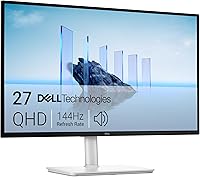
The Dell S2725DSM suits email, browser work, documents and routine spreadsheets. Its 27-inch QHD IPS display is a sensible choice when you want readable side-by-side apps without making 4K detail a priority.
Height, tilt, pivot and swivel adjustments let you fit the screen to your seated position. Portrait use can help with long documents, though it trades away the width needed for two windows.
The display supports up to 144Hz and includes dual 3W speakers. The higher refresh rate adds smoother motion, but it should not outweigh resolution and text comfort in a work-focused decision.
Choose this model when your main windows fit at a comfortable text size. It also makes sense if you would rather keep your workspace simple than adjust a higher-resolution display around several apps.
Skip it for fine-detail work where sharper text or image detail is the main goal. A larger panel is also a better direction if you want content physically bigger without moving closer.
Dell S3225QS: for a larger working view
The Dell S3225QS suits a deeper desk and someone who wants a large main display. Its 32-inch 4K VA screen gives documents and app controls more physical room than a smaller screen at the same scaling.
The monitor measures 28.05 inches wide, with an assembled depth of 8.73 inches. Mark that footprint on your desk and check whether you can still sit comfortably with your keyboard in place.
It supports up to 120Hz and covers 99% sRGB and 95% DCI-P3. For office work, its size is the more useful deciding factor than its wider color coverage.
Its stand provides height and tilt adjustment. If you need frequent side-to-side repositioning or portrait use, choose a setup with those movements available.
Skip it on a shallow desk where you would need to turn your head often to see the corners. Do not assume the HUANUO arm above is a match without resolving its size limits and confirming this monitor's mounting requirements.
How should you set up and care for a new monitor?
Start with native resolution, readable scaling and comfortable placement. Finish those basics before changing advanced picture settings.
Use this order for the first setup:
- Connect power and a suitable video cable, then select the correct input.
- Choose the monitor's native resolution in your computer's display settings.
- Adjust scaling until menus and controls are easy to read.
- Select the desired supported refresh rate.
- Arrange your main work windows and adjust app zoom.
- Set height, distance and brightness for the room.
Keep brightness close to the surrounding light level rather than leaving it at maximum. A white document should be readable without looking like a bright lamp in a dim room.
For two screens, set their positions in the operating system to match their physical layout. Keep the screen you use most directly ahead, and use the second for reference material.
Turn the display off before cleaning and follow Dell's care instructions. Use a clean, soft cloth, avoid pressing hard on the panel and keep liquid away from edges and ports.
Leave slack in cables when adjusting the stand or arm. Check mounting hardware periodically and keep ventilation openings clear.
What mistakes should you avoid before buying?
Avoid choosing by screen size or refresh rate alone. The most costly mismatch is a monitor that fits the specification target but fails to fit your desk or work habits.
- Expecting 4K to guarantee more usable space: comfortable scaling may use much of the extra pixel count.
- Buying a larger panel to fit more windows: resolution and scaling determine digital workspace.
- Ignoring the stand: a broad base or limited height range can disrupt an otherwise suitable setup.
- Assuming any dock will work: check its display limits with your specific computer.
- Treating color coverage as accuracy: gamut percentages do not establish reliable color reproduction.
- Adding an arm before checking fit: weight, mounting pattern, screen size and desk construction all matter.
Before ordering, picture a normal hour of work on the new screen. Confirm that your two most-used apps, keyboard, mouse and call setup can all work together.
For more model choices, see our best monitors for home offices. If the size decision is settled, the best 27-inch monitors for home office guide narrows the comparison.
How should you choose a monitor for your home office?
Make the final choice around the limitation you need to solve. More detail, a larger physical view and better desk positioning call for different changes.
Choose the Dell S2725DSM when everyday apps fit comfortably at QHD. Choose the Dell S2725QS when sharper text and fine detail are worth prioritizing on a standard-size desk.
Choose the Dell S3225QS when you want content spread across a larger screen and have room to sit back. Add the HUANUO arm only when you need its movement or desk clearance and have confirmed compatibility.
Knowing how to choose a monitor for a home office means checking the whole setup before ordering. If a larger display is your clear next step, use our large home office monitor guide to compare the options.
Frequently asked questions
What size monitor is best for working from home?
A 27-inch monitor is a useful starting point for everyday home office work. Choose 24 inches when desk space is tight, or consider 32 inches when you have room to sit farther back.
Check screen width, stand depth and comfortable text size before choosing by diagonal size alone.
Is 4K worth it for office work?
4K is worth considering if you read dense text, work with detailed images or want sharp text at a comfortable size. Scaling determines how much workspace remains available.
Choose QHD if it already fits your apps well, and confirm your computer supports the resolution and refresh rate you want.
Should I choose IPS or VA for a home office monitor?
IPS is a useful default if you share your screen or need consistent color from different viewing angles. VA can suit straight-on work and people who value contrast.
Compare individual models, though, because panel type alone does not establish contrast, motion quality or suitability for color-sensitive work.
Do I need a monitor arm for my home office?
You need a monitor arm only if the included stand cannot provide the position or desk clearance you want. Confirm the screen's weight without its stand, VESA pattern and the arm's supported size.
Also check desk thickness, construction and underside clearance before choosing clamp or grommet mounting.
Is USB-C necessary on a home office monitor?
USB-C is useful for a laptop setup when one compatible cable can carry video and charging power. It is not required for a desktop or a laptop that works well through HDMI or DisplayPort.
Check video support and charging wattage separately, because a USB-C port does not guarantee either function.