5 Best USB-C Monitors for Work (October 2026)
The best USB-C monitors for work include the LG 27UP850K-W for laptop-centered desks, the Dell S2725DC USB-C for everyday office work, and the ASUS ProArt PA279CV for web content creators.
On this page (11 sections)
- Which USB-C monitor for work fits your desk?
- How we compared these USB-C monitors
- How do the USB-C monitors compare?
- How to choose the best USB-C monitor for work
- How much USB-C power delivery do you need?
- Is 4K worth it for office work?
- Which stand adjustments matter at a desk?
- How should you set up a USB-C monitor for work?
- Which USB-C monitor mistakes should you avoid?
- How should you care for a USB-C work monitor?
- Which best USB-C monitor for work should you choose?
The best USB-C monitor for work for most people is the LG 27UP850K-W, with a 27-inch 4K IPS screen and laptop charging up to 90W. It suits a permanent desk where you want clear text and fewer cables to reconnect each morning.
Choose the Dell for smoother everyday use, the ASUS for color-focused work, or the Philips for viewing two devices. The INNOCN is worth considering for document work that benefits from a stand with several adjustments.
Start with what a USB-C monitor does if connection types are unclear. Our home office monitor guide covers the wider choice of screen sizes and desk layouts.
Our picks at a glance
-
1

-
2
-
3

Which USB-C monitor for work fits your desk?
Choose by your main work constraint: laptop power, text detail, color requirements or the need to view two computers. A feature you use daily matters more than a longer list of extras.
The LG leads this group for a laptop-centered desk. The other picks have clearer roles when your priority is motion, a defined color workflow, portrait documents or dual-device viewing.
LG 27UP850K-W
- 27-inch 4K IPS display
- USB-C power delivery up to 90W
- Height, tilt and pivot adjustments
- DisplayHDR 400
Choose the LG for a laptop-centered desk where sharper text, higher charging power and connections for accessories all matter.
Pros
- Higher laptop charging capacity than the other picks
- USB hub plus two HDMI connections
- Adjustable stand with portrait orientation
Cons
- Stand does not offer swivel adjustment
- 60Hz refresh rate trails the Dell
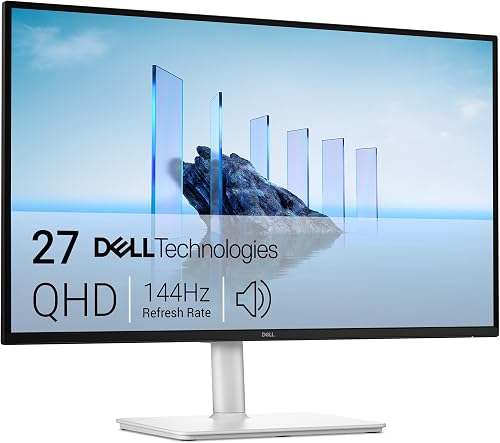
Dell S2725DC USB-C
- 27-inch QHD IPS display
- 144Hz refresh rate
- USB-C power delivery up to 65W
- Height, tilt, pivot and swivel adjustments
The Dell suits email, documents and browser work when you value smoother scrolling and easy access to accessory ports over maximum pixel detail.
Pros
- Higher refresh rate than the LG and INNOCN
- Pop-out USB-C and USB-A accessory connections
- Four stand adjustments and built-in speakers
Cons
- Less pixel detail than the 4K alternatives
- Laptop charging capacity is below the LG
ASUS ProArt PA279CV
- 4K resolution
- 100% sRGB and 100% Rec. 709 color gamut
- Factory calibration with Delta E < 2
- USB-C power delivery up to 65W
The ProArt fits web graphics and Rec. 709 video workflows where defined color coverage and factory calibration matter more than high-refresh motion.
Pros
- Calman Verified factory calibration
- Defined sRGB and Rec. 709 coverage
- USB hub and four stand adjustments
Cons
- Lower laptop charging capacity than the LG
- Color features offer less benefit for email-only work
INNOCN 27 4K USB-C

- 27-inch 4K IPS display
- USB-C power delivery up to 65W
- HDR400
- Height, tilt, swivel and pivot adjustments
The INNOCN suits document-heavy work where you want a detailed screen, portrait rotation and a stand that also swivels toward another seat.
Pros
- Four stand adjustments
- 75 x 75 mm VESA mount support
- DisplayPort and HDMI alongside USB-C
Cons
- 60Hz refresh rate trails the Dell
- Less suitable if a USB accessory hub is essential
Philips 27 USB-C 4K

- 27-inch 4K IPS display
- USB-C power delivery up to 65W
- MultiView dual-device support
- Height, pivot and tilt adjustments
Choose the Philips when viewing two connected devices on one screen would help your work. MultiView is its clearest reason to choose it over the other options.
Pros
- MultiView displays two devices at once
- USB hub functionality
- Height adjustment and portrait rotation
Cons
- MultiView does not establish shared keyboard and mouse control
- Stand does not offer swivel adjustment
How we compared these USB-C monitors
We compared their connections, screen features and physical adjustments against common office tasks. GearedDaily's scores reflect those tradeoffs, with particular weight on how well each monitor supports a laptop desk.
The main questions were practical: can it charge your computer, show your work at a readable size and sit at a comfortable height? We also considered accessory connections and features that serve a specific workflow.
Color coverage matters more for image work than email. A higher refresh rate matters more for motion than static spreadsheets, while dual-device viewing helps only if you actually use two sources.
How do the USB-C monitors compare?
Start with power delivery and resolution, then compare stand movement. Those choices determine whether a monitor fits your computer and desk before extras enter the decision.
The table puts the core differences together. Read the product sections for the buyer each option suits and the reason to pass.
| Product | Best for | Resolution | USB-C power delivery | Stand adjustments | Our score |
|---|---|---|---|---|---|
| LG 27UP850K-W | laptop-centered desks | 3840 x 2160 | Up to 90W | Height, tilt and pivot | 7.8 |
| Dell S2725DC USB-C | everyday office work | 2560 x 1440 | Up to 65W | Height, tilt, pivot and swivel | 7.6 |
| ASUS ProArt PA279CV | web content creators | 3840 x 2160 | Up to 65W | Height, tilt, pivot and swivel | 7.5 |
| INNOCN 27 4K USB-C | portrait document work | 3840 x 2160 | Up to 65W | Height, tilt, swivel and pivot | 7.4 |
| Philips 27 USB-C 4K | two-device workflows | 3840 x 2160 | Up to 65W | Height, pivot and tilt | 6.9 |
LG 27UP850K-W
- 27-inch 4K IPS display
- USB-C power delivery up to 90W
- Height, tilt and pivot adjustments
- DisplayHDR 400
Choose the LG for a laptop-centered desk where sharper text, higher charging power and connections for accessories all matter.
Pros
- Higher laptop charging capacity than the other picks
- USB hub plus two HDMI connections
- Adjustable stand with portrait orientation
Cons
- Stand does not offer swivel adjustment
- 60Hz refresh rate trails the Dell
The LG 27UP850K-W is the strongest choice for a permanent laptop work desk. Its 4K screen and up to 90W USB-C charging combine text detail with the highest laptop power allowance in this group.
That extra power is useful when your computer needs more than the other monitors can supply. It doesn't make the LG necessary for a lower-power laptop, so judge it against your computer rather than choosing by wattage alone.
Connections include DisplayPort, 2 HDMI inputs, 2 USB 3.0 ports and a headphone jack. This gives you room for another video source and desk accessories without making every connection directly to the laptop.
The stand supports height, tilt and pivot, and built-in speakers cover basic audio needs. LG also specifies up to 95% DCI-P3 coverage and DisplayHDR 400, useful features to consider if work includes images or video.
Skip it if smoother motion is your first priority: its refresh rate is 60Hz. Also choose a stand with swivel if you often turn the screen toward someone beside you.
Dell S2725DC USB-C
- 27-inch QHD IPS display
- 144Hz refresh rate
- USB-C power delivery up to 65W
- Height, tilt, pivot and swivel adjustments
The Dell suits email, documents and browser work when you value smoother scrolling and easy access to accessory ports over maximum pixel detail.
Pros
- Higher refresh rate than the LG and INNOCN
- Pop-out USB-C and USB-A accessory connections
- Four stand adjustments and built-in speakers
Cons
- Less pixel detail than the 4K alternatives
- Laptop charging capacity is below the LG
The Dell S2725DC USB-C is a good fit for documents, browser work and frequent scrolling. Its 27-inch QHD IPS screen runs at up to 144Hz, favoring smoother motion over the pixel detail of the 4K choices.
A higher refresh rate can make cursor movement and scrolling look more fluid when your computer supports it. It doesn't make a static document sharper, so separate that preference from your need to inspect small text or images.
The main USB-C connection provides up to 65W for a compatible laptop. A pop-out accessory section adds USB-A and a separate USB-C port with up to 15W output; that accessory port isn't the main laptop charging connection.
Height, tilt, pivot and swivel let you position the screen without turning the whole stand. Dual 3W speakers are useful for routine audio, though calls still require a microphone.
Skip the Dell if maximum text detail or image inspection comes first. It also isn't the right single-cable charging choice for a laptop whose power needs exceed its main USB-C output.
ASUS ProArt PA279CV
- 4K resolution
- 100% sRGB and 100% Rec. 709 color gamut
- Factory calibration with Delta E < 2
- USB-C power delivery up to 65W
The ProArt fits web graphics and Rec. 709 video workflows where defined color coverage and factory calibration matter more than high-refresh motion.
Pros
- Calman Verified factory calibration
- Defined sRGB and Rec. 709 coverage
- USB hub and four stand adjustments
Cons
- Lower laptop charging capacity than the LG
- Color features offer less benefit for email-only work
The ASUS ProArt PA279CV is the clearest fit for web graphics and color-managed video work. ASUS specifies 100% sRGB and 100% Rec.
709 coverage, plus Calman Verified factory calibration with Delta E below 2.
Those features give it a specific role beyond general office work. Matching the display mode to your project still matters, because color coverage alone doesn't ensure that every app handles color correctly.
Its 27-inch 4K screen provides detail for layouts, photos and documents. USB-C carries DisplayPort video and up to 65W power delivery, with HDMI, DisplayPort and a USB hub supporting a more connected desk.
The stand offers height, tilt, pivot and swivel. That flexibility helps if you move between a wide editing layout and a vertical document or need to adjust the screen for another seat.
Skip it if your work is mainly email and scheduling, where its color features won't guide many decisions. Before ordering, confirm the PA279CV model and 27-inch 4K specification, since similarly presented screen descriptions can refer to a different size.
INNOCN 27 4K USB-C
- 27-inch 4K IPS display
- USB-C power delivery up to 65W
- HDR400
- Height, tilt, swivel and pivot adjustments
The INNOCN suits document-heavy work where you want a detailed screen, portrait rotation and a stand that also swivels toward another seat.
Pros
- Four stand adjustments
- 75 x 75 mm VESA mount support
- DisplayPort and HDMI alongside USB-C
Cons
- 60Hz refresh rate trails the Dell
- Less suitable if a USB accessory hub is essential
The INNOCN 27 4K USB-C suits long documents and changing screen positions. Its stand adjusts for height, tilt, swivel and pivot, so you can move between landscape work and a vertical reading layout.
Portrait orientation can suit code, contracts and reference pages. It works best when the app benefits from extra vertical space; a wide spreadsheet may be easier to use in landscape.
The 27-inch IPS screen provides 4K resolution at 60Hz, with HDR400 support. USB-C charging reaches up to 65W, while DisplayPort, HDMI and a 3.5 mm audio connection cover other sources and audio output.
It also supports a 75 x 75 mm VESA mount. If you plan to use an arm, match the arm's weight capacity and mounting pattern before removing the supplied stand.
Skip it if routing several USB accessories through the monitor is essential. The LG, ASUS and Philips have explicit USB hub features, making them more natural starting points for that desk arrangement.
Philips 27 USB-C 4K
- 27-inch 4K IPS display
- USB-C power delivery up to 65W
- MultiView dual-device support
- Height, pivot and tilt adjustments
Choose the Philips when viewing two connected devices on one screen would help your work. MultiView is its clearest reason to choose it over the other options.
Pros
- MultiView displays two devices at once
- USB hub functionality
- Height adjustment and portrait rotation
Cons
- MultiView does not establish shared keyboard and mouse control
- Stand does not offer swivel adjustment
The Philips 27 USB-C 4K makes most sense for viewing two connected devices at once. MultiView is useful when you need to keep one computer visible while working on another.
For example, you could watch a reference source beside your main work session. Dividing one screen reduces the space available to each source, so think about the size of the windows you'll actually need.
Its 27-inch 4K IPS display pairs with USB-C video, data and charging up to 65W. HDMI, DisplayPort and USB hub functionality provide other connection options.
The stand adjusts for height, pivot and tilt, while Philips includes LowBlue Mode and Flicker-Free technology. Screen position, room lighting and sensible brightness still deserve attention throughout the workday.
Skip it if you expect MultiView to switch a keyboard and mouse between computers. Dual-device viewing doesn't establish that control function, and you may need separate peripherals or a suitable external switch.
How to choose the best USB-C monitor for work
Check laptop compatibility before choosing screen features. A monitor can't provide a useful single-cable desk connection unless the computer, cable and monitor support the functions you need.
Match a USB-C work monitor to your laptop
Your laptop's USB-C port must support video output, commonly through DisplayPort Alt Mode or a compatible Thunderbolt connection. A USB-C shape alone doesn't tell you which functions the port supports.
Check the computer's documentation for external display limits at your intended resolution and refresh rate. If you also use a dock or adapter, include its limits in that check.
For an employer-provided computer, check any restrictions on hubs or attached devices. It helps to settle those requirements before building your desk around the monitor's accessory ports.
Count accessories before counting ports
Write down what stays at the desk: keyboard, mouse receiver, webcam, storage and audio gear. Then separate USB accessories from video sources, since HDMI and DisplayPort inputs don't replace USB data ports.
Leave a convenient connection for devices you plug in briefly. A reachable accessory port can matter more day to day than an extra socket hidden behind the screen.
Match the desk to the screen
Measure the space for the stand, keyboard and laptop, including room behind the monitor for cable bends. Screen width alone won't tell you whether the whole setup fits.
If you're assembling a wider setup, our guide to choosing a monitor for a home office helps you work through size, layout and daily tasks in order.
How much USB-C power delivery do you need?
Match the monitor's charging output to your laptop's requirements, including the workload you expect at the desk. A computer used for documents may draw less power than the same machine during demanding creative work.
Use the laptop's charging guidance as your starting point. The wattage on its original adapter is a useful reference, though the computer may also support charging at other power levels.
If the monitor supplies too little power, a compatible laptop may charge slowly or lose battery while plugged in. Keeping its own charger connected can solve the power shortfall while USB-C handles the display.
More available wattage doesn't force excess power into a compatible computer. With USB Power Delivery, supported devices negotiate power, so a higher-capacity monitor can also serve a laptop with lower needs.
Remember that the monitor still needs wall power. A single-cable setup describes the connection to your laptop, not every cable on the desk.
Is 4K worth it for office work?
Choose 4K for finer detail; choose QHD if its desktop size and motion suit your routine. The useful difference depends on text size, viewing distance and how you arrange apps.
At the same screen size, extra pixels can make text edges and fine image detail look cleaner. They don't require you to work with tiny menus or unreadable spreadsheet cells.
Display scaling enlarges interface elements while retaining the screen's native pixel resolution. Increasing scaling can improve readability, but it also reduces how much content fits compared with a smaller interface setting.
Think in terms of real tasks: 2 readable documents side by side may be more useful than 4 cramped windows. Your preferred zoom level matters as much as the desktop's theoretical capacity.
For a deeper comparison, read whether a 4K monitor is worth it for office work. Our best 4K monitors for work guide covers more choices if detail is your deciding factor.
Which stand adjustments matter at a desk?
Height and tilt are the first adjustments to prioritize, because they help place the screen without changing your chair or posture. Swivel and pivot solve different problems rather than replacing those basics.
Swivel turns the screen toward another seat or part of the desk. Pivot rotates it into portrait orientation, which can help with long pages but requires enough clearance above the desktop.
Start with the screen centered on your main work position and its top around eye level or slightly below. Adjust from there so you can read without lifting your chin or leaning forward.
If you wear lenses that change how you look at the screen, a lower position may work better. The goal is a relaxed viewing position rather than forcing every desk into one fixed measurement.
Our guide to what size monitor you need for a home office explains how desk space affects the choice. Use the 27-inch monitor viewing distance guide to plan the space between you and the panel.
How should you set up a USB-C monitor for work?
Connect the monitor directly first, then add accessories once the display and charging work. This makes it easier to identify a cable, port or display-setting problem.
Power the monitor and select its USB-C input. Connect the laptop to the upstream USB-C connection rather than an accessory charging port.
Use a cable that supports video and the required charging power. A phone charging cable may fit both ends without supporting the display connection.
Choose the native resolution in your display settings. Then adjust scaling and app zoom until text is readable from your normal seated position.
Select the intended refresh rate. A supported higher rate may need to be selected manually, and available modes depend on the full connection path.
Set the external monitor as your main display if appropriate. Arrange its position relative to the laptop screen so the pointer crosses between them where you expect.
Add USB accessories and check audio routing. Confirm that the computer recognizes each device and sends sound to your preferred output.
If the screen stays blank, check the input selection, laptop port capability and cable before adding adapters. A direct connection with a known video-capable cable gives you fewer possible causes to sort through.
Which USB-C monitor mistakes should you avoid?
Don't assume that one USB-C port can do everything another USB-C port does. Most avoidable buying errors come from overlooking the difference between video, data and charging functions.
Expecting a hub to work through HDMI alone
HDMI sends picture and audio, but it doesn't provide the USB data connection needed for a monitor's USB accessories. A hub needs a suitable upstream connection to the computer.
Treating HDR as the main office feature
HDR support isn't a reason by itself to choose a monitor for documents. Readable text, suitable brightness and a comfortable position have a more direct effect on ordinary desk work.
For color-sensitive projects, use a display mode that matches your delivery format. A wider color mode isn't automatically the right choice for every image or website.
Assuming a second screen will connect through the first
A USB-C connection doesn't automatically provide display daisy-chaining. Plan each monitor's connection separately unless the exact computer and monitor combination explicitly supports your intended arrangement.
Forgetting what a video call needs
Built-in speakers don't establish that a monitor includes a webcam or microphone. Check your full call setup before deciding which accessories you can remove from the desk.
Choosing screen size without leaving reading distance
A larger screen can be awkward when a shallow desk puts it too close. If space is tight, compare 27-inch and 24-inch monitors before committing to this size.
How should you care for a USB-C work monitor?
Keep the screen clean, the vents clear and the cable free from strain. These habits support a tidy daily setup without special maintenance routines.
Turn the monitor off before cleaning, and follow its care instructions. Use a clean microfiber cloth, avoid pressing hard on the panel and never spray liquid directly onto the screen.
Route cables with enough slack for height changes and portrait rotation. A tight cable can pull on a connector when you move the display or adjust the stand.
When reconnecting a laptop, hold the plug rather than pulling the cable. Avoid trapping the cable under a stand foot or making a sharp bend beside the connector.
Set brightness to suit the room instead of leaving it at maximum. Reduce reflections by changing the screen angle or light position, and take regular breaks from close screen work.
Which best USB-C monitor for work should you choose?
Pick the LG for a laptop-centered desk, Dell for everyday office motion, and ASUS for a defined color workflow. Choose INNOCN when its stand flexibility suits document work, or Philips when viewing two devices is central to your day.
Make the final decision with 3 checks: your laptop can send video through the intended port, the charging arrangement meets its needs, and the screen fits your desk at a readable distance. Those checks matter more than an extra feature you rarely use.
If compatibility is the remaining question, read what a USB-C monitor does before buying. The best USB-C monitor for work is the one that fits your computer and daily routine with the fewest compromises.
Our top 3 picks at a glance
-
1
-
2
-
3
Frequently asked questions
What should I check before buying a USB-C monitor for work?
Check USB-C video support, charging requirements and the display modes your laptop can output. Then check the cable, accessory ports and stand movement.
A matching connector alone doesn't establish compatibility: some USB-C ports carry data without video, and some cables support charging without the video features you need.
Is 65W enough to charge a work laptop?
65W can be enough for a laptop designed to charge within that power limit. Compare it with your computer's USB-C charging requirements and normal workload.
A laptop that accepts lower-power charging may charge slowly or lose battery under heavy use, so keep its own charger available if needed.
Should I choose a 4K or QHD USB-C monitor?
Choose 4K when sharper text, detailed images or closer inspection of creative work matters most. Choose QHD when you prefer a simpler desktop size for everyday apps and want the Dell's higher refresh rate.
Display scaling affects usable workspace, so more pixels don't automatically mean comfortably fitting more windows.
Can one USB-C cable connect a laptop to a monitor?
Yes, one compatible USB-C cable can carry video, laptop charging and USB accessory data between supported devices. The monitor still needs its own power connection.
Check the laptop port, monitor input and cable capabilities together, and connect to the monitor's upstream USB-C port rather than a downstream accessory port.
Does MultiView let two computers share a keyboard and mouse?
MultiView lets you display content from two devices, but that doesn't by itself provide keyboard and mouse switching. Shared peripheral control requires a separate supported function, such as a KVM switch.
Plan how you'll control each computer before choosing a monitor mainly for its dual-device viewing feature.