What Is a USB-C Monitor?
A USB-C monitor receives video through a compatible USB-C connection, which can also carry accessory data and charge a laptop. Video support, charging power, and cable compatibility determine whether you can use one cable.
On this page (9 sections)
- What is a USB-C monitor, and what can one cable do?
- Does your computer's USB-C port support a monitor?
- How much USB-C charging power do you need?
- Which USB-C monitor suits your work?
- What screen features matter beyond USB-C?
- How do you set up and care for a USB-C monitor?
- Is USB-C better than HDMI or DisplayPort?
- What mistakes should you avoid before buying?
- Which USB-C monitor should you choose?
A USB-C monitor receives video through a compatible USB-C connection, which can also carry accessory data and charge a laptop. It's useful when you want to dock a laptop at your desk with fewer cables.
The key is compatibility: the computer, monitor, and cable must support the functions you need. A USB-C socket alone doesn't promise a picture or enough power to replace your charger.
What is a USB-C monitor, and what can one cable do?
A USB-C monitor has a USB-C video input for a compatible computer or other device. When the connection also supports data and power delivery, one cable can link your screen, connected accessories, and laptop charging.
The monitor still needs power from an outlet. “One cable” describes the connection to your laptop, not the entire desk.
Think of a monitor with a USB hub as a place to leave a keyboard and mouse connected. If its upstream USB-C connection carries data, those accessories can communicate with your laptop through that cable.
A USB-C input doesn't automatically include Ethernet, a webcam, or control of accessories across multiple computers. Choose the extra functions you need rather than assuming every USB-C display works like a full docking station.
Does your computer's USB-C port support a monitor?
Your computer needs video output over USB-C, commonly described as DisplayPort Alt Mode or DisplayPort over USB-C. Some USB-C ports handle charging and data without sending a display signal.
Check the computer manual for the exact port you plan to use. If your laptop has several similar sockets, their functions can differ.
Check cable support separately. A cable made mainly for charging may fit correctly but carry no video, while another may support video without the power capacity your laptop needs.
Don't assume a phone or tablet will mirror its screen because it has USB-C. It must support external video output, and its display behavior depends on the device.
If the screen stays blank, our guide to fixing an LG monitor with no signal covers input selection and other connection checks.
How much USB-C charging power do you need?
Match the monitor's power delivery wattage to your laptop's recommended power supply. Use the computer manufacturer's guidance, especially if your laptop has a separate high-power charger.
A laptop can accept less power than it needs for demanding work. That may mean slow charging, reduced performance, or a falling battery level while the monitor remains connected.
The wattage on a power adapter with several output modes isn't always the amount your laptop draws. Check the recommended supply for your exact computer rather than judging by connector shape.
For a desktop or Mac mini, laptop charging power isn't a buying priority. Focus on compatible video output, resolution, and useful accessory ports.
Which USB-C monitor suits your work?
Choose by screen needs first, then charging and connections. These 4 models show how the same connector can serve different desks.
Dell S2725DC: everyday work and smoother motion
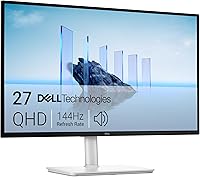
The Dell suits someone who wants a 27-inch QHD screen with a 144Hz refresh rate for office work and off-hours entertainment. Its lower resolution than the 4K choices means less fine detail, but text can be comfortable without heavy scaling.
Height, tilt, pivot, and swivel adjustments help position the screen around your chair and desk. Built-in speakers suit basic desk audio, while the quick-access USB-C and USB-A connections make accessories easier to reach.
Skip it if your main goal is dense text or detailed images at 4K. Also avoid choosing it solely for laptop charging if your computer needs more power than it provides.
INNOCN 27 4K USB-C: detailed documents and portrait work
The INNOCN suits readers who want fine detail and a flexible stand. Its IPS panel runs at 60Hz, making it a better match for documents, spreadsheets, and image work than for buyers prioritizing high refresh rates.
The stand offers height, swivel, tilt, and pivot adjustment. Portrait orientation can suit long documents or code, though you'll need to rotate the desktop in your operating system too.
Skip it if charging a more power-hungry laptop through the monitor is essential. For color-critical paid work, plan a managed color workflow rather than treating color specifications as a substitute for calibration.
Philips 27 USB-C 4K: working with 2 devices
The Philips suits someone who wants to view 2 connected devices at once. Its MultiView feature supports that workflow, such as keeping information from another computer visible beside your main task.
Height, pivot, and tilt adjustments help with screen placement, and USB hub functionality supports a desk with connected accessories.
Skip it if your reason for choosing MultiView is to share a keyboard and mouse between computers. Showing 2 sources and switching USB accessories are separate functions, so confirm the control arrangement your workflow requires.
LG 27UP850K-W: higher charging needs and more connections
The LG suits a laptop user who needs more charging headroom or wants several devices connected. Its USB-C power delivery reaches 90W, but that still needs to match your computer's requirements.
The 27-inch 4K IPS screen runs at 60Hz, with height, tilt, and pivot adjustments. Two USB 3.0 ports provide places for desk accessories, and built-in speakers cover basic audio.
Skip it if high refresh rates matter more than fine detail. Its higher power delivery also adds little value for a desktop that doesn't charge through the monitor.
For a wider shortlist, see the best USB-C monitors for work. Our guide to the best monitors for Mac mini focuses on desktop needs.
What screen features matter beyond USB-C?
Prioritize readable text, usable workspace, and comfortable positioning. USB-C changes how you connect, but resolution, screen size, and stand adjustment shape your daily experience.
At 27 inches, 4K can make text and image edges finer than QHD. You'll often use display scaling to keep menus readable, so more pixels don't always mean fitting more windows at a comfortable size.
Read our guide to whether a 4K monitor is worth it for office work before choosing resolution. For desk fit, start with what size monitor you need for a home office.
Refresh rate matters if you value smoother scrolling or play fast-moving games. Confirm that your computer and connection support your chosen resolution and refresh rate together.
Stand adjustment deserves attention too. A sharp screen won't help much if you must hunch forward to read it; our 27-inch monitor viewing distance guide helps with placement.
How do you set up and care for a USB-C monitor?
Connect the computer to the monitor's video-capable upstream USB-C port, select that input, and adjust your display settings. Don't confuse it with an accessory port intended for charging or data.
USB-C monitor setup in 5 steps
- Connect the monitor to outlet power and turn it on.
- Use a video-capable USB-C cable between the computer and the correct monitor input.
- Select USB-C in the monitor's input menu if it doesn't switch automatically.
- Choose extended or mirrored displays, then set native resolution, readable scaling, and the desired supported refresh rate.
- Check that laptop charging and connected USB accessories work as expected.
If the picture works but charging doesn't, check the power requirement and cable capacity. If accessories fail, confirm that they use the monitor's hub ports and that the USB-C connection supports data.
Leave slack in the cable so moving the laptop doesn't pull sideways on either socket. Avoid sharply bending the cable where it meets the connector.
For cleaning, turn the monitor off and use a clean microfiber cloth. Follow its care instructions for stubborn marks, and keep liquid away from ports rather than spraying the screen directly.
Is USB-C better than HDMI or DisplayPort?
USB-C is often the more convenient laptop connection, while HDMI and DisplayPort work well when you only need video and audio. Picture quality depends on supported display modes, not the connector name alone.
HDMI doesn't charge your laptop or link its USB accessories through the same cable. A desktop connected by HDMI or DisplayPort may therefore need a separate USB connection to use a monitor hub.
Keep an alternate video connection in mind if you change computers later. Multiple inputs can also save you from unplugging cables each time you switch devices.
What mistakes should you avoid before buying?
Avoid buying on connector shape alone. Confirm the whole connection path and distinguish useful desk features from features you won't use.
- Don't confuse USB-C accessory charging with the monitor's laptop-charging input.
- Don't expect a USB hub to provide every docking-station function.
- Don't assume dual-device viewing includes shared keyboard and mouse control.
- Don't choose 4K without allowing for readable text scaling.
- Don't assume a high advertised refresh rate works at every resolution through every input.
For broader planning, computer monitors for home offices covers screen choices beyond the cable connection.
Which USB-C monitor should you choose?
Choose a USB-C monitor that fits your computer's power needs and your daily work. Pick Dell for QHD and smoother motion, INNOCN for detailed work with a flexible stand, Philips for dual-device viewing, or LG for higher charging power and more connections.
If your computer can't send video over USB-C, choose a compatible HDMI or DisplayPort setup instead. Use our guide to choosing a home office monitor to settle screen size, resolution, and desk fit before ordering.
Frequently asked questions
What does a USB-C monitor do?
A USB-C monitor receives video through a compatible USB-C connection. Some models also charge your laptop and connect accessories through the same cable, but these functions depend on the monitor, computer, and cable.
The connector shape alone doesn't confirm which features will work.
Can any USB-C cable connect a laptop to a monitor?
No, you need a USB-C cable that supports video and the charging power your setup requires. A charging-only cable can fit both ports without producing a picture.
Use the monitor's supplied display cable when available, or choose a replacement with clear video and power specifications.
Does a USB-C monitor charge a laptop?
A USB-C monitor can charge a compatible laptop if its input supports USB Power Delivery. Check the available wattage against your laptop's recommended power supply.
A lower-power connection may charge slowly or let the battery drain during demanding work, so you may still need the laptop charger.
Is USB-C better than HDMI for a monitor?
USB-C is more convenient when you want video, laptop charging, and accessory data through one cable. HDMI suits devices that only need a display connection or lack USB-C video output.
Neither connector guarantees better picture quality; the supported resolution and refresh rate matter more.