6 Best Curved Monitors for Work (October 2026)
The best curved monitors for work include the Samsung ViewFinity S50GC for two-computer desks, the Dell S3425DW for everyday laptop work, and the LG 34WR55QK-B for mixed-device workflows.
On this page (10 sections)
- How to choose the best curved monitor for work
- The best curved monitors for work
- How much workspace does a 34-inch curved monitor add?
- Which panel, curve and refresh features matter for office work?
- How do you check laptop charging and connections?
- Is a 34-inch curved monitor right for your desk?
- How should you set up a curved monitor for work?
- Which mistakes make a curved work monitor less useful?
- How do you clean and care for a curved monitor?
- Which is the best curved monitor for your work setup?
The Dell S3425DW is the best curved monitor for work here for most laptop users because its charging connection and adjustable stand cover everyday desk needs. Choose a different model when higher charging power, two-computer work or built-in streaming matters more.
These monitors share a wide desktop, but their extra features solve different problems. Start with the apps you keep open and the computer you connect, then decide which features will earn their place on your desk.
Our best ultrawide monitors for work guide covers more workspace options. For other screen sizes and shapes, see our complete home office monitor guide.
Our picks at a glance
-
1

-
2

-
3

How to choose the best curved monitor for work
Choose by workflow, desk fit and computer compatibility, in that order. A wider screen helps when it keeps useful information visible, but it adds little if you spend the day in one narrow window.
We compared workspace features, connections, panel types and stand movement. The products remain in descending score order, while the recommendations explain which features should take priority for your work.
Which curved monitor is best for your work routine?
For document-heavy work, look for enough room to keep a draft beside its source. Spreadsheet users benefit when the extra width reveals useful columns without shrinking text to an uncomfortable size.
For coding, a central editor with a reference pane can be more useful than several equally narrow windows. Video meetings also work better when the call window sits near your camera instead of at the far edge.
Write down your 3 most-used apps and sketch their positions before choosing. That small step tells you more about the value of an ultrawide than its diagonal size alone.
Does your work suit a curved screen?
A curve makes the most sense when one person sits centered in front of a wide display. It deserves more thought if coworkers often look over your shoulder or you regularly move between different viewing positions.
People doing precise layout work may also prefer flat screen geometry. Our curved vs flat monitor guide explains how those preferences affect the choice.
| Product | Best for | Screen | Resolution | Connectivity | Our score |
|---|---|---|---|---|---|
| Samsung ViewFinity S50GC | two-computer desks | 34 in, 21:9 | 3440 x 1440 | 2 HDMI, DisplayPort | 8.5 |
| Dell S3425DW | everyday laptop work | 34 in, 21:9 curved | 3440 x 1440 | HDMI, USB-C | 8.0 |
| LG 34WR55QK-B | mixed-device workflows | 34 in, 21:9 curved | 3440 x 1440 | USB-C, 2 HDMI, DisplayPort | 7.6 |
| LG 34SR60QC-W | work-and-streaming spaces | 34 in, 21:9 curved | 3440 x 1440 | 2 HDMI, 3 USB | 7.5 |
| LG 34U650A-B | higher-power laptop desks | 34 in, 21:9 curved IPS | 3440 x 1440 | USB-C, DisplayPort, HDMI | 7.1 |
| Samsung ViewFinity S65UA | wired office setups | 34 in, 21:9 curved | 3440 x 1440 | USB-C, Ethernet, HDMI, DisplayPort | 6.9 |
The best curved monitors for work
The Dell S3425DW is the strongest general curved recommendation here, while the other picks suit more specific needs. Read each model's fit and limitations before letting its score decide for you.
Samsung ViewFinity S50GC
- 34-inch 21:9 screen
- 3440 x 1440 resolution
- 100Hz refresh rate
- Picture-by-Picture and Picture-in-Picture
Picture-by-Picture and Picture-in-Picture let you keep two sources visible on one ultrawide screen. Consider this a workspace alternative because its curvature isn't confirmed.
Pros
- Two-source viewing with PBP and PIP
- Ambient light sensor adjusts brightness
- HDMI and DisplayPort connections
Cons
- Curvature isn't confirmed
- Choose another pick if USB-C laptop charging is essential
The Samsung ViewFinity S50GC suits a desk where two sources need to stay visible. Picture-by-Picture places them beside each other, while Picture-in-Picture keeps a smaller secondary view over your main workspace.
That can help when you compare a work computer with another device or keep a secondary dashboard in view. Two HDMI inputs and DisplayPort give you several ways to connect those sources.
Its ambient light sensor adjusts brightness as room lighting changes. That is useful near a window, though you should still position the screen to avoid direct reflections.
Choose it for a broad workspace and flexible source viewing, rather than for a particular screen shape. Its curvature isn't confirmed, so it remains an ultrawide alternative in this roundup despite having the highest fixed score.
Skip it if a curved panel or USB-C laptop charging is essential. Also remember that showing two computers doesn't mean one keyboard and mouse will control both.
Dell S3425DW
- 34-inch 21:9 curved screen
- 3440 x 1440 resolution
- USB-C with up to 65W power delivery
- Height and tilt adjustment
USB-C charging, built-in speakers and an adjustable stand cover the main needs of a daily laptop desk. Check your computer's charging requirement before relying on one cable.
Pros
- USB-C with up to 65W charging
- Height and tilt adjustment
- 120Hz refresh rate
Cons
- Higher-power laptops may need their own charger
- 20.7 lb weight
The Dell S3425DW suits a daily laptop desk where simple connection and comfortable placement matter most. USB-C supplies up to 65W of power, and the stand adjusts for height and tilt.
Those features address two common problems: plugging in several cables each morning and working with a screen set too low. Built-in speakers also let you hear calls or media without adding separate desk speakers.
Its 120Hz refresh rate is the highest here, making it a sensible choice if smoother scrolling and window movement appeal to you. That extra motion smoothness doesn't create more workspace or make text sharper.
Choose Dell for office apps, browsing and meetings when your laptop's charging needs fit its power output. It offers the most straightforward balance for that routine.
Skip it if your computer needs substantially more power and your goal is to put its charger away. The higher-power LG below is a better starting point, while the LG 34WR55QK-B suits buyers who specifically need DisplayPort and two-source tools.
LG 34WR55QK-B
- 34-inch 21:9 curved screen
- 3440 x 1440 resolution
- USB-C with up to 65W power delivery
- OnScreen Control with Picture-by-Picture
Multiple video connections and Picture-by-Picture suit a desk shared by a laptop and desktop. OnScreen Control adds software-based window layouts and monitor adjustments.
Pros
- USB-C with up to 65W charging
- Height and tilt adjustment
- OnScreen Control with PbP
Cons
- OnScreen Control requires software installation
- Higher-power laptops may need separate charging
The LG 34WR55QK-B suits a laptop-and-desktop workspace where both connection choice and screen organization matter. It combines USB-C with up to 65W charging, two HDMI ports, DisplayPort and two USB ports.
LG's OnScreen Control software supports screen splitting and Picture-by-Picture. Splitting helps organize windows from one computer; Picture-by-Picture brings separate input sources onto the same display.
That distinction matters if you work across a personal computer and an employer's laptop. You can keep both visible without assuming that the screen also shares their keyboard, mouse or files.
The stand offers height and tilt adjustment, so you can line up the display with your seated position. Reader Mode adds a warmer reading option for document work.
Choose this LG when its input flexibility solves a real desk problem. Skip it if you only connect one laptop and have no use for the extra controls, or if your work computer blocks software installation and those tools are central to your choice.
LG 34SR60QC-W
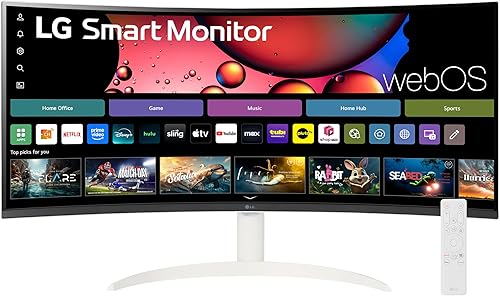
- 34-inch 21:9 curved smart screen
- 3440 x 1440 resolution
- Built-in webOS23
- AirPlay 2 and HomeKit compatibility
Built-in webOS23 lets this work display serve as a streaming screen when the computer is off. AirPlay 2 adds casting and mirroring from compatible Apple devices.
Pros
- Streaming without a connected computer
- AirPlay 2 and HomeKit compatibility
- Built-in speaker
Cons
- Streaming needs internet access and may need subscriptions
- LG Magic Remote sold separately
The LG 34SR60QC-W suits a desk that doubles as an entertainment space. Its webOS23 platform provides streaming access without keeping a computer connected, and a built-in speaker handles audio.
AirPlay 2 supports casting and mirroring from compatible Apple devices. That offers another way to put content on the screen, though a wired computer connection remains the practical starting point for a regular workday.
The display has two HDMI ports and three USB ports, plus tilt adjustment. Its 1800R curve gives it a more pronounced bend than the gentle-curve LG 34U650A-B.
Streaming requires internet access, and individual services may need subscriptions. The compatible LG Magic Remote is sold separately, so decide whether you want its controls before building your setup around them.
Choose it if switching from work to streaming in the same seat is a regular habit. Skip it if the monitor's main job is charging your laptop or providing flexible stand movement, since those priorities point toward other models here.
LG 34U650A-B

- 34-inch 21:9 curved IPS screen
- 3440 x 1440 resolution
- USB-C with up to 96W laptop charging
- Height, swivel and tilt adjustment
Higher USB-C power delivery suits compatible laptops that need more than 65W. The IPS panel, gentle curve and adjustable stand also suit desks where viewing position changes.
Pros
- IPS panel
- USB-C with up to 96W charging
- Height, swivel and tilt adjustment
Cons
- Lower contrast than the VA options here
- 22.3 lb weight
The LG 34U650A-B suits buyers who need more laptop charging power and an IPS panel. USB-C handles display, data and up to 96W charging, which makes it worth considering when the lower-power options fall short.
Its gentle 3800R curve suits someone who wants a wide display without a strong wraparound shape. LG describes the IPS panel as keeping visuals consistent across wide viewing angles.
Height, swivel and tilt adjustment let you change position without rebuilding the desk layout. Built-in speakers and the Switch app, which supports layouts with up to 6 sections, add options for organizing daily work.
The trade-off is a 1000:1 contrast ratio, lower than the 3000:1 VA options here. That difference matters more for dark content than for fitting another document window on screen.
Choose it when charging power, viewing flexibility and stand movement are priorities. Skip it if deeper-looking blacks matter more, or if your laptop requires more power than this monitor can supply during demanding work.
Samsung ViewFinity S65UA

- 34-inch 21:9 curved screen
- 3440 x 1440 resolution
- USB-C with 90W charging
- Ethernet connectivity
USB-C charging and Ethernet suit a laptop desk built around wired connections. Its pronounced curve is a key reason to choose it or skip it.
Pros
- USB-C with 90W charging
- Ethernet connectivity
- Height-adjustable stand
Cons
- Strong 1000R curve may not suit shared viewing
- A gentler curve may suit straight-line layout work better
The Samsung ViewFinity S65UA suits a wired laptop workstation. Its USB-C connection provides 90W charging, and Ethernet adds a network connection at the monitor.
That combination is useful when your desk is built around fixed connections rather than a laptop moving between rooms. HDMI and DisplayPort also give you options for other computers.
The main buying decision is its strong 1000R curve. Choose that shape because you want a screen that wraps toward you, rather than assuming a stronger bend is automatically better for office work.
A height-adjustable stand helps position the screen, and Picture-by-Picture and Picture-in-Picture support different source layouts. Its 4000:1 contrast ratio is also the highest stated ratio among these picks.
Choose it when wired networking and charging solve daily cable needs and you prefer a pronounced curve. Skip it for frequent side-by-side viewing with another person, or when a subtle curve feels better suited to your documents and layouts.
How much workspace does a 34-inch curved monitor add?
A 34-inch ultrawide adds horizontal room, rather than making every app larger. All the models here use a 21:9 layout and 3440 x 1440 resolution, so their basic desktop capacity is similar.
Compared with a 2560 x 1440 screen, that gives you 880 extra horizontal pixels with the same vertical count. It can reveal more spreadsheet columns or create room for a reference pane, but it doesn't add more rows.
Don't treat an ultrawide as two full-size monitors joined together. Dividing it in half produces two narrower work areas, and apps with wide toolbars may need a larger share of the screen.
A useful starting layout is one large main window and one smaller reference window. Add a third pane only when it contains information you need often enough to justify the space.
Screen sharing needs planning, too. Sharing the whole wide desktop can make text small for coworkers on narrower screens, so share a single application window when possible.
Which panel, curve and refresh features matter for office work?
Panel type affects how the image looks; curvature affects screen shape. Neither replaces the need for readable text, sensible brightness and a comfortable viewing position.
IPS generally suits buyers who value image consistency from different angles. VA is worth considering when stronger contrast matters, especially for dark backgrounds and evening media use.
Those are broad panel traits, not a promise about every aspect of image quality. Our IPS vs VA monitor guide explains the choice in more detail.
Curvature uses an R number, with a smaller number indicating a tighter curve. That number describes geometry, rather than a required sitting distance or a comfort guarantee.
Refresh rate describes how often the display updates each second. Higher refresh rates can make scrolling and pointer motion look smoother, but office buyers should put desk fit and connections ahead of a modest refresh-rate difference.
HDR support and color-gamut coverage also need perspective. They don't establish accurate color by themselves, so don't choose a monitor for color-critical work solely because it supports HDR10 or covers sRGB.
How do you check laptop charging and connections?
Check video support and charging power separately before planning a one-cable desk. A laptop can have a USB-C port without supporting the display connection you need.
Compare the monitor's power delivery with your laptop's charging requirements. If the available power is too low, the computer may charge slowly or need its own adapter during heavier tasks.
Using a separate charger is a workable choice when the rest of the monitor fits your needs. It simply means USB-C won't remove every cable from your desk.
The cable matters as well as the ports. Use one that supports the needed video, data and charging functions, and check your computer or dock's supported resolution and refresh rate.
A dock or adapter can become the limit even when the computer and monitor support your desired mode. Trace the complete connection path before buying an extra cable to solve the wrong problem.
For a closer look at these setups, see our best USB-C monitors for work.
Is a 34-inch curved monitor right for your desk?
Allow about 32 in of width for the monitor itself, then leave space for the equipment you actually use. Measuring only the diagonal screen size won't tell you whether the desk layout works.
Mark the monitor's footprint on your desk and include its stand depth. These models have overall depths of roughly 9–10 in, but the keyboard and your preferred viewing position also need room.
Sit in your normal chair position and imagine reading the far edges. If your eyes or head must keep moving to reach important content, move those windows closer to the center or place the display farther back.
Keep the main screen directly ahead rather than offset beside an open laptop. A laptop stand at one side can work, but it shouldn't force you to turn toward a secondary screen for most of the day.
Before buying a monitor arm, confirm the exact mounting pattern, weight support and desk-clamp fit. A general mounting description isn't enough to establish compatibility.
For other large-screen layouts, compare our best large monitors for home offices. If screen shape is still the main question, use our curved vs flat monitor guide.
How should you set up a curved monitor for work?
Start with native resolution, a centered position and readable text. Set up the physical desk before fine-tuning window layouts or image modes.
Position the screen before adjusting software
Place the display so its center lines up with your normal seated position. Adjust its height so you can read the main work area without lifting your chin or hunching forward.
Use an arm's length as a starting point, then adjust for your eyesight, desk depth and text size. Keep the keyboard and mouse close enough that the screen position doesn't make you reach forward all day.
Set resolution, scaling and refresh rate
Select the native resolution in your computer's display settings. If text looks too small, increase operating-system scaling or the app's text size instead of lowering resolution first.
Check that the intended refresh rate is selected, since connecting a capable monitor doesn't always enable the highest mode automatically. If that option is missing, review the cable, adapter and computer output.
Build a layout around your main task
Give the center of the screen to the document, editor or spreadsheet you use most. Put reference material at one side and messages at the other only when they need to stay visible.
Save useful layouts with your operating system's window tools or supported monitor software. A repeatable arrangement makes the extra width useful without filling every inch with distractions.
Match brightness to the room
Reduce brightness if white pages look harsh beside your surroundings. Position lamps and windows so they don't reflect directly in the screen.
Warmer reading modes can change how colors appear, so switch them off when comparing color-sensitive work. Take regular breaks from close focus instead of relying on an eye-care mode to do that job.
Which mistakes make a curved work monitor less useful?
The biggest mistake is buying width without planning how to use it. A large desktop still feels cramped when every app is maximized or every pane is too narrow.
Another mistake is treating Picture-by-Picture as a complete two-computer control system. It brings images together, but keyboard and mouse sharing require separate support.
Don't assume built-in speakers include a microphone or webcam. Plan those devices separately for meetings, and keep the camera near the window you watch during calls.
Avoid buying mainly for streaming features when your desk needs charging and stand adjustment. Smart functions earn their place when you will use them, rather than simply adding another menu.
Finally, don't expect every video to fill an ultrawide screen. Content with a different aspect ratio can leave unused space, and stretching it changes the image's proportions.
How do you clean and care for a curved monitor?
Use gentle cleaning and careful handling to protect the panel. Turn the monitor off, let it cool and remove dust with a clean, soft microfiber cloth.
Follow the manufacturer's cleaning instructions for marks that need more than dry wiping. Never spray liquid directly on the screen or press hard to remove a stubborn spot.
Support the frame when moving the monitor and avoid lifting it by the panel. Leave ventilation openings clear and give cables enough slack for any height or swivel adjustment.
Keep drinks away from the stand and route cables where they won't pull on the ports. On smart monitors, sign out of personal services before passing the display to someone else.
Which is the best curved monitor for your work setup?
The best curved monitor for work is the one that removes your main daily constraint. Choose by the connection, viewing style or work habit that matters most.
- Choose Dell S3425DW for an everyday laptop desk with straightforward charging, speakers and stand adjustment.
- Choose LG 34WR55QK-B when mixed inputs and two-source viewing are central to your workflow.
- Choose LG 34SR60QC-W when the same desk regularly serves work and computer-free streaming.
- Choose LG 34U650A-B when higher charging power, IPS and flexible positioning take priority.
- Choose Samsung ViewFinity S65UA when wired networking and a pronounced curve fit your fixed workstation.
- Consider Samsung ViewFinity S50GC for two-source ultrawide work if confirmed curvature isn't required.
Before ordering, settle the desk layout and laptop power question. Those checks are more likely to change your choice than another small difference in image features.
For more choices built around side-by-side work, see our best ultrawide monitors for work.
Our top 3 picks at a glance
-
1
-
2
-
3
Frequently asked questions
Are curved monitors good for office work?
Curved monitors suit office work when you need a wide desktop for documents, spreadsheets and reference windows. The shape works best with you seated near the center, rather than viewing from the side.
Choose for useful screen space and desk fit first; a curve alone doesn't improve your workflow.
What size curved monitor is best for work?
A 34-inch ultrawide is a useful starting point for side-by-side work without two separate screens. It provides horizontal room for several windows, but it won't suit every desk or every app.
For other screen shapes and sizes, compare the options in our home office monitor guide.
Is a 34-inch curved monitor too wide for a desk?
A 34-inch curved monitor is too wide if its roughly 32-inch body leaves no useful room for your other equipment or forces an awkward viewing position. Measure desk depth as well as width.
For more screen-size guidance, read what size monitor you need for a home office.
Do curved monitors for work need USB-C?
No, USB-C isn't required if HDMI or DisplayPort already connects your computer. It matters most when a compatible laptop can receive video and charging through one cable.
Check both your laptop's video support and its power requirement, since a USB-C connector alone doesn't confirm either capability.
Is a curved monitor better than a flat monitor for work?
A curved monitor can suit a wide, centered workspace, while a flat display may suit shared viewing or a preference for straight screen geometry. Neither shape guarantees better text or more usable space.
Resolution, scaling and placement also matter; our curved vs flat monitor guide explains the trade-offs.