5 Best Ultrawide Monitors for Work (October 2026)
The best ultrawide monitors for work include the Samsung ViewFinity S50GC for desktop multitaskers, the Dell S3425DW for laptop docking, and the LG 34WR55QK-B for two-computer desks.
On this page (12 sections)
- How we chose the best ultrawide monitors for work
- Which ultrawide monitor fits your work setup?
- What screen space does a 34-inch ultrawide actually give you?
- How much desk room should you leave?
- When does USB-C charging make the biggest difference?
- Should you choose a curved ultrawide?
- How should you use split screen and two-source modes?
- Which display features matter most for office work?
- How do you set up an ultrawide for work?
- How should you care for an ultrawide monitor?
- What mistakes should you avoid before ordering?
- Which best ultrawide monitor for work should you buy?
The Samsung ViewFinity S50GC is the best ultrawide monitor for work if you want side-by-side apps and two-source viewing without making laptop charging the priority. Choose the Dell S3425DW for daily laptop docking, or the LG 34WR55QK-B if you also want picture-by-picture.
All five picks provide the same basic screen space, so start with your computer connections and desk layout. An extra input, the right charging output or a height-adjustable stand can matter more during a workday than entertainment features.
Our picks at a glance
-
1

-
2

-
3

How we chose the best ultrawide monitors for work
We compared workspace, connections, screen adjustment and useful office features. The aim is to match each monitor to a real desk, from a desktop with reference windows to a laptop that needs charging through its display cable.
Every pick has a 34-inch, 21:9 screen with 3440 x 1440 resolution. None gives you more pixels than the others, so buying a lower-ranked model can make sense when its ports or controls better match your routine.
Two-source viewing gets extra weight for people using separate computers. USB-C charging matters most for laptop users, while streaming apps are useful mainly when the desk also serves as an entertainment space.
| Product | Best for | Resolution | Refresh rate | Connectivity | Our score |
|---|---|---|---|---|---|
| Samsung ViewFinity S50GC | desktop multitaskers | 3440 x 1440 | 100Hz | 2 HDMI, DisplayPort | 8.5 |
| Dell S3425DW | laptop docking | 3440 x 1440 | Up to 120Hz | HDMI, USB-C | 8.0 |
| LG 34WR55QK-B | two-computer desks | 3440 x 1440 | 100Hz | USB-C, 2 HDMI, DisplayPort, 2 USB | 7.6 |
| LG 34SR60QC-W | work and streaming | 3440 x 1440 | 100Hz | 2 HDMI, 3 USB | 7.5 |
| Samsung ViewFinity S65UA | higher-power laptops | 3440 x 1440 | 100Hz | USB-C, HDMI, DisplayPort, Ethernet | 6.9 |
Which ultrawide monitor fits your work setup?
Choose the S50GC for desktop multitasking, the Dell for laptop docking, or the LG 34WR55QK-B for a desk with two computers. The smart LG and higher-power Samsung serve more specific needs.
Samsung ViewFinity S50GC
- 34-inch 21:9 Ultra-WQHD display
- 3440 x 1440 resolution
- 100Hz refresh rate
- Picture-by-picture and picture-in-picture
A wide workspace with two-source viewing suits desktop users who keep documents, reference material and another device in view.
Pros
- Picture-by-picture and picture-in-picture
- Two HDMI inputs plus DisplayPort
- Ambient light sensor adjusts brightness
Cons
- Choose a USB-C model for one-cable laptop charging
- 32.1 in width needs room beside desk accessories
The Samsung ViewFinity S50GC suits a desktop worker who keeps a main task beside reference material. Think of a spreadsheet next to invoices, an article beside research notes, or a project board alongside email.
Its picture-by-picture mode brings two input sources onto the screen, while picture-in-picture keeps a smaller second source visible. These modes serve different jobs: equal attention for two computers, or a main workspace with something else to monitor.
Two HDMI inputs and DisplayPort give you connection choices for separate devices. The ambient light sensor adjusts brightness as room lighting changes, which is useful in a workspace that gets daylight and evening use.
Make this your first choice if screen organization matters more than charging a laptop through the monitor. It also suits a laptop that already connects through a dock or uses a separate charger.
Skip it if your main aim is to arrive at your desk and connect one cable for both video and power. The Dell and USB-C LG below fit that routine more directly.
Dell S3425DW
- 34-inch curved 21:9 WQHD display
- USB-C with up to 65W power delivery
- Up to 120Hz refresh rate
- Height and tilt adjustment
USB-C charging, an adjustable stand and built-in speakers suit a desk where a compatible laptop connects each morning.
Pros
- One-cable video and charging for compatible laptops
- Height and tilt adjustment
- Built-in speakers
Cons
- 65W charging may fall short of your laptop's needs
- 20.7 lb weight makes frequent moves less convenient
The Dell S3425DW fits someone who brings a laptop to the desk each morning. USB-C with up to 65W power delivery can handle video and charging through one cable when the laptop supports both.
Height and tilt adjustment help you place the screen around your chair and keyboard. Built-in speakers also give you an audio option without adding separate speakers to the desk.
Its refresh rate reaches up to 120Hz, the highest maximum in this group. That makes it worth considering if smooth scrolling and after-work play matter, though it does not create extra room for documents.
Choose this Dell if you want a curved laptop display with everyday desk features in one package. Its 99% sRGB and 95% DCI-P3 coverage describe color range, but those figures alone do not establish color accuracy for critical editing.
Skip it if your laptop needs more charging power than the monitor supplies. Also weigh its 20.7 lb weight if you regularly move your display between rooms or work surfaces.
LG 34WR55QK-B
- 34-inch curved 21:9 UltraWide WQHD display
- USB-C with up to 65W power delivery
- Picture-by-picture support
- Height and tilt adjustable stand
This LG combines laptop charging with picture-by-picture viewing and software tools for arranging a busy workspace.
Pros
- USB-C laptop charging
- Picture-by-picture for separate input sources
- Height and tilt adjustment
Cons
- OnScreen Control requires software installation
- 10.2 in depth needs room behind your keyboard
The LG 34WR55QK-B suits a desk where you connect a laptop but also need to view another computer. It combines USB-C charging with picture-by-picture, giving it a clear role beyond being another wide display.
LG's OnScreen Control helps arrange the workspace and adjust basic monitor options. The software requires installation, so check your workplace's rules before making it part of your plan.
Two HDMI ports, DisplayPort, two USB ports and a headphone jack give you several ways to connect desk equipment. Its height and tilt adjustments help place the screen without building your setup around a fixed viewing position.
Pick this LG if your day moves between a work laptop, a desktop and several open apps. It is especially useful when seeing both sources at once matters more than switching the whole screen back and forth.
Skip it if you cannot install the software and that feature is your main reason for choosing it. On a shallow desk, account for its 10.2 in depth before leaving space for your keyboard and forearms.
LG 34SR60QC-W
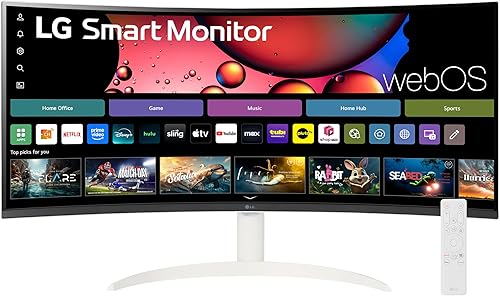
- 34-inch curved 21:9 QHD display
- Built-in webOS streaming apps
- 100Hz refresh rate
- Apple AirPlay 2 and HomeKit compatibility
Built-in streaming, speakers and Apple wireless features suit a room where the work screen also handles evening entertainment.
Pros
- Streaming apps through webOS
- AirPlay 2 and HomeKit compatibility
- Built-in speakers
Cons
- Streaming requires internet access; subscriptions may apply
- Magic Remote is sold separately
The LG 34SR60QC-W suits a home office that also serves as a room for watching shows. Built-in webOS and speakers let the monitor handle streaming without keeping a computer involved in every viewing session.
AirPlay 2 supports casting and mirroring from compatible Apple devices, while HomeKit adds another way to control the monitor. These features are useful for sharing content, but a wired computer connection remains the simpler starting point for a regular work setup.
Choose it if you want to finish work, switch to streaming and keep using the same screen. Its smart features make more sense in a mixed-use room than at a desk reserved for spreadsheets and documents.
Skip it if laptop charging or precise stand positioning is your main concern. The adjustable USB-C models put more of their features toward those needs.
Streaming requires internet access, and subscriptions may apply. The compatible Magic Remote is separate, so account for that if remote operation is central to how you plan to use the screen.
Samsung ViewFinity S65UA

- 34-inch curved 21:9 Ultra-WQHD display
- USB-C with up to 90W charging
- 1000R curvature
- Height-adjustable stand
Higher USB-C charging output and Ethernet suit a compatible laptop that anchors a permanent home office desk.
Pros
- USB-C with up to 90W charging
- Height-adjustable stand
- Ethernet connection
Cons
- Strong 1000R curve calls for careful desk planning
- Laptops needing more than 90W may still need their charger
The Samsung ViewFinity S65UA is the choice for a compatible laptop that needs more charging power than the Dell or USB-C LG provides. Its up to 90W USB-C charging can make a meaningful difference at a permanent laptop desk.
Ethernet is another reason to consider it if you want a wired network connection available at the monitor. Confirm how your computer will use the display's connections before planning to replace other desk equipment.
The pronounced 1000R curve makes seating position an important part of the decision. Choose it for a centered workspace where you can place the monitor directly in front of you.
A height-adjustable stand, picture-by-picture and picture-in-picture add practical office options. Automatic brightness and color temperature adjustments also give you controls for changing room conditions.
Skip it if you prefer a gentler curve or often share the screen with someone sitting beside you. A laptop that requires more than its charging limit may still need a separate power adapter, so check that requirement before buying.
What screen space does a 34-inch ultrawide actually give you?
A 34-inch ultrawide gives you more horizontal room, rather than a taller workspace than a display with the same vertical resolution. It is most useful when your work benefits from keeping related windows beside each other.
A writer might keep a document in the center and source material alongside it. An accountant might keep a spreadsheet wide enough to show more columns while leaving a narrow space for messages.
Three equal windows are not always the best layout. A wide main window with a narrow reference pane often keeps text more readable and reduces how often you resize things.
Is the best ultrawide monitor for work a dual-screen replacement?
An ultrawide can replace two screens if you mainly want side-by-side windows without a bezel between them. It is less suitable if one of your current monitors stays in portrait mode or serves as a separate full-screen display.
A 34-inch ultrawide is not the same workspace as two 27-inch monitors. Compare the combined resolution and physical space of your current setup before treating one wide screen as a direct replacement.
If you mainly need a taller, sharper document view, compare the best 4K monitors for work. Our complete home office monitor guide covers other layouts if width is not your main need.
How much desk room should you leave?
Allow room for the screen, stand, keyboard and a comfortable viewing position. These monitors are around 32 in wide, but a screen that fits between two shelves can still feel cramped in use.
Measure desk depth as carefully as width. If the stand pushes the display forward, you may end up sitting too close or moving your keyboard toward the front edge.
Check the space beside the screen for a laptop stand, lamp, microphone or speakers. Leave access to the connections too, especially if you plug and unplug devices often.
Before choosing a monitor arm, confirm the monitor's mounting pattern, weight and the arm's supported load. A mount should solve a placement problem, not introduce one because its reach or load limit is wrong.
A paper rectangle or tape outline can help you judge the width before ordering. Sit in your normal position and check whether the screen edges would fall where you can view them without repeatedly turning your upper body.
When does USB-C charging make the biggest difference?
USB-C charging is most useful if you connect and disconnect a laptop every day. It can remove a separate charging step, but only when the laptop, monitor and cable support the required functions.
A USB-C connector alone does not guarantee video output. Check the laptop's port capabilities and charging requirements before choosing a display around one-cable use.
Compare power delivery with the adapter your laptop normally uses. A lower-power connection may charge slowly or fail to keep up during demanding work, even if it works well during lighter tasks.
The Dell and LG 34WR55QK-B supply up to 65W, while the S65UA reaches up to 90W. Those limits should guide the choice before smaller differences such as refresh rate.
Don't assume USB-C also includes every docking function you need. If a webcam, keyboard, storage drive or wired network connection matters, map each device to a confirmed port and connection path.
Our USB-C monitor guide for work helps if laptop connections are the main reason for replacing your display.
Should you choose a curved ultrawide?
Choose a curved ultrawide when you sit centered and prefer the screen edges angled toward you. A curve changes the viewing shape, but it does not add pixels or make more windows fit.
Lower radius numbers describe a tighter curve. The S65UA's 1000R shape is more pronounced than the smart LG's 1800R curve, so they deserve different consideration even though both are curved.
For document work, consider where you sit and whether anyone else needs to view the screen. For drawing or layout work, consider your preference for seeing straight lines across a flat surface.
See curved screens in person if possible, especially before choosing a strong curve. Our curved monitor picks for work and curved vs flat monitor guide explain the trade-offs.
How should you use split screen and two-source modes?
Use window snapping for apps on one computer and picture-by-picture for separate input sources. They solve different problems, so decide which task you need before choosing a monitor around either feature.
Window snapping divides one desktop into useful zones. Start with two windows, then try a larger main area with a smaller space for notes or messages.
Picture-by-picture displays sources from separate devices together. Picture-in-picture puts a smaller source over the main image, which makes sense when one task needs most of your attention.
Neither mode should be treated as proof that a monitor shares a keyboard and mouse between computers. Plan how you will control each device, and check any switching hardware you need separately.
Also consider your employer's rules before connecting work and personal equipment. Keeping both computers visible can be useful, but the display arrangement does not change rules about moving files between them.
Which display features matter most for office work?
Prioritize readable text, usable controls and comfortable placement before HDR or gaming features. A monitor can support many display modes while still needing careful setup for your room and apps.
Refresh rate affects motion, not workspace
A higher refresh rate can make scrolling, pointer movement and moving windows look smoother. It does not make a static document contain more information or improve the source quality of a video call.
All these picks go above 60Hz. Treat that as useful flexibility, then choose the connection and stand features that affect your daily routine.
Color coverage is not color accuracy
Color gamut describes the range of colors a display can show. It does not tell you whether a particular color is reproduced accurately or whether the screen is uniform from edge to edge.
For ordinary documents and browser work, charging and ergonomics may matter more. For color-critical jobs, seek the calibration and accuracy information your workflow requires rather than choosing from gamut figures alone.
Eye comfort starts with the room and position
Blue-light modes, automatic brightness and flicker-related features can help you adjust the display. They do not replace readable text, sensible lighting or regular breaks from a fixed viewing distance.
Avoid placing a bright window directly behind the monitor or where it creates reflections. Match screen brightness to the room rather than leaving it at maximum by default.
How do you set up an ultrawide for work?
Begin with native resolution, readable text and a centered screen. Set those basics before arranging apps or changing color modes.
- Connect the monitor directly where practical. Confirm the computer port and cable support the resolution and refresh rate you want before adding adapters or a dock.
- Select the intended display settings. Choose native resolution, then set a supported refresh rate in the operating system.
- Adjust height and position. Start with the top of the screen around eye level and keep the main work area directly ahead.
- Set scaling and text size. Make normal documents comfortable to read without leaning forward.
- Build two useful window zones. Add more only when each window remains large enough for its task.
- Check a full work routine. Open your usual apps, join a call and confirm that reconnecting the laptop gives you the expected display and charging behavior.
If text looks too small, change scaling or app zoom before lowering resolution. Lowering resolution can make text less clear and reduces the workspace you bought the monitor to gain.
For screen sharing, choose a single window when you don't need to show the entire desktop. A full ultrawide desktop can be difficult for someone on a smaller display to read.
How should you care for an ultrawide monitor?
Keep the panel clean with gentle pressure and a soft cloth, and keep liquids away from the screen edges and ports. Follow the monitor's care instructions for suitable cleaning methods.
Turn the display off before cleaning so dust and marks are easier to see. Remove loose dust first, and avoid spraying cleaner directly onto the panel.
Leave ventilation openings clear and give cables enough slack for height or tilt changes. A tightly pulled cable can limit adjustment or strain a connection when the monitor moves.
Lift or move the monitor by its supported structure, not by pressing on the screen. Clear the desk first so the stand has a stable landing place.
What mistakes should you avoid before ordering?
Avoid buying for screen size alone. Your daily workflow, computer output and available desk depth decide whether an ultrawide will help.
- Expecting five full-size apps at once. Extra width helps, but crowded windows can make a task harder to follow.
- Assuming every USB-C cable carries video. Check the cable's supported functions along with the ports.
- Choosing charging power without checking the laptop. Match power needs before planning to leave its adapter elsewhere.
- Counting on built-in apps for your whole job. Confirm that required work software and company access methods will run as needed.
- Ignoring the stand footprint. A wide screen on a shallow desk can force poor keyboard placement.
- Using full-screen sharing by habit. Share the relevant window to keep content readable and private notes out of view.
A useful final check is to list three things your current setup makes difficult. Choose the monitor whose confirmed features address those problems, rather than the one with the longest feature list.
Which best ultrawide monitor for work should you buy?
Choose the Samsung ViewFinity S50GC if your best ultrawide monitor for work needs to serve a desktop, organize side-by-side apps and show a second source. Pick the Dell S3425DW for a laptop docking routine, or the LG 34WR55QK-B when laptop charging and two-computer viewing belong together.
Choose the LG 34SR60QC-W if the screen will also handle streaming without a computer. Move to the Samsung ViewFinity S65UA when its higher charging output solves a real laptop requirement and you want its pronounced curve.
Measure your desk, confirm your computer's output and decide how you'll arrange two normal work windows before ordering. Those checks settle more buying decisions than small differences in entertainment features.
For a different screen shape, see our guide to large monitors for home offices. If your remaining question is the curve, use the curved vs flat comparison to choose around your seating position.
Our top 3 picks at a glance
-
1
-
2
-
3
Frequently asked questions
Is an ultrawide monitor good for office work?
An ultrawide is useful when your work depends on seeing documents, spreadsheets or reference windows side by side. It is less useful if you mainly read one narrow page at a time.
Choose around your daily window layout, and leave enough desk depth to view the full screen comfortably.
Is a curved or flat ultrawide better for work?
A curved ultrawide suits a centered seat, while a flat screen can suit desks where several people view the display from different positions. Neither shape creates extra workspace at the same resolution.
Our curved vs flat monitor guide explains how seating, desk layout and personal preference affect the choice.
Do ultrawide monitors replace dual monitors?
An ultrawide can replace dual monitors when you mainly need two windows beside each other without a center bezel. It does not duplicate every two-screen layout.
Separate displays still help if you need a portrait screen, independent positioning or a dedicated full-screen presentation display beside your private notes.
What resolution should you choose for a 34-inch ultrawide?
Choose 3440 x 1440 for the workspace covered in this guide. All five monitors share that resolution, so the main differences are connections, adjustment and extra functions.
Your usable workspace also depends on display scaling and app zoom, so don't assume every window will fit comfortably at its smallest size.
Can a USB-C ultrawide charge any laptop?
No. Your laptop must accept USB-C charging, and its port must also support video output if you want one cable for both jobs.
Compare the monitor's power delivery with your laptop's requirements, then choose a cable that supports the needed video, data and charging functions.



