Curved Monitor vs Flat Monitor for Work: Which Is Better? (October 2026)
In a curved monitor vs flat comparison, choose curved for a wide screen at a centered seat and flat for flexible seating or shared viewing. Resolution, usable desk space and connections should settle the final choice.
On this page (10 sections)
- Curved monitor vs flat: which is better for work?
- Which matters more: screen shape, size or resolution?
- Which screen shape is more comfortable for long workdays?
- Do curved monitors need more desk space?
- Which monitor fits your actual work?
- Is a curved or flat monitor better for spreadsheets and design?
- What should you choose for video calls and shared work?
- How should you set up and care for either screen?
- Which buying mistakes should you avoid?
- Curved monitor vs flat: how should you decide?
Choose a curved monitor for a wide screen at one centered seat and a flat monitor for flexible seating or shared viewing. In a curved monitor vs flat decision, readable text, desk fit and useful connections matter more than shape alone.
A curve brings the outer edges toward you, but it doesn't add workspace by itself. Width, resolution and scaling determine how much you can actually fit on the desktop.
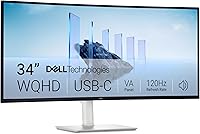
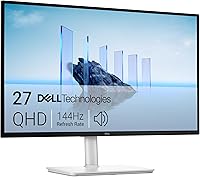
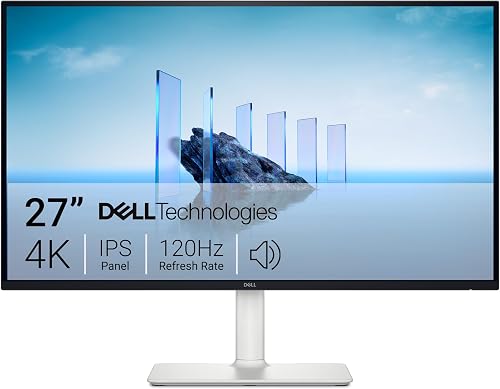
The Dell S2725QS, Samsung ViewFinity S50GC and curved LG 34WR55QK-B illustrate 3 different work setups. Use them to compare a narrower high-resolution screen, a broad two-source workspace and a curved laptop setup.

Curved monitor vs flat: which is better for work?
Choose curved for a dedicated, centered workstation; choose flat when your viewing position changes often. Either shape handles documents, spreadsheets, browser tabs and video calls.
A curved ultrawide makes sense if you keep reference material beside your main task. It suits a single user who can place the screen directly ahead and keep frequently used windows near the middle.
Flat screens suit shared desks, occasional collaboration and layouts that include a portrait display. They're also a practical starting point if you prefer a straight surface for drawings, page layouts or checking visual alignment.
Skip a large curved screen if your desk forces you to sit off-center. Skip a narrow display if your daily work requires constant switching between windows that need to stay visible together.
Does curved monitor vs flat change your available workspace?
Shape doesn't add pixels or make apps smaller. A curved and flat monitor with the same resolution and scaling can show the same amount of content.
Ultrawide describes a screen's proportions, while curved describes its surface. You can buy ultrawides in either shape, so decide how much horizontal room you need before choosing the curve.
Think about your normal layout rather than the number of open apps. A document beside a browser may need only 2 useful zones, while a timeline with tool panels benefits from one broad window.
Which matters more: screen shape, size or resolution?
Choose size and resolution before shape, because they control physical workspace and text detail. These 3 monitors aren't a controlled comparison of curvature alone.
The Dell is a 27-inch, 16:9 display with 3840 x 2160 resolution. The Samsung and LG are 34-inch, 21:9 ultrawides with 3440 x 1440 resolution.
That means the larger screens provide more physical width, while the smaller Dell has more pixels overall. A larger diagonal doesn't automatically mean more visible rows, sharper text or a bigger usable desktop.
| Product | Best for | Size | Aspect ratio | Resolution | Our score |
|---|---|---|---|---|---|
| Dell S2725QS | everyday office work | 27 in | 16:9 | 3840 x 2160 | 9.1 |
| Samsung ViewFinity S50GC | two-computer desks | 34 in | 21:9 | 3440 x 1440 | 8.5 |
| LG 34WR55QK-B | centered laptop work | 34 in | 21:9 | 3440 x 1440 | 7.6 |
How do scaling and window layouts change the result?
Readable text matters more than fitting the most content on screen. Operating system scaling enlarges text and controls, which uses some of the room that a high resolution provides.
For writing or accounting, compare layouts at a text size you can read without leaning forward. A dense desktop loses its value if menus and spreadsheet labels become too small.
Start with 2 main windows and add a third only if each remains useful. Avoid splitting an ultrawide into several narrow panes that force extra scrolling or hide controls.
Our guide to the best ultrawide monitors for work helps compare broad desktops. Choose the layout that reduces app switching without shrinking your main task.
Which screen shape is more comfortable for long workdays?
The comfortable choice lets you read the center and edges from a relaxed position. Curvature can change how a broad screen surrounds your seat, but it doesn't guarantee less eye strain.
Place your main task directly ahead instead of keeping it at one end of an ultrawide. Reserve the outer sections for reference material, chat or tools you check less often.
A flat screen is simpler when you regularly swivel toward a colleague or move between seats. Panel behavior also matters, so our IPS vs VA monitor guide explains another difference that shape can't answer.
For placement guidance, use our 27-inch monitor viewing distance guide. If text is hard to read at a comfortable distance, enlarge it before moving the display closer.
Do eye comfort features settle the choice?
Brightness, glare control and readable text should come first. Comfort features can support your setup, but they don't replace sensible placement or breaks.
The Samsung includes an ambient light sensor that adjusts brightness, plus Eye Saver Mode and Flicker Free features. These are useful controls to consider when room lighting changes during the day.
Match screen brightness to the room rather than leaving it at maximum. Take regular breaks from close viewing, and seek eye care advice if discomfort persists.
Do curved monitors need more desk space?
Measure the complete monitor and stand, because shape alone doesn't determine desk fit. Leave enough depth to sit comfortably with your keyboard in front of the screen.
The Dell measures 24.08 inches wide and 7.89 inches deep. The Samsung measures 32.1 inches wide and 8.7 inches deep, while the LG measures 31.9 inches wide and 10.2 inches deep.
Mark those footprints with paper or removable tape before ordering. Include speakers, a laptop stand, cable bends and any space needed to move the screen.
Our guide to what size monitor to choose for a home office helps match the display to the whole desk. A screen that fits edge to edge may still leave too little room for comfortable use.
Will a monitor arm solve a shallow desk?
An arm can free desk surface, but it can't create viewing distance beyond the wall. Check where the screen will sit with the arm folded as well as extended.
Confirm the monitor's mounting pattern, weight and required hardware against the arm's limits. Also check desk thickness and clamp clearance before buying either component.
Leave slack in cables so moving the screen doesn't pull on its ports. Don't assume a mount supports a display just because the diagonal size falls within its range.
Which monitor fits your actual work?
Choose Dell for a narrower high-resolution setup, Samsung for viewing separate sources, or LG for centered laptop work. These are different priorities, so the highest score won't be the right match for every desk.
Dell S2725QS: for text-heavy work and flexible placement
The Dell suits writers, spreadsheet users and people who want fine detail without a broad screen filling the desk. Its IPS panel supports 99% sRGB, and the stand offers height, pivot, swivel and tilt adjustment.
Pivot adjustment is useful if your work shifts toward tall documents or code. Check software orientation settings and physical clearance before rotating the display.
Skip this layout if your main need is physical room for several large windows. Its 120Hz refresh rate can make scrolling look smoother, but refresh rate doesn't replace workspace.
Samsung ViewFinity S50GC: for keeping separate sources visible
The Samsung suits a desk where you need to watch one computer while working on another. Picture-by-Picture places sources beside each other, while Picture-in-Picture keeps a smaller source visible over the main image.
It has 2 HDMI inputs and a DisplayPort input. Plan the cables around your computers rather than assuming each device has the same output.
Skip it if your goal is a single USB-C display-and-charging connection. Also remember that showing 2 computers doesn't automatically let one keyboard and mouse control both.
LG 34WR55QK-B: for a centered laptop workstation
The LG suits someone who wants a curved workspace and fewer cables to a compatible laptop. Its USB Type-C connection supports display use and up to 65W power delivery.
Check that your laptop's USB-C port supports video output and that its power needs fit the charging limit. Our guide to what a USB-C monitor does explains these checks.
Height and tilt adjustment help position the screen, while OnScreen Control supports workspace tools and Picture-by-Picture after software installation. Skip this setup if you need frequent off-center viewing or your laptop requires more charging power through the display.
Compare alternatives in our best curved monitors for work guide if this shape fits your desk. Connection needs should narrow that shortlist before appearance does.
Is a curved or flat monitor better for spreadsheets and design?
Choose spreadsheet space by resolution and scaling, and choose design space by how you judge your work. Neither task requires a particular screen shape.
For spreadsheets, decide whether you need more columns, more rows or a reference document alongside the sheet. A broad screen helps horizontal layouts, while extra vertical pixels can help with long tables.
Freeze headings and key columns instead of stretching every sheet across the entire desktop. Keep active cells near the center so routine data entry doesn't require repeated head turns.
For drawings or page layouts, a flat surface may feel more natural when checking straight lines and proportions. A curved display still shows the same file, but its physical surface can affect how you perceive the whole image.
Read our comparison of 27-inch and 24-inch monitors if you mostly work in one app. A modest size increase may solve your problem without requiring an ultrawide.
What should you choose for video calls and shared work?
Start with flat for regular shared viewing, and use either shape for solo video calls. Camera position and screen-sharing habits often matter more than curvature.
Keep the camera near the window showing the other participants. If that window sits at the far edge of a broad display, you'll spend the meeting looking away from the camera.
Share a specific window when presenting from an ultrawide. Sharing the whole desktop can make text small on a colleague's narrower screen, and it may expose unrelated windows.
For in-person work, put shared content near the center and check readability from both seats. Neither a curve nor a large diagonal guarantees a clear view from the sides.
How should you set up and care for either screen?
Start at native resolution, choose readable scaling and center the monitor on your main seat. Set the top edge around eye level or slightly below, then adjust for your posture.
Confirm the intended refresh rate in your computer's display settings. The cable, computer output and selected resolution must support the mode you want.
Position the display to limit reflections from windows and lamps. A curve can redirect reflections rather than remove them, so adjust its angle before raising brightness.
For cleaning, turn the monitor off and use a clean, soft microfiber cloth. Follow the manufacturer's cleaning instructions, avoid spraying liquid directly onto the panel and don't press on the screen or curved edges.
Which buying mistakes should you avoid?
Avoid choosing by diagonal size, curvature or port shape alone. Each can hide a mismatch with how you work.
- Confusing ultrawide with curved: choose screen proportions and surface shape separately.
- Expecting more width to mean sharper text: compare resolution at a readable scaling level.
- Buying for occasional tasks: base the layout on the work you do most days.
- Ignoring two-source limits: Picture-by-Picture isn't the same as keyboard and mouse sharing.
- Skipping desk measurements: account for the stand and viewing distance, not just screen width.
Build a short checklist around your main apps, computer ports and available space. Our complete home office monitor guide covers those choices together.
Curved monitor vs flat: how should you decide?
Pick the screen that solves your current work problem. In the curved monitor vs flat decision, a centered seat favors a curved ultrawide, while shared viewing and changing positions favor flat.
Choose Dell S2725QS if small text, fine detail or limited desk width drives the decision. Choose Samsung ViewFinity S50GC if keeping separate sources visible is more useful than laptop charging.
Choose LG 34WR55QK-B if you want a curved laptop workspace and have confirmed USB-C video and charging compatibility. Before ordering, mark its footprint on the desk and sketch your usual window layout.
If width remains the deciding factor, compare our best ultrawide monitors for work. Buy the size you can use comfortably with readable text and room for your daily tools.
Frequently asked questions
Is a curved monitor better for office work?
A curved monitor suits office work when you sit centered in front of a wide screen and keep several windows open. A flat monitor is easier to fit around changing seats or shared viewing.
Choose resolution, readable text size and desk fit before treating the curve as a benefit.
Is a 34-inch curved monitor too big for work?
A 34-inch curved monitor fits best on a desk with enough width and depth to keep the whole screen within comfortable view. Measure the monitor and stand, then leave space for your keyboard.
If you must lean back beyond your normal seat position, choose a smaller display.
Do curved monitors reduce eye strain?
A curved screen doesn't guarantee less eye strain. Brightness, glare, viewing distance, text size and time spent focusing all affect comfort.
Start with readable text and lighting that doesn't reflect in the screen, then take regular breaks. Ask an eye care professional about discomfort that keeps returning.
Is a flat monitor better for two people?
A flat monitor is usually the simpler starting point for two people because its surface doesn't curve around one central seat. Panel viewing angles still affect readability from the sides.
Place shared content near the middle and check that both viewers can read it from their normal positions.
Can a curved monitor be used for spreadsheets?
Yes, a curved monitor works with spreadsheets just like a flat monitor. A wide display can keep more columns or a reference window visible, but resolution, scaling and spreadsheet zoom control the usable space.
Keep your active cells near the center rather than working at one far edge all day.