7 Best Large Monitors for Home Office (October 2026)
The best large home office monitors include the Dell S3225QS for mixed workdays, the ViewSonic VS3225-2K for native-size text, and the LG 32UR500K-B for fixed-height desks.
On this page (7 sections)
- How we chose large home office monitors
- Compare the best large monitors for home office
- The best large monitors for home office work
- How do you choose the best large monitor for home office work?
- How should you set up and care for a large office monitor?
- What mistakes should you avoid when buying a large monitor?
- Which large monitor should you choose for a home office?
The Dell S3225QS is the best large monitor for home office work for most buyers because it combines detailed text, an adjustable stand and smoother motion for work and entertainment. Choose the ViewSonic VS3225-2K for a larger native-size interface, or the LG 32UP83AK-W for compatible laptop docking.
Start with your desk and computer before choosing a screen. Our home office monitor size guide helps with physical fit, while the best ultrawide monitors for work offer a wider layout if that suits your tasks better.
Our picks at a glance
-
1

-
2
-
3

How we chose large home office monitors
We compared readable text, useful workspace, screen positioning and computer connections for common office tasks. The focus is on roughly 32-inch displays for documents, spreadsheets, browser work and video meetings.
A large screen earns its space when you can keep useful windows visible without shrinking text beyond comfort. Stand controls and suitable ports can matter more than extra entertainment features on a desk used all day.
The scores reflect overall fit across those needs, but your connection requirements can change the order. A laptop user who needs charging through the screen should put the USB-C LG ahead of models built around separate video and power cables.
Compare the best large monitors for home office
Choose resolution first, then check the stand and connection you need. Those choices will narrow this group more quickly than color coverage or HDR support.
Use the comparison table to separate the QHD option from the 4K models and identify your positioning needs. The write-ups explain who benefits from each choice and where another model makes more sense.
| Product | Best for | Screen | Resolution | Stand | Our score |
|---|---|---|---|---|---|
| Dell S3225QS | mixed workdays | 32 in, 16:9 | 3840 x 2160 | Height and tilt adjustment | 8.2 |
| ViewSonic VS3225-2K | native-size text | 32 in, 16:9 | 2560 x 1440 | 100 x 100 mm VESA mounting option | 7.8 |
| LG 32UR500K-B | fixed-height desks | 32 in, 16:9 | 3840 x 2160 | Tilt adjustment | 7.6 |
| LG 32UR550K-B | changing work layouts | 32 in, 16:9 | 3840 x 2160 | Height, tilt and pivot adjustment | 7.5 |
| LG 32UP83AK-W | laptop docking | 31.5 in, 16:9 | 3840 x 2160 | Height, tilt and pivot adjustment | 7.2 |
| ASUS VP327Q | shared desk viewing | 31.5 in, 16:9 | 3840 x 2160 | VESA mounting option | 7.0 |
| KTC H32U6 | white desk setups | 32 in, 16:9 | 3840 x 2160 | Height, tilt and swivel adjustment | 7.0 |
The best large monitors for home office work
The Dell suits the broadest mix of tasks, but each alternative solves a more specific desk problem. Read the pick that matches your routine rather than choosing by score alone.
Dell S3225QS
- 32-inch 4K UHD VA display
- Up to 120Hz refresh rate
- Height and tilt adjustment
- HDMI and DisplayPort
A flexible choice for documents, multitasking and after-work entertainment. The adjustable stand helps place the screen without adding a separate support.
Pros
- 4K detail for text and documents
- Height-adjustable stand
- Higher refresh rate for smoother motion
Cons
- USB-C laptop charging needs another solution
- Large screen needs adequate desk depth
Choose the Dell S3225QS if your day moves between detailed documents, several open windows and entertainment. Its 32-inch 4K VA screen gives small text more definition than QHD at the same size, with room to enlarge the interface when needed.
The refresh rate reaches 120Hz with FreeSync Premium, making it the strongest choice here if smoother scrolling and after-work play matter alongside office use. Your computer and connection must support the selected resolution and refresh rate together.
Height and tilt controls make it easier to align the display with your chair and desk. Built-in speakers can also cover basic audio without adding another pair of devices to the work surface.
Skip this Dell if your main goal is connecting and charging a laptop through one cable. The USB-C LG is the more direct fit for that routine, while the ViewSonic makes more sense if you want larger text at native resolution.
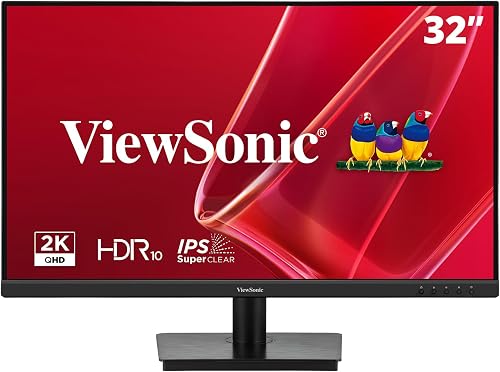
ViewSonic VS3225-2K
- 32-inch QHD IPS display
- 75Hz refresh rate
- Dual HDMI and DisplayPort
- 100 x 100 mm VESA mount
A useful choice if you prefer larger text without raising display scaling. Its IPS panel also suits a screen shared with someone beside you.
Pros
- Larger interface at native resolution
- IPS panel for off-center viewing
- VESA mounting support
Cons
- Less fine detail than the 4K picks
- Bigger screen does not add pixels over a smaller QHD display
Choose the ViewSonic VS3225-2K if you want a physically larger interface without relying on scaling. Its 32-inch QHD screen spreads fewer pixels across a similar area than the 4K picks, so text and controls appear larger at native resolution.
That suits email, browser work and basic documents when ease of reading matters more than fine detail. It will not hold more content than a smaller QHD monitor at the same scaling, so size alone should not drive an upgrade.
The IPS panel suits off-center viewing, and the 75Hz variable refresh rate adds some motion smoothness. Dual HDMI inputs and DisplayPort cover common computer connections, while the 100 x 100 mm VESA pattern allows a compatible mounting setup.
Skip it if you read small spreadsheet labels, compare detailed drawings or want sharper text at close range. Those tasks are better reasons to choose 4K than simply wanting the largest screen that fits.
LG 32UR500K-B
- 32-inch 4K UHD VA display
- Two HDMI ports and DisplayPort
- Built-in stereo speakers
- Tilt-adjustable stand
A straightforward option when the screen's height already fits your seated position. Multiple inputs let you keep more than one device connected.
Pros
- 4K resolution
- Two HDMI inputs
- Built-in speakers
Cons
- Included stand lacks height adjustment
- OnScreen Control requires software installation
Choose the LG 32UR500K-B if you want a simple desktop arrangement and can place its tilt-adjustable screen at the right height. Its 32-inch 4K VA display suits a document beside a reference window without giving each app a separate monitor.
Two HDMI inputs and DisplayPort let you leave multiple devices connected. Switching inputs changes which device you see; it should not be confused with showing several computers at once.
LG's OnScreen Control software can split the workspace into useful areas and adjust basic monitor settings. Installation is required, so check your employer's software rules if you use a managed work computer.
The built-in stereo speakers keep basic sound within the monitor. Skip this model if the screen must move up and down for different users, or if you often change your seated position.
The LG 32UR550K-B is the more suitable choice when you need those stand adjustments built in.
LG 32UR550K-B

- 32-inch 4K UHD VA display
- Height, tilt and pivot adjustment
- HDMI and DisplayPort
- Built-in speakers
A better fit than a tilt-only model if you change screen height or orientation. LG's Switch app adds optional window layouts for different tasks.
Pros
- Height, tilt and pivot adjustments
- Optional screen-layout software
- Built-in speakers
Cons
- 60Hz refresh rate
- Portrait use requires substantial overhead clearance
Choose the LG 32UR550K-B if your work changes between wide documents and long pages. Height, tilt and pivot controls let you position the screen for ordinary desktop work or rotate it for tasks that benefit from a taller view.
A large display in portrait orientation needs clearance above the desk and enough cable slack. For many people, keeping it horizontal and using a well-sized document window will be more comfortable than rotating the whole screen.
Its 32-inch 4K VA panel runs at 60Hz, which covers routine office work. HDMI, DisplayPort and built-in speakers suit a conventional desktop setup.
LG's optional Switch app supports layouts with up to 6 sections, but 2 or 3 useful windows are often easier to read than filling every section. Software installation is required.
Skip this LG if laptop charging through the monitor is essential. Choose the Dell instead if higher refresh is more valuable to you than pivot adjustment.
LG 32UP83AK-W
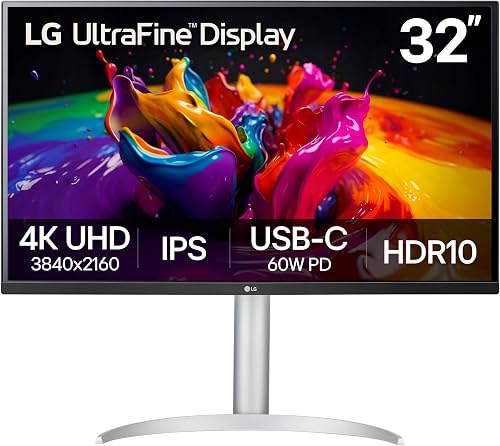
- 31.5-inch 4K UHD IPS display
- USB-C with up to 60W power delivery
- Height, tilt and pivot adjustment
- HDMI and DisplayPort
The clearest match for a compatible laptop that can use the monitor's USB-C charging. One connection can handle the display, data and power.
Pros
- USB-C display, data and charging
- IPS panel
- Height, tilt and pivot adjustments
Cons
- 60Hz refresh rate
- Charging output may not meet a demanding laptop's needs
Choose the LG 32UP83AK-W if you regularly bring a laptop to your desk and want fewer connections to attach. USB-C carries display, data and up to 60W of charging over one cable, and a USB-C cable is included.
Check that your laptop supports video through its USB-C port and can use that power output. A more demanding laptop may still need its charger, especially during heavier work.
The 31.5-inch 4K IPS screen suits detailed office work and viewing from beside the desk. Height, tilt and pivot controls help you place it as the main display rather than arranging your posture around the laptop screen.
HDMI and DisplayPort remain available for other compatible devices, and built-in speakers provide basic audio. Its 60Hz refresh rate is suited to ordinary office tasks rather than buyers prioritizing higher-refresh motion.
Skip it if you use a desktop and have no use for USB-C charging. Its main advantage is the daily connection routine, not a higher score.
ASUS VP327Q

- 31.5-inch 4K UHD IPS display
- Dual HDMI and DisplayPort
- Built-in speakers
- VESA mounting support
An IPS option for reviewing documents or presentations with someone beside your desk. VESA support gives you a route to more flexible positioning.
Pros
- 4K IPS display
- VESA mount compatibility
- Connections for multiple devices
Cons
- Confirm stand movement if height adjustment matters
- An arm adds setup work and compatibility checks
Choose the ASUS VP327Q if you often review work with someone beside you. Its 31.5-inch 4K IPS panel is a sensible fit for shared documents, presentations and visual reference material.
ASUS specifies a 178-degree viewing angle, but the useful buying point is the panel's suitability for off-center viewing. Fine text still needs to be large enough for the person sitting farther away.
Dual HDMI inputs and DisplayPort make it practical to keep different devices attached. Built-in speakers and Adaptive-Sync also support a desk that handles entertainment after work.
VESA compatibility gives you a route to a more flexible screen position if you plan to use an arm. Check the mounting pattern and the arm's weight capacity before ordering the pair.
Skip this ASUS if you specifically need height adjustment from the included stand without extra equipment. The adjustable LG models make that requirement clearer, while the USB-C LG better suits a laptop docking routine.
KTC H32U6

- 32-inch 4K UHD VA display
- Height, tilt and swivel adjustment
- Two HDMI 2.0 ports and DisplayPort 1.4
- White finish
A white display for a desk where screen position matters as much as appearance. Swivel adjustment helps turn the screen toward another seat.
Pros
- Height, tilt and swivel adjustment
- 4K resolution
- White finish
Cons
- 60Hz refresh rate
- Laptop charging requires a separate solution
Choose the KTC H32U6 if you want a white screen with useful stand movement, particularly on a desk where you sometimes turn the display toward another seat. Height, tilt and swivel adjustment support that routine without moving the whole base each time.
Its 32-inch 4K VA screen suits a centered work position, while the 3000:1 contrast ratio is relevant if you also watch films in a dim room. Contrast does not replace comfortable text size or good room lighting.
Two HDMI 2.0 ports and DisplayPort 1.4 support 4K input at 60Hz. That makes it a fit for ordinary office work rather than a buyer seeking the Dell's higher-refresh capability.
The white finish can match a light desk, but appearance should come after screen placement and computer compatibility. Skip the KTC if your goal is charging a laptop through the display, and choose the USB-C LG for that connection.
How do you choose the best large monitor for home office work?
Match the screen to your hardest daily task, then check that it fits your desk and computer. A monitor for dense spreadsheets needs different priorities from one mainly used for email and video meetings.
Which large home office monitor fits your desk?
A large monitor fits when you can read the center and edges without leaning forward or repeatedly turning your head. Measure usable desk depth with the keyboard, stand and your seated position in place.
Several screens here are about 28 inches wide, and their bases take roughly 9 to 10 inches of depth. Leave space for cables behind the display rather than pressing the connectors against a wall.
Diagonal screen size is not the width of the monitor. Mark the approximate footprint on your desk and account for a laptop, speakers, papers and any shelves above it.
Our guide to how far to sit from a 27-inch monitor explains the role of viewing distance, though a larger display may need more room. Use comfortable reading and easy access to the screen's edges as your practical checks.
Should you choose QHD or 4K?
Choose 4K for finer text and detail; choose QHD if you prefer a larger native interface. Resolution affects both sharpness and how much usable workspace you get at your chosen scaling.
QHD has 2560 x 1440 pixels, while 4K has 3840 x 2160. At 150% scaling, a 4K desktop has roughly the same logical workspace as QHD at 100%, with more pixels available to draw text and images.
That means 4K does not force you to use tiny menus. Start with the operating system's recommended scaling, then adjust until a full working page is comfortable to read.
For spreadsheets, consider readable column labels rather than the maximum number of columns visible. Our guide to whether a 4K monitor is worth it for office work explains the trade-off in more detail.
How much should panel type and HDR matter?
IPS favors shared and off-center viewing, while VA can suit a centered setup where contrast also matters. Neither panel label alone tells you whether a monitor fits your work.
Color coverage numbers describe a range of colors, not a promise of accurate color in every app. Color-critical work calls for a managed workflow and calibration rather than choosing the highest percentage.
HDR support is also separate from useful office performance. For documents, put readable text, sensible brightness and comfortable positioning ahead of HDR compatibility.
Do you need a height-adjustable stand?
Choose height adjustment if your screen position needs to change or the desk serves more than one person. Tilt changes the viewing angle but cannot substitute for raising or lowering the display.
Pivot rotates the screen between landscape and portrait. Swivel turns it sideways, which is more useful when showing someone a document across the desk.
The ASUS VP327Q and ViewSonic VS3225-2K support VESA mounting. Before adding an arm, check the mounting pattern, supported screen weight and whether your desk can safely take its clamp or other attachment.
Which ports should a home office monitor have?
Match the monitor input to your computer's video output, including any dock or adapter in between. A connector that fits does not prove the entire chain supports your chosen resolution and refresh rate.
All these picks provide HDMI and DisplayPort connections. If you want the Dell's higher refresh, check the computer, dock, cable and monitor settings rather than assuming any HDMI connection will deliver it.
For laptop docking, the USB-C LG has the clearest role in this group. Our guide to what a USB-C monitor does explains why video support, data and charging need separate checks.
Is a curved monitor better for a large workspace?
A curve is a layout preference, not a requirement for a large office screen. Desk depth, screen width and where you sit matter more than choosing a shape first.
Compare curved vs flat monitors for work if you are unsure which shape suits your tasks. These picks all use a familiar 16:9 aspect ratio.
If your goal is 3 windows across a wide horizontal workspace, the best ultrawide monitors for work are worth comparing. A taller document view and a wider timeline are different needs.
How should you set up and care for a large office monitor?
Set the screen position and text size before changing picture presets. Those two adjustments usually have the biggest effect on how usable a large display feels during ordinary work.
Position the main work area in front of you
Center your keyboard and primary window with your body, then place reference material to either side. Keeping your main task at the far edge of a large screen encourages repeated head turns.
Start with the top of the display around eye level or slightly below, then adjust for your posture and glasses. Raise the chair only if your feet and keyboard position remain comfortable.
Place the screen so a bright window does not reflect directly in it. Lower brightness when a white document looks like a light source compared with the room.
Set resolution, scaling and window layouts
Use the display's native resolution, then change scaling or app zoom to make text comfortable. Lowering resolution just to enlarge menus can make the image softer.
Check the selected refresh rate in your computer's display settings. A higher-refresh monitor may still be running at a lower setting after the first connection.
Try 2 main window zones before creating a more complex layout. Window-splitting software arranges apps on one desktop; it does not turn a single display into several independent monitors for different computers.
Keep cables and the panel in good condition
Leave enough cable slack for the stand's full movement, especially before pivoting a large screen. Route cables so they do not pull on ports or catch under the base.
Turn the display off before cleaning and use a clean microfiber cloth with light pressure. Follow the manufacturer's cleaning guidance, avoid spraying liquid directly on the panel and keep vents clear.
Comfort features do not replace breaks or sensible lighting. Look away from close work regularly and change position rather than staying still for the whole workday.
What mistakes should you avoid when buying a large monitor?
Avoid buying size without planning text size, desk space and connections. A larger panel can make the wrong setup more obvious rather than more useful.
- Expecting more workspace from size alone: A larger QHD screen still has the same pixel count as a smaller QHD screen. It mainly makes the interface physically bigger.
- Ignoring the whole connection chain: A laptop may support a display mode that an older dock or adapter cannot pass through.
- Assuming extra inputs mean simultaneous views: Several video inputs let you connect devices, but that does not establish picture-by-picture support or automatic switching.
- Treating speakers as meeting equipment: Built-in speakers provide sound output. They do not establish that a monitor includes a camera or microphone.
- Choosing appearance before placement: A matching finish is useful only after the screen, stand and cables fit your working space.
Which large monitor should you choose for a home office?
The best large monitor for home office work is the one that solves your main desk problem. Use these decision rules after checking your available depth and computer output.
- Choose Dell S3225QS for a general work desk that also benefits from smoother motion after hours.
- Choose ViewSonic VS3225-2K if larger native-size text matters more than fine pixel detail.
- Choose LG 32UR500K-B for a straightforward setup where the screen height already fits.
- Choose LG 32UR550K-B if changing height or orientation is part of your routine.
- Choose LG 32UP83AK-W for a compatible laptop that can use its USB-C charging.
- Choose ASUS VP327Q for shared viewing with an IPS panel and a planned mounting setup.
- Choose KTC H32U6 for a white desk where height and swivel controls are useful.
If you are still choosing between 27 and 32 inches, use our home office monitor size guide before committing desk space. For the rest of the setup, our complete home office monitor guide connects screen choice with your everyday work.
Our top 3 picks at a glance
-
1
-
2
-
3
Frequently asked questions
Is a 32-inch monitor too large for a home office?
A 32-inch monitor fits a home office when you can sit back, read comfortably and reach the screen's edges without frequent head turns. Desk depth matters as much as width.
Measure from your seated eye position, then use our home office monitor size guide to compare your options.
Is 4K worth it on a 32-inch monitor?
4K is worth choosing for fine text, dense spreadsheets and detailed documents on a large screen. Display scaling lets you enlarge menus while keeping text edges sharp.
QHD is reasonable if you prefer a larger interface at native resolution and care less about fine detail.
Check your computer's video-output support before buying.
Should I choose an IPS or VA monitor for office work?
Choose IPS if you often share the screen or view it from an angle. VA can suit a centered desk position, especially when contrast matters for entertainment after work.
Panel type is only part of the choice.
Text clarity, comfortable placement and the right computer connection usually matter more for daily office tasks.
Does a large monitor need a height-adjustable stand?
A height-adjustable stand is useful when the included screen position would otherwise make you look up or bend your neck. It also helps when more than one person uses the desk.
A fixed-height setup can still work if it fits your posture.
Use a compatible arm or stable monitor riser when needed.