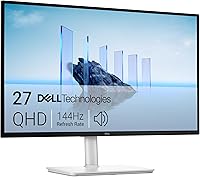
5 Best Monitors for Mac Mini (October 2026)
The best monitors for Mac mini include the Dell S2725QS for everyday Mac desks, the Dell S2725DSM for motion-first users, and the LG 27US500-W for fixed desk setups.
On this page (11 sections)
- How we chose the best monitor for Mac mini
- Which monitor should you choose for a Mac mini?
- Is 4K or QHD better for a Mac mini?
- What should you check before connecting a monitor to a Mac mini?
- Is a USB-C monitor useful with a Mac mini?
- How much refresh rate do you need for Mac mini work?
- How should you position a 27-inch monitor on your desk?
- How do you set up a new Mac mini monitor?
- Which monitor features should you avoid overvaluing?
- How do you care for a monitor and keep it comfortable to use?
- Which is the best monitor for Mac mini for your desk?
The Dell S2725QS is the best monitor for Mac mini for most people because it combines sharp 4K detail, flexible positioning and a higher refresh ceiling than the 60Hz options here. Choose a different model when USB-C, a shared laptop desk or a native QHD workspace matters more.
A monitor should make your daily work easier to see and arrange. Start with readable text and a comfortable screen position, then choose connections and motion features that support your actual routine.
For a broader desk setup, see our complete guide to monitors for home offices. Our 4K monitor guide explains when extra pixels make a useful difference.
Our picks at a glance
-
1
-
2
-
3

How we chose the best monitor for Mac mini
The best monitor for Mac mini balances text clarity, comfortable positioning and a suitable connection. GearedDaily compared those features first, then considered refresh rate, extra ports and the needs of shared workspaces.
All five picks are 27-inch IPS displays, so the main differences are resolution, stand movement and connectivity. That keeps the choice focused: a larger feature list only helps if it solves something at your desk.
The scores reflect those trade-offs for a Mac mini setup. A lower-ranked USB-C model can still be the right choice if its ports remove a daily cable problem.
We haven't assumed that every Mac mini can drive every screen at its maximum refresh rate. Your computer model, chosen output, cable and monitor input must support the same display mode.
| Product | Best for | Resolution | Panel | Connections | Our score |
|---|---|---|---|---|---|
| Dell S2725QS | everyday Mac desks | 3840 x 2160 | IPS | HDMI, DisplayPort | 9.1 |
| Dell S2725DSM | motion-first users | 2560 x 1440 | IPS | HDMI, DisplayPort | 8.8 |
| LG 27US500-W | fixed desk setups | 3840 x 2160 | IPS | HDMI, DisplayPort | 7.9 |
| LG 27UP850K-W | shared laptop workspaces | 3840 x 2160 | IPS | USB-C, DisplayPort, two HDMI, two USB 3.0 | 7.8 |
| INNOCN 27 4K USB-C | flexible screen positioning | 3840 x 2160 | IPS | USB-C, HDMI, DisplayPort | 7.4 |
Which monitor should you choose for a Mac mini?
Choose the Dell S2725QS for a balanced work and entertainment desk. The other four picks make sense when you have a clear reason to favor QHD, simpler controls, more inputs or USB-C.
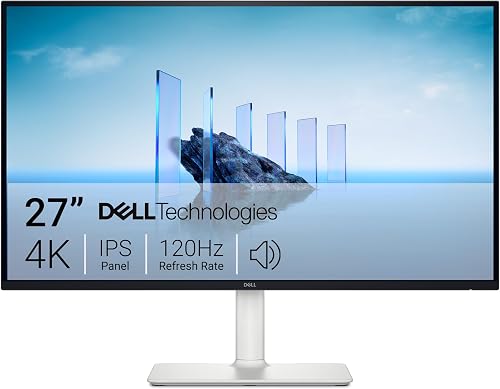
Dell S2725QS: the best monitor for Mac mini for everyday work
Dell S2725QS
- 27-inch 4K UHD IPS
- Up to 120Hz refresh rate
- Height, pivot, swivel and tilt adjustment
- HDMI and DisplayPort
A detailed screen, flexible stand and higher refresh rate make this the most balanced choice for a Mac mini used for work and entertainment.
Pros
- 4K detail for text and images
- Height, pivot, swivel and tilt adjustment
- Higher refresh ceiling than the 60Hz picks
Cons
- No USB-C input
- Maximum refresh rate needs a compatible connection
The Dell S2725QS suits people who move between documents, browser windows, images and video throughout the day. Its 27-inch 3840 x 2160 IPS screen provides the pixel detail that makes a scaled desktop useful for text-heavy work.
The stand adjusts for height, swivel, tilt and pivot. Those movements matter if you change chairs, share your desk or want to turn the screen vertically for long documents.
Its refresh rate reaches 120Hz, giving it a useful motion advantage over the 60Hz models when your connection supports it. Built-in speakers also cover basic desktop audio without requiring another pair of devices beside the screen.
Connect through HDMI or DisplayPort, choosing a cable path that matches your Mac mini. Skip this Dell if a direct USB-C input is essential or if you need the monitor to provide USB peripheral connections.
For most single-computer desks, its balance of detail and stand flexibility is the strongest reason to choose it.
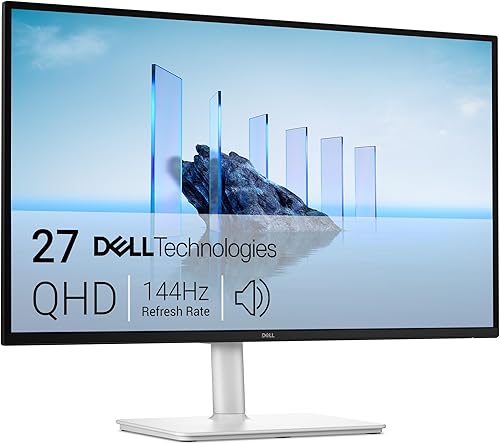
Dell S2725DSM: for users who put smooth motion first
Dell S2725DSM
- 27-inch QHD IPS
- 144Hz refresh rate
- Height, pivot, swivel and tilt adjustment
- Dual 3W speakers
Choose this Dell for a native QHD desktop and a high refresh ceiling, especially if smooth scrolling matters more than the finest text detail.
Pros
- Highest refresh ceiling in this group
- Full range of stand adjustments
- Built-in speakers
Cons
- Less pixel detail than the 4K models
- No USB-C input
The Dell S2725DSM suits users who prefer a native QHD workspace and care more about motion than maximum pixel density. Its 2560 x 1440 screen reaches 144Hz, the highest refresh ceiling in this group.
Height, tilt, swivel and pivot adjustments let you place the screen around your seated position. Dual 3W speakers provide a built-in audio option, and HDMI and DisplayPort cover the display connections.
Choose it for browsing, spreadsheets and general office work if QHD text already looks comfortable to you. A high refresh rate can make scrolling and pointer movement appear smoother, but it does not add detail to small text.
Skip it if you read dense documents all day and want the finer rendering available from a same-size 4K screen. For that priority, compare the best 4K monitors for work.
This Dell is a deliberate resolution trade-off, rather than a substitute for choosing comfortable scaling on a higher-resolution display.
LG 27US500-W: for a simple, fixed workspace
LG 27US500-W
- 27-inch 4K UHD IPS
- 60Hz refresh rate
- Tilt adjustment
- HDMI and DisplayPort
This LG suits a desk where screen height is already sorted and clear text matters more than extra ports or fast motion.
Pros
- 4K resolution for detailed work
- IPS panel
- OnScreen Control workspace tools
Cons
- Stand adjustment is limited to tilt
- OnScreen Control needs software and OS compatibility checks
The LG 27US500-W suits a desk where you already know the screen's height will work. Its 27-inch 4K IPS display favors detailed documents and images, while the stand provides tilt adjustment.
The 60Hz refresh rate is suitable for ordinary office tasks and video viewing. Choose one of the Dells instead if smoother desktop motion is a priority.
HDMI and DisplayPort give you conventional display inputs. LG's OnScreen Control can split the workspace and adjust basic monitor options, but it requires software installation and a compatibility check for your macOS version.
Skip this LG if several people share the desk or you often need to raise and lower the screen. A stable riser can change its position, but that is less convenient than an adjustable stand.
It makes the most sense when you want 4K detail and have no need for USB-C or frequent ergonomic changes.
LG 27UP850K-W: for a Mac mini and laptop sharing one desk
LG 27UP850K-W

- 27-inch 4K UHD IPS
- USB-C with up to 90W power delivery
- Two HDMI and two USB 3.0 ports
- Height, tilt and pivot adjustment
The broad port selection suits a desk shared by a Mac mini and a compatible laptop, with stand adjustments for comfortable positioning.
Pros
- USB-C display and data connection
- Two HDMI inputs and USB peripheral ports
- Height and pivot adjustment
Cons
- 60Hz refresh ceiling
- Power delivery adds little value for a Mac mini alone
The LG 27UP850K-W suits people who switch between a Mac mini and a compatible laptop. USB-C supports data transfer and up to 90W power delivery, which can be useful for the laptop side of that arrangement.
The port selection also includes DisplayPort, two HDMI inputs, two USB 3.0 ports and a headphone jack. Multiple inputs let you leave devices connected, although choosing an input and routing peripherals are separate tasks.
Its 27-inch 4K IPS panel runs at 60Hz, and the stand adjusts for height, tilt and pivot. Built-in speakers provide another way to handle desktop audio.
Skip it if you only connect a Mac mini and would leave the extra ports unused. The computer still needs its own power connection, so charging wattage should not drive that decision.
Choose this LG when its connections simplify a real device-sharing routine, rather than because USB-C sounds like a required Mac feature.
INNOCN 27 4K USB-C: for frequent position changes
INNOCN 27 4K USB-C

- 27-inch 4K UHD IPS
- USB-C with 65W power delivery
- HDMI and DisplayPort
- Height, swivel, tilt and pivot adjustment
Choose the INNOCN when USB-C and a stand that swivels, pivots and changes height are central to your workspace.
Pros
- 4K resolution
- USB-C connection
- Broad range of stand adjustments
Cons
- 60Hz refresh ceiling
- Fewer HDMI inputs than the LG 27UP850K-W
The INNOCN 27 4K USB-C suits a USB-C workspace where screen positioning matters. Its stand provides height, swivel, tilt and pivot adjustment, giving you more movement than the tilt-only LG.
The 27-inch 4K IPS screen runs at 60Hz. USB-C supports 65W power delivery, and HDMI and DisplayPort provide other display routes.
Choose it if you want to turn the screen toward someone beside you or change between landscape and portrait use. Leave enough cable slack for those movements so the connectors do not carry the strain.
Skip it if fast motion is your main priority or you need the two HDMI inputs offered by the LG 27UP850K-W. Its flexibility is most useful when you regularly adjust the screen, rather than leave it in one position.
For a compatible laptop, check charging needs separately before relying on the USB-C power output.
Is 4K or QHD better for a Mac mini?
4K is the better starting point for fine text and image detail, while QHD suits users who prefer its native desktop size and prioritize motion. Neither choice removes the need to set a readable interface size.
At the same physical size, a higher-resolution panel packs more pixels into each inch. That gives the computer more detail to work with when drawing letters, icons and image edges.
Text size and sharpness are separate choices
A 4K screen does not require you to work with tiny menus. macOS display scaling lets you choose a larger interface while retaining the benefits of the panel's pixel density.
A setting that makes the desktop look more spacious also makes interface elements smaller. Start with comfortable reading, then add workspace only if you can still read without leaning forward.
QHD can give you a useful desktop at its native setting. The trade-off is less fine detail than a same-size 4K panel, which matters most when you spend hours reading small text.
Match the resolution to your hardest daily task
For writing, coding and document review, prioritize clear letters and comfortable line spacing. For spreadsheets, consider both cell readability and how many columns you need visible at once.
Image work benefits from extra pixel detail, but resolution alone does not establish color accuracy. A screen's color gamut, calibration and the color handling of your apps serve different roles.
If physical size is still uncertain, read whether a 27-inch monitor is too big. Resolution cannot compensate for a screen that sits too close on a shallow desk.
What should you check before connecting a monitor to a Mac mini?
Check your exact Mac mini model, monitor input and cable capability before choosing a connection. A matching plug shape does not guarantee support for your preferred resolution, refresh rate or data functions.
Start with a direct connection when possible. It reduces the number of adapters and devices involved if you need to solve a display problem.
Choose the whole connection path together
Write down the display mode you want, then confirm that every part of the connection supports it. For example, reaching a monitor's maximum refresh rate requires more than seeing that number beside its name.
HDMI can be a simple route when your Mac mini's output supports the desired mode. A suitable USB-C-to-DisplayPort cable is another route when the computer's port supports display output.
Avoid buying an adapter based only on a claim that it supports 4K. Resolution and refresh rate need to be considered together, especially when you want more than basic desktop motion.
Check display, data and power separately
USB-C can carry several kinds of signals, but cables and ports differ. A charging cable may not support the display connection you need.
Also check how USB peripherals connect back to the computer. An HDMI video connection alone does not carry the upstream USB data needed for a monitor's USB ports.
Keep each device's purpose clear: video goes to the screen, data connects peripherals, and power runs the equipment. That makes cable choices easier and helps you spot missing connections.
If the display shows no signal, check power, input selection and cable seating first. Our monitor setup and fixes guide covers common connection checks.
Is a USB-C monitor useful with a Mac mini?
A USB-C monitor is useful when it solves a connection or device-sharing need. It is optional for a Mac mini, and monitor power delivery does not replace the computer's separate power connection.
For a desk used only by one desktop computer, HDMI or DisplayPort may cover everything you need. Buying USB-C solely for a charging feature gives that setup little practical benefit.
A shared laptop desk is different. A compatible laptop may receive video, data and charging through one suitable connection, reducing the number of cables you move when changing computers.
Do not assume that multiple display inputs also mean automatic peripheral sharing. Input switching, USB data routing and keyboard or mouse sharing are distinct features.
Plan where the keyboard, mouse and any external storage will connect before buying. Read our guide to what a USB-C monitor is if those roles are unclear.
How much refresh rate do you need for Mac mini work?
60Hz covers ordinary office work, while higher refresh rates make moving content appear smoother. Choose the higher ceiling if you care about scrolling, pointer movement or supported games, after securing readable text and a comfortable stand.
Refresh rate describes how often the screen can redraw each second. It does not make a still photo sharper or put more cells on a spreadsheet.
A higher-refresh display can still run at a lower setting if the computer or connection limits it. Confirm the active setting in macOS rather than assuming the monitor is using its maximum.
Video content also has its own frame rate, so every source will not gain the same benefit. For games, the computer must produce enough frames for the screen's extra capacity to matter.
Adaptive sync is a separate feature that requires support across the setup. Do not assume a FreeSync label guarantees a particular behavior with every Mac mini or app.
How should you position a 27-inch monitor on your desk?
Position the monitor so you can read comfortably while sitting normally, with your keyboard and mouse close enough to use without reaching. A screen that forces you forward is poorly placed even if its specifications suit your work.
Measure desk depth as well as width. The stand needs a stable surface, and you need room in front of it for your usual working posture.
Set your chair before the screen
Adjust your chair and input devices first, then bring the screen into a comfortable position. Reversing that order can leave you adapting your posture to a monitor that sits too high or low.
As a starting point, place the top of the screen around eye level or slightly below it. Adjust from there for your posture and eyewear, especially if you use lenses that affect your viewing angle.
Our guide to 27-inch monitor viewing distance can help you judge desk depth and readable text together. Moving farther away may require a larger scaling setting.
Leave room for movement and cables
A pivoting screen needs clearance above the desk and beside nearby objects. Lowering or rotating it without enough space can make an otherwise useful adjustment awkward.
Keep cables loose enough for stand movement, but gather excess length away from the keyboard area. Do not let a tight cable pull against a port when you turn the screen.
For the tilt-only LG, check the final screen height before committing to that arrangement. If you use a riser, choose a stable one that fully supports the stand.
How do you set up a new Mac mini monitor?
Start with a direct cable connection and comfortable display settings, then add software or extra devices. A simple starting point makes it easier to identify the cause of blurry text, missing sound or a blank screen.
- Connect power and video. Power the monitor and Mac mini separately, then select the monitor input that matches your cable.
- Open macOS display settings. Confirm that the screen is detected and choose a comfortable scaling option.
- Check the refresh rate. Select a supported setting that suits your work and connection.
- Set brightness for the room. A white document should not feel like a bright lamp beside your surroundings.
- Choose the sound output. If you want monitor audio, select the appropriate output when available.
- Add peripherals and optional software. Check compatibility before installing monitor control tools.
Keep the panel at its native resolution where possible and use scaling to change interface size. Sending a lower-resolution image can make text look softer.
If you use more than one display, arrange their positions in macOS to match the desk. That makes pointer movement between screens easier to predict.
For editing photos or preparing shared graphics, start with a suitable color mode and consistent room lighting. A wide-gamut claim or HDR badge alone does not establish a color-managed workflow.
Which monitor features should you avoid overvaluing?
Avoid letting charging wattage, response-time claims or HDR labels outweigh the features you will use every day. For most Mac mini office desks, readable text, suitable ports and comfortable positioning have more direct value.
Charging output for a desktop-only setup
More USB-C charging power does not make a Mac mini run better. It becomes relevant when you also connect a compatible device that can receive power through that port.
Buy around the shared device's requirements if charging matters. Otherwise, focus on how the monitor connects to the desktop and where your peripherals will plug in.
Fast response claims for document work
Response time and refresh rate describe different display behaviors. A very small response-time number should not decide a purchase for email, writing or spreadsheets.
For those tasks, compare resolution, text scaling and stand movement first. Choose faster motion as an added benefit when the rest of the monitor fits.
Color and HDR labels without a workflow
A larger color gamut describes a range of colors, not a promise that every app will show them accurately. HDR support also does not tell you everything about contrast or how a screen handles bright and dark scenes.
Choose for the content you actually create or view. For ordinary documents, a comfortable standard display mode may matter more than an HDR setting.
How do you care for a monitor and keep it comfortable to use?
Keep the screen clean, ventilated and free from cable strain. Regular care is simple and does not require polishing products or hard pressure.
Turn the display off before cleaning so marks are easier to see. Use a clean microfiber cloth, and follow the monitor's care instructions before adding any moisture.
Do not spray liquid directly onto the panel or use rough paper towels. Support the screen gently and avoid pressing on the display surface.
Keep vents clear and remove dust around the stand and cable area. If you move the monitor, hold it by suitable structural parts rather than lifting it by the panel.
For daily comfort, reduce reflections by changing the screen's angle or nearby lighting. Increase text size when needed and take regular breaks from looking at the same distance.
Which is the best monitor for Mac mini for your desk?
The best monitor for Mac mini is the one whose strongest feature solves your main need. Make the final choice around your daily work and connection plan.
- Choose Dell S2725QS for detailed everyday work with a flexible stand and smoother motion.
- Choose Dell S2725DSM if you prefer a QHD desktop and put motion ahead of finer text detail.
- Choose LG 27US500-W when your screen height is already sorted and you want a simple 4K setup.
- Choose LG 27UP850K-W for a desk shared with a compatible laptop or several connected devices.
- Choose INNOCN 27 4K USB-C when USB-C and frequent screen position changes matter most.
Before ordering, settle the cable route and measure where the stand will sit. Use our home office monitor guide if your remaining decision is screen size rather than which of these models to choose.
Our top 3 picks at a glance
-
1
-
2
-
3
Frequently asked questions
What monitor size works well with a Mac mini?
A 27-inch monitor works well for a Mac mini when your desk has enough depth for comfortable viewing. It offers room for documents and apps without requiring an unusually wide setup.
Measure the stand footprint and leave space for your keyboard, mouse and normal seated position before choosing.
Does a Mac mini need a USB-C monitor?
A Mac mini does not need a USB-C monitor if another supported video connection meets your needs. USB-C can help with a shared laptop desk or compatible data connections, but its charging output does not power the Mac mini.
Our guide to what a USB-C monitor is explains the differences.
Is 4K worth it for a Mac mini?
4K is worth considering if you spend long periods reading text, working with images or checking fine detail. At the same screen size, it provides more pixels than QHD, though your scaling choice determines how much workspace you see.
Read whether a 4K monitor is worth it for the main trade-offs.
Can you use a QHD monitor with a Mac mini?
Yes, you can use a QHD monitor with a Mac mini that supports the required output. QHD suits everyday documents, browsing and users who prefer its native desktop size.
Check your exact Mac mini model, cable and monitor input together before assuming that the screen's highest refresh rate will be available.