Dell Monitor vs LG Monitor: Which Is Better? (October 2026)
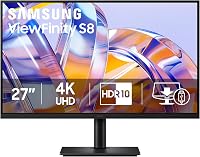
In this Dell monitor vs LG monitor comparison, choose the Dell S2725QS for work and gaming, the LG 27UP650K-W for an adjustable desk with DisplayHDR 400 compatibility, or the LG 27US500-W for a fixed workstation that needs only tilt adjustment.
On this page (9 sections)
- Dell monitor vs LG monitor: which fits your work?
- Who should buy each monitor, and who should skip it?
- Which monitor has the better 4K picture?
- Will a higher refresh rate improve your workday?
- Which stand will work best on your desk?
- What connections should you check before buying?
- How should you set up and care for a new monitor?
- What mistakes make this comparison harder than it needs to be?
- Which Dell or LG monitor should you choose?
The Dell S2725QS is the strongest all-around choice in this Dell monitor vs LG monitor comparison for a desk shared between work and games. Choose the LG 27UP650K-W for work and movies with an adjustable stand, or the LG 27US500-W for a fixed workstation.
The choice comes down to what happens around your documents: how often you scroll, move the screen, watch video or connect a laptop. All 3 offer the same screen size and resolution, so buying by brand alone misses the differences that affect daily use.
These recommendations apply to these exact models. They don't mean every Dell suits gaming better or every LG suits movies better.

Dell monitor vs LG monitor: which fits your work?
Choose Dell for motion and positioning flexibility, the LG 27UP650K-W for office and entertainment use, and the LG 27US500-W when you already have a comfortable fixed desk layout. Start with your hardest requirement, then compare the remaining features.
A writer who mostly reads and edits documents needs readable text and comfortable screen placement. Someone who also plays games has another reason to prioritize motion, while a person who reviews portrait pages may care more about screen rotation.
Before choosing, write down your computer's video outputs, your available desk space and whether you need laptop charging through the monitor. Those details can rule out a poor fit before you spend time comparing picture features.
Does Dell monitor vs LG monitor settle the brand question?
The model number matters more than the logo because features vary within each brand. The 2 LG monitors here illustrate that point: one offers more stand movement and a different HDR feature set than the other.
Our guide to Dell monitor model names and series explains the S, P, U and E labels. Use those names to narrow your search, then check the exact model's connections and adjustments.
If you're widening the shortlist, our LG vs Samsung monitor guide gives you another model-based comparison. Keep your requirements consistent so a different brand name doesn't distract you from what your desk needs.
Who should buy each monitor, and who should skip it?
Buy the Dell for a mixed-use desk, the more adjustable LG for office work and movies, or the simpler LG for a screen that stays put. Skip any model that leaves you solving a daily setup problem with extra accessories.
Dell S2725QS: for workdays that end with games
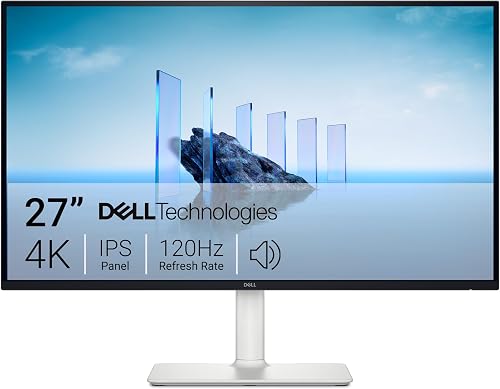
The Dell combines a refresh rate up to 120Hz with height, pivot, swivel and tilt adjustment. AMD FreeSync Premium supports compatible gaming setups, while built-in speakers provide an option for everyday audio.
That combination suits a main screen used throughout the day. You can set its height for seated work, turn it toward another person or rotate it for a tall document without relying on a separate riser.
Skip it if you mainly read static pages and won't use its extra motion capability or stand movement. Also check your computer before choosing it for the refresh rate, since the whole connection must support your intended output.
LG 27UP650K-W: for office work and evening viewing
The LG 27UP650K-W pairs a 60Hz display with DisplayHDR 400 compatibility and height, tilt and pivot adjustment. It suits someone who wants flexible positioning but doesn't need the Dell's higher refresh rate.
Portrait rotation can help with long documents, coding and page layouts. The height control also makes it easier to align the monitor beside a laptop on a stand.
Skip this LG if smoother gaming motion is your main reason to replace a monitor. Choose the Dell instead if you regularly turn the screen between seats and want swivel built into the stand.
LG 27US500-W: for a screen that stays in place
The LG 27US500-W offers HDR10 support and a tilt-adjustable stand. It fits a dedicated workstation where the screen's fixed height already matches your seated position.
Its OnScreen Control software can split the display into work areas after installation. That helps organize applications, though it doesn't create extra pixels or make small text easier to read.
Skip it if you need frequent height changes or portrait rotation. Buying a simpler stand and immediately adding a riser can erase the practical benefit of keeping the setup simple.
Which monitor has the better 4K picture?
All 3 provide 27-inch, 3840 x 2160 IPS screens, so none gains a workspace advantage from resolution alone. Compare color support and HDR features around the content you actually view.
The Dell offers 99% sRGB coverage and a 1500:1 contrast ratio. The LG 27UP650K-W offers up to 95% DCI-P3 coverage and 1200:1 contrast, while the LG 27US500-W offers up to 90% DCI-P3 coverage and 1000:1 contrast.
sRGB and DCI-P3 percentages aren't directly comparable. They describe coverage of different color spaces, so a higher percentage beside one label doesn't automatically beat a lower percentage beside another.
For web graphics, start with the color space your publishing workflow uses. For photo or video work, coverage figures alone don't establish color accuracy; display settings, color management and calibration also matter.
The Dell is HDR ready, while the LG models use the HDR features described above. HDR support shouldn't be the deciding factor for email or spreadsheets, and a compatibility label doesn't describe every part of the viewing experience.
A bright window reflected in the screen can matter more during work than a small difference in a specification. Place the monitor away from direct reflections and choose a brightness level that suits your room.
Our monitor brands and buying guides cover broader choices. If you're still weighing resolution, read when a 4K monitor is worth it before treating more pixels as your main upgrade.
Will a higher refresh rate improve your workday?
A higher refresh rate makes movement smoother, but it doesn't add detail to a still document. Its value is greatest if you scroll often, move windows frequently or use the same computer for games.
Both LG monitors operate at 60Hz and support FreeSync. The LG 27UP650K-W also includes Dynamic Action Sync, but those features don't turn it into a higher-refresh display.
For gaming, resolution and refresh rate place separate demands on your computer. A monitor's maximum capability doesn't mean every game will run at that setting with your preferred graphics quality.
For office work, judge the benefit against your current frustrations. If your main problem is tiny text or a screen sitting too low, scaling and positioning deserve attention before motion smoothness.
Avoid choosing from a response-time number alone. Response time concerns pixel changes, while refresh rate concerns how often the image refreshes; neither single figure describes the full experience.
Which stand will work best on your desk?
The Dell offers the broadest stand movement, while the LG 27UP650K-W covers height changes and portrait use. Choose the LG 27US500-W only when its fixed height fits your workstation.
Set your chair and keyboard position first, then place the display around that posture. Raising your chair just to see over a poorly positioned monitor can leave your feet or typing position uncomfortable.
As a starting point, place the top of the screen around eye level or slightly below, then adjust for your posture and eyewear. Keep text readable without leaning toward the panel.
Pivot is useful only if your work benefits from a tall screen. Rotate the image in your operating system too, and leave enough cable slack before turning the display.
Measure desk depth as well as width. You need room for the stand, keyboard and a viewing position that doesn't force you to scan the screen from too close.
Our guide to 27-inch monitor viewing distance helps you plan that space. If the desk is shallow, sort out placement before assuming any 27-inch screen will fit comfortably.
What connections should you check before buying?
All 3 offer HDMI and DisplayPort, so match the monitor to your computer's video output and intended display mode. Check the cable, adapter and any dock as part of the same connection.
A laptop with USB-C video output may need a USB-C-to-DisplayPort cable or another suitable adapter. Confirm that the laptop's port supports video rather than assuming every USB-C socket does.
An HDMI or DisplayPort video connection doesn't charge your laptop. If one cable for video and charging is a requirement, use our guide to what a USB-C monitor does to assess that need first.
For a high-refresh setup, check support at the full resolution you want. An adapter that handles a lower-resolution display smoothly may not support the same refresh rate at 4K.
Plan audio separately if you use headphones or external speakers. The Dell includes speakers, but choose your listening setup around calls, shared rooms and how much sound you want reaching other people.
How should you set up and care for a new monitor?
Start with native resolution, readable scaling and the right refresh rate, then adjust placement and brightness. These settings often make a bigger difference to daily comfort than switching picture presets repeatedly.
Make text readable before changing resolution
Keep the display at its native resolution and increase operating-system scaling if text looks too small. Scaling enlarges text and controls while preserving the panel's pixel detail.
Open your usual spreadsheet, browser and document side by side. Choose a scale that lets you read comfortably, rather than shrinking everything just to fit more windows.
If one app still looks blurry, check its scaling behavior and text settings. Lowering the whole display's resolution can soften everything to solve a problem affecting only one program.
Confirm the active refresh rate
Check the operating system's display settings after connecting the screen. A monitor can be working correctly while using a lower refresh rate than you intended.
If the desired option is missing, check the computer output, cable and dock capabilities. Change one part at a time so you can identify the limit.
Adjust light and keep the panel clean
Set brightness to match the room instead of leaving it at maximum. If HDR makes ordinary desktop content look unsuitable, use your normal desktop mode and enable HDR for content that benefits from it.
Power the screen off before cleaning and follow the manufacturer's care instructions. Use a clean microfiber cloth, avoid pressure on the panel and never spray liquid directly onto the screen.
Keep cables loose enough for stand movement and clear space around ventilation openings. Before rotating or lifting the display, make sure a tight cable won't pull against a port.
What mistakes make this comparison harder than it needs to be?
The biggest mistakes are buying by brand, overlooking the stand and assuming a cable guarantees every display mode. Focus on the complete workstation rather than one attractive specification.
Don't choose the LG 27US500-W solely because you plan to fix its height later. Work out the final screen position and any extra support before deciding whether it suits your desk.
Don't assume wider color coverage makes everyday documents clearer. Text readability depends more on resolution, scaling, application behavior and your viewing position.
Don't buy for HDR alone if most of your day involves ordinary office content. Put comfortable positioning and a compatible connection ahead of a feature you'll rarely enable.
Finally, don't assume these 3 screens represent every option from either brand. If none meets your connection or workspace needs, broaden the search with our complete home-office monitor guide.
Which Dell or LG monitor should you choose?
For this Dell monitor vs LG monitor decision, pick the model that solves your daily constraint first. Use motion as the deciding factor for a mixed work-and-gaming desk, stand movement for a changing workspace, and fixed placement for a simple dedicated station.
Choose the Dell S2725QS if you want the most flexible combination here. Its stronger motion capability and extra stand movement make sense when one monitor handles several roles.
Choose the LG 27UP650K-W if your work is comfortable at a conventional refresh rate and you want adjustable positioning plus its HDR feature set. Choose the LG 27US500-W when your screen can stay at a suitable fixed height.
Before ordering, confirm the connection from your computer and measure where the stand will sit. If laptop connectivity is still the deciding issue, read our Dell S2725QS vs S2725QC breakdown next.
| Product | Best for | Resolution | Refresh rate | Stand | Our score |
|---|---|---|---|---|---|
| Dell S2725QS | work and gaming | 3840 x 2160 | Up to 120Hz | Height, pivot, swivel and tilt | 9.1 |
| LG 27UP650K-W | work and movies | 3840 x 2160 | 60Hz | Height, tilt and pivot | 8.0 |
| LG 27US500-W | fixed workstations | 3840 x 2160 | 60Hz | Tilt adjustment | 7.9 |
Frequently asked questions
Is Dell or LG better for a 4K monitor?
The Dell S2725QS is the better choice here for mixed work and gaming because it combines a higher refresh rate with more stand adjustments. Choose the LG 27UP650K-W for DisplayHDR 400 compatibility, or the LG 27US500-W when a fixed screen position meets your needs.
Do these Dell and LG monitors have the same resolution?
Yes, all 3 have 3840 x 2160 native resolution on a 27-inch IPS screen. That gives them the same pixel count and similar potential workspace at matching scaling settings.
Their differences in motion, color features and stand adjustment matter more than resolution when choosing between them.
Which monitor has the most adjustable stand?
The Dell S2725QS has the most adjustable stand, with height, pivot, swivel and tilt controls. The LG 27UP650K-W supports height, pivot and tilt, while the LG 27US500-W offers tilt only.
Choose around your seated position and whether you need portrait orientation or often turn the screen.
Is 120Hz useful for office work?
Yes, 120Hz can make scrolling, pointer movement and window motion look smoother, provided your computer sends that refresh rate. It doesn't add workspace or improve the wording in a document.
For mostly static spreadsheets, email and reading, a well-positioned 60Hz display can still meet your needs.
Which LG monitor is better, the 27UP650K-W or 27US500-W?
Choose the LG 27UP650K-W if you need height adjustment, portrait rotation or DisplayHDR 400 compatibility. The LG 27US500-W suits a desk where tilt adjustment is enough.
Both provide a 27-inch 4K IPS screen, so choose the stand and display features you'll actually use.