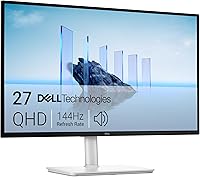
Dell Monitor Models Explained: S, P, U and E Series
Dell monitor models fall into broad groups: S for home use, P for productivity, U for UltraSharp professional displays, and E for basic office needs. Choose the exact model by its resolution, connections, and stand rather than the series letter alone.
On this page (8 sections)
- What do Dell S, P, U, and E monitor models mean?
- Is a Dell S monitor right for everyday use?
- What makes Dell P monitors different?
- When should you choose a Dell U monitor?
- What is the Dell E series for?
- How should you compare Dell monitor model numbers?
- How should you set up and care for a Dell monitor?
- Which Dell monitor models should you choose?
Dell monitor models generally use S for home use, P for productivity, U for UltraSharp professional displays, and E for basic office needs. Choose between them by matching the screen's connections, resolution, and adjustments to your desk.
For the models here, start with the S2725DS for everyday documents, the S2725QS for sharper text and mixed use, the P2725QE for a USB-C work setup, or the U2725QE for color-focused work and Thunderbolt connectivity.
What do Dell S, P, U, and E monitor models mean?
The letters describe broad buyer groups, not a ladder where every U model beats every P or S model. Features overlap, so a home-focused screen can still have a flexible stand and a high refresh rate.
| Series | Start here if you need | What to check next |
|---|---|---|
| S | A home screen for work and entertainment | Resolution, speakers, and computer connections |
| P | A display built around office tasks | Hub functions, laptop compatibility, and adjustments |
| U | Professional color or advanced desk connections | Color coverage, calibration, and cable requirements |
| E | A straightforward office or secondary display | Resolution, stand movement, and available ports |
Keep the complete model number when comparing screens. The S2725DS and S2725QS share several characters, but their resolutions differ, which changes text sharpness and scaling choices.
Don't assume a similar suffix means identical charging, ports, or stand movement across generations. Build a short list from the features you need, then use the series name to understand each model's focus.
Is a Dell S monitor right for everyday use?
Choose a Dell S monitor for a home desk when you want office work and entertainment on the same screen. The two examples below offer different routes: more pixel detail or a simpler QHD workspace.
Dell S2725QS: for sharper text and mixed use
The Dell S2725QS suits readers who spend hours with documents, detailed spreadsheets, and photos, then use the same screen for video or games. Its 3840 x 2160 resolution packs more detail into a 27-inch screen than QHD.
AMD FreeSync Premium adds adaptive sync for compatible gaming setups. HDMI and DisplayPort suit computers with matching outputs, while height, tilt, swivel, and pivot adjustments help position the screen around your chair.
Skip it if USB-C is essential to your desk plan. It's also unnecessary to choose 4K purely to fit more tiny text onscreen if you'd rather keep text large and use fewer windows.
Our Dell S2725QS review takes a closer look at its fit for a home desk.
Dell S2725DS: for documents and everyday office tasks
Choose the Dell S2725DS if you want a 27-inch workspace for email, browser tabs, and side-by-side documents without making maximum pixel density the priority. Its 2560 x 1440 resolution is a practical middle ground for routine office work.
The IPS panel supports wide viewing angles, useful when someone sits beside you to review a document. DisplayPort and HDMI provide computer connection options.
Skip it if fine text detail is your main reason to upgrade, particularly if you already prefer the appearance of a dense laptop display. Built-in speakers also don't replace a microphone or headset for calls.
For help choosing between these resolutions, read whether a 4K monitor is worth it for office work. Match the screen to your workspace with our guide to what size monitor you need for a home office.
What makes Dell P monitors different?
Choose a Dell P model when desk connections matter as much as the image. A hub can reduce the number of accessories you reconnect each time you bring a laptop to your desk.
The P2725QE combines a 27-inch 4K IPS display and a 100Hz refresh rate with USB-C, HDMI, DisplayPort, a USB hub, and Ethernet. It suits a work desk where peripherals and a wired network need a central connection point.
Confirm charging output before choosing it for laptop power. USB-C describes the connector, and its presence alone doesn't tell you how much power a monitor supplies.
Your laptop must also support video through the port you plan to use. Our guide to what a USB-C monitor is explains how video, data, and charging fit together.
Skip this model if you'll connect a desktop by HDMI and leave its hub unused. Its tilt, pivot, and 100 x 100 mm VESA mounting support are useful, but they shouldn't outweigh features you'll use every day.
When should you choose a Dell U monitor?
Choose the U2725QE for a defined color or connectivity need, rather than for the UltraSharp name alone. Its professional features make the clearest case for buyers who can put them to work.
The 27-inch 4K IPS Black display runs at 120Hz. Dell specifies 99% DCI-P3 coverage and factory calibration to Delta E less than 1.5, making it the color-focused option among these examples.
Thunderbolt 4 carries video, data, and up to 140W of laptop power through one cable with compatible equipment. Height, tilt, swivel, and pivot adjustments help place the screen, while an ambient light sensor adjusts brightness.
For creative work, color management still matters. Use the color space your project requires, since wide color coverage alone doesn't make every app display colors correctly.
Skip it for a desk used mainly for email and basic documents unless the connection system solves a separate problem. Before planning a one-cable setup, check your laptop's Thunderbolt support and power needs.
What is the Dell E series for?
Dell E models generally suit basic office duties and secondary-screen use. Consider the range when you need a straightforward display rather than a hub or specialized color features.
For a shared desk, prioritize a connection that matches the computer and a screen position that suits different users. A basic display becomes less useful if its stand leaves it too low or its ports require extra adapters.
No E model is included among these examples, so don't carry the specifications above across to that range. Check the exact screen before choosing it for portrait use, laptop charging, or a monitor arm.
How should you compare Dell monitor model numbers?
Compare computer compatibility first, then resolution and comfort. A screen that meets your image needs still won't suit the desk if it can't connect or sit at a useful height.
Which Dell monitor model features matter most?
Start with your daily task and the cable your computer can use. These checks prevent common buying mistakes:
- Resolution and scaling: 4K can make text look finer, but you may need scaling to keep menus readable. More pixels don't automatically mean more usable workspace at your preferred text size.
- Video output: Check the resolution and refresh rate your computer supports through the chosen port. An adapter or dock can limit the available modes.
- Stand movement: Height adjustment helps align the screen with your seated position. Pivot matters if you regularly read long documents in portrait view.
- Color needs: Match coverage and calibration to your work. Wider color coverage brings little benefit to a desk used only for documents.
- Hub functions: Count the accessories you need to connect and check the required ports. Don't assume every USB-C monitor offers the same functions.
Avoid choosing on response time alone for office work. Text clarity, readable scaling, and a comfortable screen position will affect more of your day.
If your shortlist includes another brand, use our Dell vs LG monitor comparison to compare the features that matter to your setup.
How should you set up and care for a Dell monitor?
Use the native resolution, readable scaling, and a comfortable screen position before judging the display. These settings make a larger difference than leaving everything at its default.
After connecting the monitor, open your computer's display settings and select the intended refresh rate. Increase text scaling if letters look too small, rather than lowering the screen resolution as your first fix.
Place the screen directly ahead, with the top around eye level or slightly below. Start about an arm's length away and adjust for clear text without leaning forward; our 27-inch monitor viewing-distance guide explains the tradeoffs.
Reduce reflections by moving the screen away from direct window glare. Set brightness to suit the room, rather than treating the highest setting as the best image.
For cleaning, turn the display off and use a clean microfiber cloth. Follow the monitor's care instructions for damp cleaning, spray nothing directly onto the panel, and avoid pressing hard on marks.
Which Dell monitor models should you choose?
Choose Dell monitor models by the feature your current setup lacks. Use this decision rule to finish your shortlist:
- S2725DS: Choose it for routine office work when QHD meets your text and workspace needs.
- S2725QS: Choose it for finer text and a home screen that also handles entertainment.
- P2725QE: Choose it when a USB-C hub and wired desk connections will simplify your workday.
- U2725QE: Choose it when factory calibration, wide color coverage, or Thunderbolt connectivity serves a clear need.
If none solves a specific problem with your current screen, define that problem before upgrading. For options beyond these Dell models, compare our best monitors for a home office by task and desk setup.
Frequently asked questions
What do the S, P and U mean in Dell monitor models?
S generally points to home use, P to business productivity, and U to Dell's UltraSharp professional displays. These letters describe broad product groups rather than a fixed feature set.
Compare the complete model name, resolution, connections, and stand before deciding which screen suits your computer and daily work.
Is a Dell P monitor better than an S monitor?
A Dell P monitor is a better choice when its work connections solve a specific need, such as connecting desk accessories through a USB hub. An S model can be the better fit for home use.
Compare individual screens because the series letter doesn't rank resolution, motion, or stand flexibility.
What is the difference between Dell P and U monitors?
Dell P monitors focus on productivity, while U models belong to the UltraSharp professional range. In these examples, the P2725QE offers a USB-C hub, while the U2725QE adds factory calibration, wide color coverage, and Thunderbolt 4.
Choose those extra features when your work or laptop setup needs them.
What does E mean in Dell monitor models?
E generally identifies Dell's basic business monitor range for straightforward office use. It can be a sensible starting point for a secondary screen or shared desk, but the letter doesn't establish the features.
Check the exact model's resolution, computer connections, stand movement, and mounting options before choosing it.