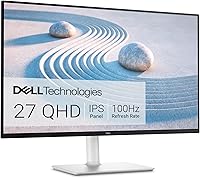
Dell S3225QS 32 Inch 4K Monitor Review: Worth It? (October 2026)
The Dell S3225QS suits a desk shared between work and entertainment, with a large 4K screen, refresh rates up to 120Hz and an adjustable stand. Choose the LG 32UR550K-B for pivot movement or the ASUS VP327Q for shared viewing.
On this page (9 sections)
- Dell S3225QS at a glance
- How much workspace does a 32 inch 4K screen provide?
- Is the faster refresh useful outside games?
- What should you expect from the VA panel and HDR support?
- Will the Dell fit your desk comfortably?
- How should you connect and set up the S3225QS?
- Which alternative fits your work better?
- Which setup mistakes should you avoid?
- Should you choose the Dell S3225QS?
The Dell S3225QS suits work and entertainment on a spacious desk, especially if you want smoother scrolling and gaming alongside a large 4K workspace. Buy it for that mix of uses, and check desk depth and computer output before committing to the size.
We compared its features with 3 similar-size alternatives. The useful differences are screen positioning, motion, shared viewing and connections, rather than resolution alone.
Dell S3225QS at a glance
The Dell S3225QS pairs a 32 inch 4K VA screen with refresh rates up to 120Hz. Its height-and-tilt stand and built-in speakers make it a practical choice for a desk used throughout the day.
Dell S3225QS

- 32 inch 4K UHD
- VA panel
- Up to 120Hz
- Height and tilt adjustment
Choose this Dell for a desk that handles documents during the day and games or movies afterward. Its adjustable stand helps position the large screen around your seated posture.
Pros
- 4K workspace for documents and windows
- Up to 120Hz with FreeSync Premium
- Height and tilt adjustment
- Built-in speakers
Cons
- Large screen needs room behind the keyboard
- 19.3 lb weight makes frequent moves less convenient
The native resolution is 3840 x 2160, and the screen has a standard 16:9 shape. That gives you room to place a document beside reference material without moving to an ultrawide layout.
Who should buy the Dell S3225QS?
Buy it if you regularly switch between office tasks and entertainment and want one large screen for both. The faster refresh is useful for people who notice motion while scrolling or spend time playing compatible games.
Skip it if your desk forces you to sit so close that you keep turning your head to read the corners. A smaller screen can be easier to place, as our Dell S2725QS review explains for the 27 inch alternative.
Also skip it if portrait orientation or shared viewing from the side is your main need. The LG and ASUS alternatives below address those situations more directly.
How much workspace does a 32 inch 4K screen provide?
The Dell provides space for side-by-side documents, spreadsheets and reference windows, but scaling determines how much fits comfortably. Choose readable text first, then arrange windows around it.
A useful starting layout is 2 main windows rather than 4 equally small ones. Keep your active document in the center and put messages or reference material toward an edge.
For spreadsheets, the larger screen can make a broad sheet easier to follow. Zoom the sheet independently instead of shrinking every menu and label across your whole desktop.
A 32 inch and a 27 inch display at the same resolution contain the same number of pixels. The larger screen spreads them over more space, so it doesn't automatically provide more usable workspace at the same scaling.
Our guide to whether a 4K monitor is worth it for office work explains that balance. If you're moving from a smaller display, the 27 inch vs 24 inch monitor guide also covers how screen size changes desk use.
Is the faster refresh useful outside games?
A faster refresh can make scrolling, pointer movement and window dragging look smoother. It won't make a spreadsheet calculate faster or add detail to a still image.
The Dell includes AMD FreeSync Premium, which can help match refresh behavior to a compatible gaming source. Adaptive sync and a high refresh rate address different parts of motion, so check both your computer's support and your settings.
Rendering games at 4K also places demands on the computer. You can have enough output capability for a smooth desktop without having enough graphics power to run a demanding game at the same frame rate.
Dell claims a 0.03ms response time, but a response-time figure doesn't describe every transition or motion artifact. Use the refresh rate and compatibility as buying criteria rather than making that single claim the deciding factor.
For mostly static documents, give desk fit and readable text priority. Our guide to the best 4K monitors for work helps compare options around those needs.
What should you expect from the VA panel and HDR support?
The Dell's VA panel suits a primarily straight-on viewing position. For showing work to someone seated beside you, the ASUS IPS alternative deserves closer attention.
The Dell has a 1500:1 contrast ratio, 99% sRGB coverage and 95% DCI-P3 coverage. These figures describe contrast and color range, rather than proving precise color accuracy.
For routine documents, browsing and entertainment, focus on a comfortable picture in your room. For color-critical editing, use a managed workflow and calibration instead of choosing from gamut coverage alone.
HDR readiness lets you consider HDR content, but the label doesn't establish highlight brightness or local contrast performance. Avoid buying this monitor solely because HDR appears among its features.
Compare ordinary desktop content with HDR enabled and disabled, then keep the mode that suits the task. Our IPS vs VA monitor guide explains the panel trade-offs in more detail.
Will the Dell fit your desk comfortably?
The Dell needs enough depth for both its stand and a comfortable viewing position. Its dimensions are 28.05 inches wide and 8.73 inches deep, so measure the usable desk surface before ordering.
Mark out the width with paper or tape, then leave space for anything that must stay beside it. Check shelves, lamp arms and nearby walls rather than measuring an empty desktop alone.
Depth matters just as much as width. You need room for the keyboard and mouse while keeping the display far enough back that the whole screen is easy to scan.
Set your chair and keyboard position first, then use the stand's height and tilt controls to place the display. Keep your main work near the center so you aren't holding your head at an angle for long stretches.
The monitor weighs 19.3 lb, which matters if you frequently rearrange your desk. Plan cable routes before putting it in place so you don't need to keep moving it to reach connections.
For size planning, see what size monitor you need for a home office. Our Dell monitor models guide explains where the S series sits within Dell's broader range.
How should you connect and set up the S3225QS?
Connect the monitor through HDMI or DisplayPort, then confirm resolution and refresh rate in your computer's display settings. A 1.8 m HDMI cable is included.
Check the whole signal path if you use a laptop dock or adapter. The computer, intermediate device and cable must support the resolution and refresh rate together.
Don't assume a connection that works at a lower setting will support the maximum setting. If the desired option is missing, check each part's supported output modes before replacing equipment.
After choosing native resolution, set scaling for readable text and move the apps you use most onto the screen. Reopen any app that looks unusually small or blurry after a scaling change.
Select the monitor as the audio output if you want sound through its speakers. For video calls, also check the app's output setting because it may retain a different device.
If your main goal is laptop charging and accessories through one cable, decide that requirement before choosing this model. HDMI and DisplayPort video connectivity alone doesn't establish a one-cable docking setup.
Which alternative fits your work better?
Choose an alternative when stand movement or shared viewing matters more than the Dell's faster refresh. All 4 monitors offer a large 4K workspace, so focus on the difference you'll use each day.
| Monitor | Best reason to choose it | Main buying check |
|---|---|---|
| Dell S3225QS | Mixed office work and entertainment | Desk depth and computer output |
| LG 32UR500K-B | Straightforward use at a fixed screen height | Whether tilt alone positions it well |
| LG 32UR550K-B | Portrait documents and flexible positioning | Clearance for rotating the screen |
| ASUS VP327Q | Shared viewing and several video sources | Stand movement and refresh needs |
LG 32UR500K-B for a fixed-height setup
Choose the LG 32UR500K-B if your desk already puts the screen at a comfortable height. Its tilt adjustment handles angle changes, while built-in stereo speakers keep basic audio simple.
OnScreen Control can split the workspace and change basic monitor options through software. It requires installation, so check whether your work computer allows that before making the software part of your plan.
Skip this LG if different users need to raise and lower the screen throughout the day. A tilt control can't solve a screen-height mismatch.
LG 32UR550K-B for portrait work
Choose the LG 32UR550K-B if you read long documents, review code or want to rotate the display. Its stand provides height, tilt and pivot adjustment.
This model runs at 60Hz, so choose it when positioning matters more than faster motion. Its Switch app can divide the desktop into up to 6 sections, though a few larger windows may be easier to use.
Skip it if you're buying mainly for a faster-refresh gaming setup. Before using portrait mode, allow enough vertical space and cable slack for rotation.
ASUS VP327Q for showing work to others
Choose the ASUS VP327Q if a colleague or family member often views the display beside you. ASUS specifies an IPS panel with 178-degree viewing angles.
Dual HDMI ports and DisplayPort also suit a desk with several video sources. Plan which source uses each input, and remember that connecting several devices doesn't by itself mean showing them simultaneously.
VESA mount compatibility gives you another placement option. Skip this ASUS if confirmed height adjustment or a particular high refresh rate is essential until you've established those details.
If you're still comparing Dell families rather than individual models, use Dell monitor models explained to narrow the search.
Which setup mistakes should you avoid?
The biggest mistakes are choosing unreadably small text, leaving refresh settings unchecked and forcing the screen onto a shallow desk. Fix those basics before spending time adjusting picture presets.
Don't use maximum brightness simply because it's available. Adjust it to the room so a white document doesn't feel much brighter than the surroundings.
Position the screen to reduce window reflections, and use room lighting that doesn't shine directly onto it. A large display is easier to live with when you don't need to lean or shift to avoid glare.
Dell's ComfortView Plus reduces blue light emissions, but screen settings don't replace breaks or sensible positioning. Look away regularly and change posture during long desk sessions.
For cleaning, turn the monitor off and use a clean, soft microfiber cloth. Follow Dell's care instructions for any cleaner, apply liquid to the cloth rather than the screen, and avoid pressing hard on the panel.
Keep cables loose enough for the stand's movement without pulling on the ports. Check them again after adjusting the screen or moving the desk.
Should you choose the Dell S3225QS?
Choose the Dell S3225QS for a desk shared between office work and entertainment, once you've confirmed comfortable placement and compatible output. Its main appeal is combining a large desktop with smoother motion in one display.
Pick the LG 32UR500K-B when a fixed screen height already works, or the LG 32UR550K-B when portrait use matters. Choose the ASUS VP327Q when people regularly view the screen from beside you.
If desk space remains the sticking point, settle that before choosing among these models. Use our complete guide to computer monitors for home offices to match screen size, connections and positioning to your workspace.
Frequently asked questions
Is the Dell S3225QS a 4K monitor?
Yes, the Dell S3225QS has a native resolution of 3840 x 2160, which is 4K UHD. Its 32 inch screen suits documents and side-by-side windows, but usable workspace depends on display scaling.
Start with your operating system's recommended setting, then adjust text size for comfortable reading.
Does the Dell S3225QS support 120Hz?
Yes, the Dell S3225QS supports refresh rates up to 120Hz and AMD FreeSync Premium. Your computer, cable and any dock must support your chosen resolution and refresh rate together.
After connecting it, check advanced display settings because the highest available refresh rate may need to be selected manually.
Can you adjust the Dell S3225QS stand?
The Dell S3225QS stand supports height and tilt adjustment, letting you position the screen around your seated posture. Set your chair and keyboard first, then move the monitor to match.
Choose the LG 32UR550K-B if you need pivot movement for switching between landscape and portrait viewing.
Does the Dell S3225QS have built-in speakers?
Yes, the Dell S3225QS includes built-in speakers for convenient desktop audio. Select the monitor as your computer's sound output if audio keeps playing through another device.
Headphones remain useful for private calls, while separate speakers let you choose their placement independently of where the screen sits.