Best 27 Inch Monitors for Home Office: Top 6 Picks (October 2026)
The best 27 inch home office monitors include the Dell S2725QS for mixed office tasks, the Dell S2725DSM for work and play, and the Dell S2725QC for laptop docking.
On this page (7 sections)
- Which is the best 27 inch monitor for home office work?
- Is 4K or QHD better for a 27-inch office monitor?
- Which connections and features will you use every day?
- Does a 27-inch monitor fit your desk?
- How should you set up and care for your office monitor?
- What mistakes should you avoid when buying?
- Which 27-inch home office monitor should you choose?
The Dell S2725QS is the best 27 inch monitor for home office work for most buyers because it combines fine text detail with flexible positioning. Choose the Dell S2725QC for a compatible one-cable laptop setup, or the Dell S2725DSM for a shared work-and-play desk.
Start with the work you do most, then check your computer's connections and the space behind your keyboard. Those choices matter more than a long feature list.
Our guide to what size monitor you need for a home office helps with desk fit. For options beyond this size, use our complete home office monitor guide.
Our picks at a glance
-
1
-
2
-
3

Which is the best 27 inch monitor for home office work?
The Dell S2725QS is the strongest general choice, while the S2725QC earns its place when laptop charging is part of the connection. The remaining picks serve buyers who favor motion, portrait reading or a simpler desktop setup.
GearedDaily compared resolution, connections, stand movement and features that affect daily office use. The order reflects overall fit, but a lower-ranked monitor can be the better choice when it solves your specific desk problem.
| Product | Best for | Resolution | Panel | Stand | Our score |
|---|---|---|---|---|---|
| Dell S2725QS | mixed office tasks | 4K UHD (3840 x 2160) | IPS | Height, pivot, swivel and tilt adjustments | 9.1 |
| Dell S2725DSM | work and play | QHD (2560 x 1440) | IPS | Height, pivot, swivel and tilt adjustments | 8.8 |
| Dell S2725QC | laptop docking | 4K UHD (3840 x 2160) | IPS | Height, pivot, swivel and tilt adjustments | 8.4 |
| Samsung ViewFinity S7 | fixed desktop workspaces | 4K UHD (3840 x 2160) | IPS | Confirm height and pivot adjustment before buying | 8.3 |
| LG 27UP650K-W | portrait document work | 4K UHD (3840 x 2160) | IPS | Height, tilt and pivot adjustments | 8.0 |
| LG 27US500-W | fixed-height desks | 4K UHD (3840 x 2160) | IPS | Tilt adjustment | 7.9 |
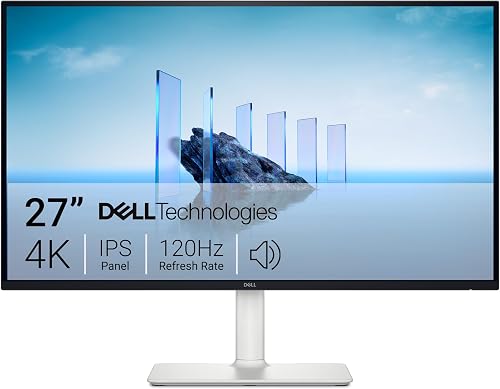
Dell S2725QS
- 27-inch 4K UHD IPS
- Up to 120Hz
- 99% sRGB
- Height, pivot, swivel and tilt adjustments
A flexible choice for reading, spreadsheets and after-work media. Its detailed screen and adjustable stand suit a desk used for several kinds of work.
Pros
- 4K detail for text and images
- Full stand adjustments
- Built-in speakers
Cons
- HDMI or DisplayPort setup needs separate laptop charging
- 4K usually calls for text scaling at this size
The Dell S2725QS suits a workday that moves between writing, spreadsheets, research and media. Its 4K IPS screen gives small text and detailed images more definition than a lower-resolution screen of the same size.
Height, pivot, swivel and tilt adjustments make it easier to place the display around your chair and keyboard. Pivot also gives you a portrait option for long documents, although wide spreadsheets generally work better in landscape.
The refresh rate reaches 120Hz, which makes scrolling and pointer movement more fluid when your computer supports that output. Built-in speakers provide convenient playback for training videos and casual listening without adding separate speakers to the desk.
HDMI and DisplayPort suit a desktop or a laptop with the right video connection. A laptop still needs its own charging arrangement when connected through either of those ports.
Buy this if you want one screen to handle varied tasks without giving up stand flexibility. Skip it for the S2725QC if plugging in one cable for video and laptop power is a daily priority.
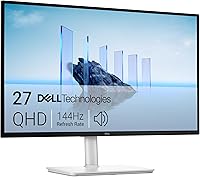
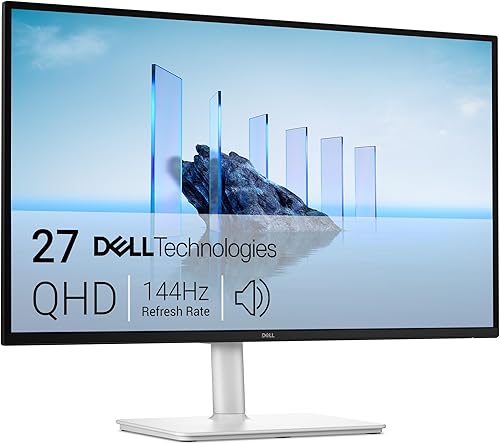
Dell S2725DSM
- 27-inch QHD IPS
- 144Hz refresh rate
- Height, pivot, swivel and tilt adjustments
- Integrated dual 3W speakers
A practical match for everyday office apps and leisure time on the same screen. Choose it when smooth motion matters more than the finest text detail.
Pros
- 144Hz refresh rate
- Full stand adjustments
- Integrated dual 3W speakers
Cons
- Less fine detail than 4K
- HDMI or DisplayPort setup needs separate laptop charging
The Dell S2725DSM fits a desk that doubles as an evening entertainment space. Its QHD resolution is enough for ordinary documents and browser tools, while the 144Hz refresh rate favors fluid motion.
At this size, QHD can also suit people who prefer using desktop apps with little or no scaling. You still control text size through your operating system and apps, so there is no reason to accept text that feels too small.
Its IPS panel has a 1500:1 contrast ratio, and FreeSync supports compatible gaming setups. Integrated dual 3W speakers cover basic playback, though a headset remains useful for private calls.
The stand offers the same four kinds of movement as the first Dell, helping you align it with a laptop or change position during the day. HDMI and DisplayPort keep the video connection straightforward.
Choose this model if ordinary office work and leisure share equal time on your desk. Skip it if you spend hours proofreading small text, inspecting detailed images or reading dense PDFs and want the finer rendering available from 4K.
Dell S2725QC
- 27-inch 4K UHD IPS
- Up to 120Hz
- USB-C with up to 65W power delivery
- Height, pivot, swivel and tilt adjustments
The laptop-focused choice for sending video and charging through one compatible USB-C connection. Confirm your computer's video support and power needs first.
Pros
- USB-C video and power delivery
- 4K IPS display
- Full stand adjustments
Cons
- Laptop must support USB-C video
- 65W may not cover a demanding laptop's charging needs
The Dell S2725QC is the practical choice for a laptop that travels between your desk and other rooms. USB-C video with up to 65W power delivery can turn the daily connection into a single plug.
That convenience depends on your laptop supporting video output through USB-C. A port that accepts charging or transfers files does not automatically support an external display.
The monitor pairs a 4K IPS panel with refresh rates up to 120Hz, plus height, pivot, swivel and tilt adjustments. It also includes speakers and HDMI, so USB-C is not your only connection option.
Check your laptop's normal charging requirement before choosing this for power delivery. A more demanding computer may need its original charger during heavy work, which reduces the benefit of the one-cable arrangement.
Buy the QC when you frequently reconnect a compatible laptop and want fewer loose cables. Skip it if your computer stays connected all week and already has a satisfactory video and charging setup.
For a closer look at those two Dell choices, read our Dell S2725QS versus S2725QC comparison.
Samsung ViewFinity S7

- 27-inch 4K UHD IPS
- 60Hz refresh rate
- HDR10
- HDMI and DisplayPort
A focused choice for a desktop computer and a workday centered on documents, browser tools and still images. Check the stand range against your seating position.
Pros
- 4K detail for office work
- HDMI and DisplayPort
- Eye Saver Mode
Cons
- 60Hz offers less fluid motion than the faster Dell options
- Height and pivot range need confirmation
The Samsung ViewFinity S7 suits a fixed desktop workstation built around documents, browser apps and detailed still images. Its 4K IPS panel at 60Hz prioritizes detail over the faster motion available from the Dell models.
HDMI and DisplayPort provide familiar connections, and both cable types are included. That helps if you are setting up a desktop and want to choose between its available video outputs.
Samsung includes HDR10 support, but HDR should be a secondary concern for office buying. It does not replace choosing comfortable text size, suitable brightness and a screen position that avoids reflections.
Samsung says Eye Saver Mode reduces blue light, and the monitor includes flicker prevention. Those features are no reason to leave the screen too bright or work through long periods without looking away.
Choose the S7 if your tasks stay mostly still and your desk already gives you a workable screen position. Skip it if height or portrait movement is essential unless you first confirm the stand's adjustment range.
LG 27UP650K-W

- 27-inch 4K UHD IPS
- 60Hz refresh rate
- Height, tilt and pivot adjustments
- DisplayHDR 400
A useful fit for readers who switch between wide layouts and long documents. Its stand provides height adjustment and portrait positioning without requiring a separate support.
Pros
- Height and pivot adjustment
- Up to 95% DCI-P3 coverage
- DisplayHDR 400 support
Cons
- 60Hz refresh rate
- HDMI or DisplayPort setup needs separate laptop charging
The LG 27UP650K-W fits readers and editors who want to change the screen's position for different documents. Height, tilt and pivot adjustment let you move from a wide desktop layout to portrait reading.
Portrait orientation can show more of a long report or page of code at once. It is less useful when you need several windows side by side, so consider how often you would actually rotate the screen.
This model combines a 4K IPS panel with a 60Hz refresh rate. It also supports DisplayHDR 400 and up to 95% DCI-P3 coverage, making it worth considering for office work mixed with image or video tasks.
Those color features do not establish color accuracy on their own. If you deliver color-critical work, your software, calibration process and final output requirements still matter.
HDMI and DisplayPort handle the video connection, and both cable types are included. Reader Mode and Flicker Safe round out its work-focused features.
Choose this LG for flexible document viewing without needing a fast refresh rate. Skip it if one-cable laptop charging or more fluid motion would help you more than portrait positioning.
LG 27US500-W

- 27-inch 4K UHD IPS
- 60Hz refresh rate
- HDR10
- HDMI and DisplayPort
A straightforward screen for an established desk where the display already sits at a suitable height. Onscreen Control helps arrange work across the display.
Pros
- 4K IPS display
- HDMI and DisplayPort
- Software supports window layouts
Cons
- Stand adjustment is limited to tilt
- 60Hz refresh rate
The LG 27US500-W suits an established desk where the screen will already sit at the right height. Its tilt-adjustable stand lets you change the viewing angle, but it is not the right solution for a display that sits too low.
The 4K IPS screen runs at 60Hz and supports HDR10. HDMI and DisplayPort cover common computer connections, making this a straightforward option for office tasks that do not need docking features.
Onscreen Control can divide the workspace into layouts and adjust basic monitor settings. That helps if you repeatedly arrange a document, browser and reference window and want a more orderly desktop.
Up to 90% DCI-P3 coverage adds scope for colorful media, but it should not drive the decision for email and spreadsheets. The more useful question is whether the stand works with your chair, desk and reading position.
Choose this model if its simple setup matches your workspace as it stands. Skip it if you would immediately need extra equipment to raise the screen, or if several people need to adjust the monitor throughout the day.
Is 4K or QHD better for a 27-inch office monitor?
4K is the better choice for fine text and image detail; QHD remains practical for ordinary office apps. The key is separating sharpness from the amount of usable space you expect.
Choose a 27-inch home office monitor for your main task
For proofreading, detailed PDFs and image work, extra pixels make more sense than a fast refresh rate. If your day centers on email, calls and a few browser windows, QHD can meet the need without making 4K a requirement.
A higher resolution does not force you to use tiny text. At the same apparent text size, a higher-resolution screen can use more pixels to draw letter edges.
Most people will want scaling on a 27-inch 4K display. Start with the operating system's recommended setting, then adjust it until menus and document text are easy to read while you sit back.
Count readable windows, not just pixels
Two readable windows are more useful than four cramped ones. Decide whether you need a document beside a reference page, a wide spreadsheet, or several small communication windows.
Scaling uses some of the potential workspace to make controls larger. That is a sensible trade when it improves reading, so do not buy 4K expecting every app to remain comfortable at its smallest size.
Some older apps handle scaling less neatly than newer ones. If one program is central to your job, check its display settings and scaling support before building your setup around it.
Our guide to whether a 4K monitor is worth it for office work explains where the extra detail pays off.
Which connections and features will you use every day?
Match the monitor to your computer before comparing extras. The right cable path, useful stand movement and a clear audio plan prevent more daily friction than features you rarely open.
Check the whole video connection
Your computer, cable, adapter and any dock all affect the resolution and refresh rate available. A connector that fits physically does not prove the whole connection supports the screen's highest mode.
Check the computer's external-display limits, especially if you plan to run another monitor as well. Then check any dock or adapter between the computer and screen.
For USB-C, confirm video output and charging needs separately. Our guide to what a USB-C monitor does explains why the connector alone does not tell you enough.
Treat refresh rate as a preference
A 60Hz screen is suitable for writing, spreadsheets and video calls. Faster refresh can make scrolling and desktop movement feel more fluid, but it does not create more workspace or improve a static document's detail.
If you also play games, refresh rate deserves more weight. Your computer still needs to deliver suitable performance, so buying the fastest screen does not guarantee equally fast game output.
Give stand movement a clear job
Height adjustment helps line the screen up with your seated position. Swivel is useful when you turn the display toward another person, while pivot supports portrait work.
Do not choose a stand based only on how many adjustments it offers. Pick the movements that solve your desk's actual limits.
If you plan to use a separate arm, confirm the monitor's mounting pattern, supported weight and clearance requirements first. A screen's size alone does not establish arm compatibility.
Plan calls separately from playback
Built-in speakers are convenient for short videos and ordinary audio. They do not tell you whether a monitor includes the camera or microphone you need for meetings.
Decide where your call camera will sit and which device will handle microphone input. A headset can also keep meeting audio private in a shared room.
Does a 27-inch monitor fit your desk?
Measure usable depth as well as width. A screen can fit between your shelves yet still leave too little room for a keyboard and a comfortable reading position.
These monitors are roughly 24 inches wide, while their stated depths with the stand range from about 7.9 to 9.4 inches. Leave space for cables behind the display rather than pressing the back against a wall.
Mark the stand area on the desk with paper before ordering. Place your keyboard and mouse where you normally use them, then check whether your arms and reading position still feel natural.
A shallow desk can put a large screen too close even when there is plenty of width. Our guide to how far to sit from a 27-inch monitor helps you work through that limit.
For a laptop beside the monitor, measure both devices together. Keep your main work directly in front of you rather than turning your neck toward an off-center screen all day.
Position the display so a window does not reflect directly across your work. Blinds and a small change in angle often help more than raising brightness.
If the screen still overwhelms the desk, compare 27 inches versus 24 inches before buying. More diagonal space is useful only when you can use it comfortably.
How should you set up and care for your office monitor?
Set comfortable text size and screen position first, then adjust brightness and window layouts. A few deliberate changes can make a larger display easier to use from the first day.
Start with the display settings
Select the monitor's native resolution in your computer's display settings. Use scaling to enlarge text and controls rather than lowering resolution, which can soften the image.
Next, choose the refresh rate you want from the modes your computer offers. If the expected option is missing, check the cable path and output limits before assuming the screen is at fault.
On a laptop setup, choose between extending the desktop and mirroring it. Extend mode gives each screen its own workspace, while mirroring repeats the same content.
Match the screen to the room
Use a comfortable seated position and place the top of the display around eye level as a starting point. Adjust from there so you can read without lifting your chin or leaning forward.
Set brightness to suit the room rather than leaving it at maximum. A bright white page should not look like a lamp beside your other work materials.
Keep ordinary document work in standard display mode initially. Turn on HDR for suitable content if you prefer its appearance, rather than assuming it improves every desktop task.
Arrange windows around repeated tasks
Build one layout for your most common work pair, such as a draft beside reference material. Keep messages in a smaller area if they do not need constant attention.
For two displays, match text size as closely as practical. Different scaling settings can make the transition less distracting when the screens have different resolutions.
Look away from the screen regularly and change position during long work sessions. Display comfort modes do not replace breaks or a workable desk arrangement.
Clean without damaging the surface
Turn the monitor off and let it cool before cleaning. Remove loose dust with a clean microfiber cloth, using light pressure.
For marks that remain, follow the manufacturer's cleaning directions and apply any permitted moisture to the cloth. Do not spray the panel directly or use rough paper, household glass cleaner or strong solvents.
Keep ventilation openings clear and leave cables enough slack for stand movement. Before rotating a display, check that the cables will not pull tight or catch under the stand.
What mistakes should you avoid when buying?
Avoid choosing by one headline feature. Resolution, refresh rate and color coverage each solve different problems, and none can rescue a poor physical fit.
- Assuming 4K means tiny text: scaling lets you keep readable text while using the extra detail.
- Buying speed for still work: prioritize clarity and positioning if most of your day is spent reading.
- Expecting USB-C to work automatically: confirm video support, cable capability and laptop charging needs.
- Ignoring stand height: a tilt-only stand cannot raise a low screen.
- Treating HDR as a work requirement: ordinary documents benefit more from comfortable brightness and clear text.
- Using color gamut as proof of accuracy: coverage describes a range of colors, not how precisely they appear.
- Forgetting the laptop screen: decide whether it stays open, becomes a secondary display or leaves the work area.
Do not add a dock, arm or riser simply because it appears in a desk photo. Buy an accessory when it solves a measured problem, such as missing ports, insufficient height or lost desk depth.
Before ordering, write down your required connection, preferred screen position and main two apps. That short checklist makes it easier to reject a monitor whose headline features distract from a poor match.
Which 27-inch home office monitor should you choose?
Choose the best 27 inch monitor for home office work by solving your main daily constraint first. Pick the Dell S2725QS for varied tasks, the S2725QC for frequent laptop connections, or the S2725DSM when office work shares the screen with play.
Choose the Samsung ViewFinity S7 for a fixed desktop workspace when its stand suits your position. Pick the LG 27UP650K-W for portrait document work, or the LG 27US500-W when tilt adjustment already meets your needs.
If size remains uncertain, start with what size monitor you need for a home office. For a broader comparison of connections and screen formats, use our complete home office monitor guide.
Our top 3 picks at a glance
-
1
-
2
-
3
Frequently asked questions
Is a 27-inch monitor large enough for a home office?
Yes, a 27-inch monitor gives many home workers enough room for a document beside a browser or reference window. It can still feel cramped if your job requires several large windows at once.
Use our monitor size guide to compare screen area with the space on your desk.
Should I choose 4K or QHD at 27 inches?
Choose 4K for finer text and image detail, or QHD if everyday office apps are your main concern and its clarity meets your needs. Scaling determines how large text and controls appear.
Our guide to whether a 4K monitor is worth it for office work explains the trade-off.
Does a 27-inch monitor need an adjustable stand?
Height adjustment is worth choosing if the monitor would otherwise sit too low or if different people share the desk. Tilt alone changes the angle, not the screen's height.
For help matching the screen position to your workspace, read our guide to choosing a home office monitor.
How far should you sit from a 27-inch monitor?
Start about an arm's length away, then adjust the screen position and text size until you can read while sitting back comfortably. You should not need to lean toward small text or turn your head repeatedly.
Our 27-inch monitor viewing distance guide explains how desk depth affects that starting point.