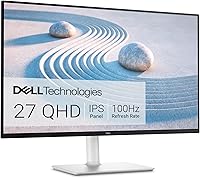
Dell S2725DSM 27 Inch QHD Monitor Review: Worth It? (October 2026)
The Dell S2725DSM is a strong choice for mixed work and gaming thanks to its QHD screen, 144Hz refresh rate and adjustable stand. Choose a different monitor if 4K detail or laptop charging through USB-C is your priority.
On this page (9 sections)
- What does the Dell S2725DSM offer?
- Is QHD enough on a 27-inch screen?
- How much does the higher refresh rate matter?
- Will it work with your computer and audio setup?
- How should you position and set up the screen?
- What comfort and care habits help during daily use?
- Which alternatives suit different buyers?
- Which mistakes should you avoid before ordering?
- Should you choose the Dell S2725DSM?
The Dell S2725DSM is a good choice for office work with gaming on the side, especially if you want an adjustable screen and built-in speakers. Its QHD display favors a balance of desktop clarity and smooth motion over the finer detail of 4K.
Choose it for a desk that handles documents, browsing, video and games throughout the week. Skip it if your main goal is the sharpest possible text at this size or a monitor that charges your laptop through USB-C.
What does the Dell S2725DSM offer?
The Dell S2725DSM combines a 27-inch IPS screen, 144Hz refresh rate and flexible stand in one everyday monitor. AMD FreeSync supports smoother gaming with compatible graphics output, while integrated speakers cover basic desktop audio.
Dell S2725DSM
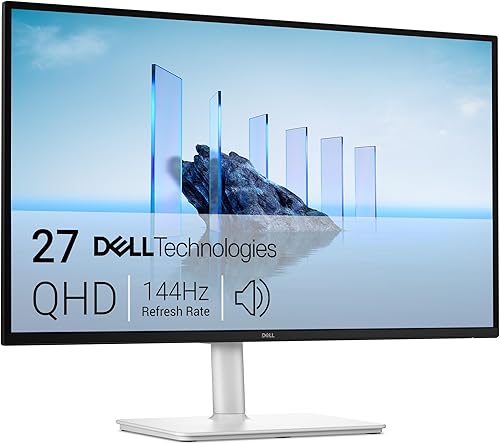
- 27-inch QHD IPS display
- 144Hz refresh rate
- Height, tilt, pivot and swivel adjustment
- 2 x 3W speakers
Choose this Dell for a desk shared between office work, video and games. Its adjustable stand helps you position the screen, while built-in speakers keep basic audio simple.
Pros
- QHD resolution on a 27-inch IPS screen
- 144Hz refresh rate with AMD FreeSync
- Height, tilt, pivot and swivel adjustment
- Built-in dual 3W speakers
Cons
- Less fine detail than a same-size 4K screen
- Connections focus on HDMI and DisplayPort rather than USB-C charging
The appeal is the combination, rather than any single headline number. A screen that moves to a comfortable position can be more useful during a long workday than an extra display feature you rarely use.
Its anti-glare surface also helps manage reflections, though placement still matters. A bright window reflected in the panel can distract you even when the screen has an anti-glare finish.
Who should buy the Dell S2725DSM?
Buy it if you want one screen for work and recreation and have a computer with a suitable video output. It makes sense for a home office that becomes a gaming or streaming desk after work.
The adjustable stand is especially useful if you change posture, share the desk or read long documents in portrait orientation. Built-in audio also suits buyers who want fewer separate devices around the keyboard.
Skip it for work centered on fine image detail if you already know you prefer a 4K desktop. Buyers seeking a direct USB-C laptop connection should also choose around that requirement first.
Our guide to 27-inch monitors for home offices compares other choices in this size. For the wider buying process, start with our complete guide to home-office monitors.
Is QHD enough on a 27-inch screen?
QHD is enough for most everyday desk tasks, provided the text size works at your normal sitting distance. The Dell's 2560 x 1440 resolution gives you more pixels than Full HD at the same screen size.
That extra detail helps when placing a document beside a browser or keeping a reference window open during a call. Window layout still matters, so don't expect every application to fit comfortably just because the screen has more pixels.
A same-size 4K monitor can draw letters and image edges with finer detail. It is worth considering for dense documents, detailed diagrams and high-resolution images, even if you enlarge the interface through scaling.
Scaling changes text size without changing native resolution. Keep the monitor at its native resolution and adjust scaling or app zoom before lowering the display resolution, which can soften text.
If you're unsure about the physical size, read our guide to monitor sizes for home offices. Our advice on how far to sit from a 27-inch monitor helps you judge the screen from your actual desk position.
How much does the higher refresh rate matter?
The higher refresh rate matters most for games and moving content, with a smaller everyday benefit when scrolling or moving windows. The Dell can refresh up to 144 times per second, but your computer and connection must support that mode.
For games, refresh rate and frame rate are different. The monitor sets the display's refresh ceiling, while your computer determines how many new game frames it can produce.
FreeSync helps coordinate refresh timing with compatible graphics output to reduce tearing. It doesn't make a demanding game run faster, so graphics settings may still need adjustment.
The 1ms MPRT figure measures motion persistence, rather than the full delay between pressing a key and seeing a response. Don't compare it directly with another monitor's gray-to-gray response figure as if both describe the same thing.
If email and static documents fill your day, smoother motion alone isn't a reason to replace a comfortable screen. Prioritize readable text and a workable desk position before chasing the highest refresh number.
Will it work with your computer and audio setup?
Check your computer's video output before buying, because this Dell connects through HDMI or DisplayPort 1.4. A matching port is the simplest starting point, but adapters and docks must also support your intended display mode.
For a desktop, use the output associated with the graphics hardware you intend to use. For a laptop, check the capabilities of both its port and any dock between it and the monitor.
The included HDMI cable is 1.80 m long. Measure the route around the desk and leave slack for screen movement rather than stretching the cable tight.
The dual 3W speakers let you hear video, alerts and other basic audio without separate desk speakers. Choose the monitor as the sound output in your computer's audio settings if sound continues coming from the laptop.
Speaker wattage doesn't establish sound quality or bass performance. Keep headphones or separate speakers in your plan if music, private calls or detailed game audio are priorities.
A USB-C-shaped laptop port doesn't automatically support video. Our explanation of what a USB-C monitor does covers the connection and charging details to check.
How should you position and set up the screen?
Set your seating position first, then adjust the monitor to you. The Dell stand supports height, tilt, pivot and swivel, so you have several ways to place the display without changing your chair position.
Keep the screen centered on your main working position and begin with its top around eye level or slightly below. Adjust from there so you can read without lifting your chin or leaning forward.
Place the display beside a window where possible, rather than directly facing it or putting bright daylight behind it. Tilt can help with reflections, but moving a lamp or changing the screen's position often does more.
Set resolution, scaling and refresh separately
Use the operating system's display settings to select the native resolution, a comfortable scale and the highest supported refresh rate. These are separate controls, and connecting the cable doesn't guarantee each one uses your preferred setting.
If a higher refresh option is missing, check the cable path, dock limits and graphics settings. Start with a direct computer-to-monitor connection to narrow down where the restriction occurs.
For portrait use, allow clearance before rotating the panel and leave enough cable slack. Then change the orientation in display settings so the desktop follows the screen.
Plan the desk before adding an arm
Measure the usable desk depth, including space for your keyboard and a comfortable viewing distance. A stand footprint that fits on paper can still leave you sitting too close if the desk is shallow.
The monitor weighs 14.1 lb as specified, but that figure alone doesn't establish arm compatibility. Check the required mounting pattern, screen size and supported load before choosing an arm.
What comfort and care habits help during daily use?
Match brightness to the room and keep the panel clean, rather than leaving every setting at its maximum. A bright white document shouldn't feel like a lamp shining toward you.
Dell describes the screen as TÜV-certified for eye comfort, and it includes flicker-free operation. These features don't replace breaks, readable text or sensible room lighting.
If you lean forward to read, increase app zoom or system scaling before moving the monitor much closer. Pause regularly to look away from nearby work and change position.
For cleaning, turn the monitor off and use a clean microfiber cloth with light pressure. Follow Dell's care instructions for any moisture or cleaning solution, and never spray liquid directly onto the panel.
Support the monitor securely when moving it and avoid pressing on the display surface. Keep cables loose enough that adjusting the stand doesn't pull on a connector.
Which alternatives suit different buyers?
Choose an alternative to solve a specific mismatch with the Dell, such as needing finer detail or a USB-C connection. Changing brands without identifying that need makes the choice harder.
Samsung ViewFinity S7: choose it for detail-focused work
The Samsung ViewFinity S7 suits buyers who put fine text and image detail first. Its 27-inch IPS panel has a 3840 x 2160 resolution, with HDMI and DisplayPort connections.
Its 60Hz refresh rate makes it a better match for office work and detailed content than buyers seeking high-refresh gaming. HDR10 support is included, but that feature alone doesn't establish how impressive HDR content will look.
Choose it for detailed diagrams, documents and image viewing if you're comfortable adjusting scaling. Skip it if fast motion is the main reason you're replacing your current display.
If you want to stay with Dell while comparing other models, see our Dell S2725QS review and Dell S2725QC review.
ViewSonic VS2725-2K: choose it for adjacent office screens
The ViewSonic VS2725-2K suits a QHD office setup with adjacent displays, helped by its frameless design. It has an IPS panel, HDMI and DisplayPort connections, plus Flicker-Free technology and a Blue Light Filter.
Narrow borders reduce the visual interruption between screens, but you still need room to position both displays comfortably. Match text scaling and align the screens around the tasks you use most.
ViewSonic describes 100Hz operation alongside 75Hz adaptive-sync performance, so confirm the supported modes for your intended connection before buying for gaming. Skip it if you need a clearly established high-refresh mode without that extra check.
ViewSonic backs it with a 3-year limited warranty. That is a useful ownership detail for an office purchase, though warranty length alone doesn't predict lifespan.
LG 27U631A-B: choose it when USB-C matters
The LG 27U631A-B suits buyers who want a USB-C connection and can retain a separate charger. It pairs a QHD IPS display with a 100Hz refresh rate, HDMI and USB-C power delivery of up to 15W.
That power limit is the key buying check. Compare it with your laptop's charging requirements before assuming one cable will handle a full workday.
The LG also includes Reader Mode, Flicker Safe and tilt adjustment. Choose it when its connection options fit your devices; skip it if you expect it to replace a higher-power laptop charger or want the Dell's wider range of stand movement.
For context on Dell's range, read Dell monitor models explained.
Which mistakes should you avoid before ordering?
Avoid choosing by the largest number on the box. Resolution, refresh rate, response time and power delivery describe different jobs, so rank them around your own use.
- Buying for motion your computer can't deliver: Check graphics output and game performance before making refresh rate the deciding factor.
- Assuming USB-C means full laptop charging: Compare supported power delivery with your computer's needs.
- Ignoring stand movement: A screen that sits too low can make the whole desk awkward.
- Using maximum brightness everywhere: Set it for the room, especially when reading white pages.
- Expecting HDR support to guarantee dramatic highlights: Format support alone doesn't describe the full HDR experience.
Write down your main task, required connection and preferred text size before comparing models. Our guide to choosing a monitor for a home office walks through those decisions in order.
Should you choose the Dell S2725DSM?
Choose the Dell S2725DSM if work and gaming share the same desk and you value screen positioning alongside smooth motion. Its combination fits buyers who want a flexible everyday display without making 4K detail their first priority.
Choose the Samsung for finer detail, the ViewSonic for a QHD office setup with narrow borders, or the LG when USB-C fits your devices and separate charging is acceptable. Resolve those needs before comparing smaller extras.
Before ordering, check your computer's output, cable route and available desk depth. If the choice still feels close, use our 27-inch and 4K monitor guides to compare screens around the task you do most.
Frequently asked questions
Is the Dell S2725DSM a 4K monitor?
No. The Dell S2725DSM has a QHD resolution of 2560 x 1440 pixels, rather than 4K's 3840 x 2160.
QHD suits everyday office work and gaming, while a same-size 4K screen offers finer detail. Your text-size preference and scaling settings also affect which resolution feels more useful.
Does the Dell S2725DSM have USB-C?
Its video connections are HDMI and DisplayPort 1.4, so choose another model if a direct USB-C connection is essential. A laptop with a compatible USB-C video output may work through an appropriate adapter.
Plan to power the laptop separately rather than expecting this monitor to replace its charger.
Can you adjust the Dell S2725DSM stand?
Yes, the stand supports height, tilt, pivot and swivel adjustment. Set your chair and keyboard position first, then bring the screen to a comfortable height and angle.
For portrait use, leave room to rotate the panel and change the display orientation in your computer's settings.
Is the Dell S2725DSM suitable for gaming?
Yes, its 144Hz refresh rate and AMD FreeSync make it a useful choice for gaming alongside office work. Your computer must support the desired output, and game frame rates still depend on its hardware and settings.
The 1ms MPRT figure describes motion behavior, not total system input delay.