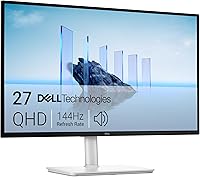
Dell S2725QC 27 Inch 4K Monitor Review: Worth It? (October 2026)
The Dell S2725QC suits laptop users who want one-cable desk connections, sharp 4K text and smoother motion. Choose it if your laptop supports USB-C video and charging within 65W; consider the S2725QS for DisplayPort or the LG for more charging power.
On this page (10 sections)
- What makes the Dell S2725QC worth considering?
- How useful is 4K at 27 inches?
- Is its USB-C charging enough for your laptop?
- What do color, HDR and refresh rate mean here?
- How should you position and set up the screen?
- Do the speakers and comfort features change the decision?
- Which alternative fits your desk better?
- What mistakes should you avoid before ordering?
- How should you clean and care for it?
- Should you buy the Dell S2725QC?
The Dell S2725QC is a good fit for a laptop desk where one USB-C cable can handle video and charging. Its sharp screen and smoother motion also suit a home office used for games and movies after work.
Buy it for that mix of uses, provided its charging limit fits your laptop. If you use a desktop PC, need a physically larger screen or want more charging power, one of the alternatives below makes more sense.
What makes the Dell S2725QC worth considering?
The S2725QC combines a 27 inch 4K IPS screen, refresh rates up to 120Hz and USB-C power delivery up to 65W. Its appeal is fitting those features into one desk display rather than making you choose between laptop convenience and smoother motion.
Dell S2725QC

- 27 inch 4K UHD IPS
- Up to 120Hz refresh rate
- USB-C with up to 65W power delivery
- Height, pivot, swivel and tilt adjustment
A strong fit for laptop users who want to connect their screen and charge through one cable. Check your laptop's video support and power needs before choosing it.
Pros
- USB-C carries video and supplies up to 65W
- 4K IPS screen with 99% sRGB coverage
- Refresh rate up to 120Hz with FreeSync Premium
- Height, pivot, swivel and tilt adjustment
Cons
- 65W can fall short for higher-power laptops
- USB-C video requires a compatible computer port
The screen offers 99% sRGB coverage, a 1500:1 contrast ratio and HDR readiness. AMD FreeSync Premium adds adaptive sync support for compatible gaming setups.
For documents, spreadsheets and web work, the main benefit is fine detail at a size that fits many desks. The faster refresh rate can also make scrolling and pointer movement look smoother when your computer outputs the matching mode.
Who should buy the Dell S2725QC?
Buy it if you dock and undock a compatible laptop often and want fewer separate connections. It also suits someone who spends the day on office tasks and wants a smoother display for evening play.
Skip it if charging through the monitor offers little value to you. A desktop with DisplayPort, a laptop that needs substantially more power or a shallow desk that limits screen placement calls for a different choice.
How useful is 4K at 27 inches?
A 27 inch 4K screen is useful for clear text and fine image detail, but comfortable scaling matters more than fitting the smallest possible text on screen. The S2725QC's native resolution is 3840 x 2160.
Start with your operating system's recommended scaling, then adjust it for your eyesight and seating position. On Windows, 150% is a reasonable starting point; on a Mac, compare the scaled options for readable text and useful workspace.
Keep the native resolution selected where possible. Lowering resolution to enlarge everything can soften text, while scaling changes interface size without giving up the panel's native pixel grid.
Don't assume 4K automatically means more usable room for every app. Your scaling choice determines how much fits, and older software may handle scaling less neatly than current apps.
Our guide to how far to sit from a 27 inch monitor helps with placement. If the physical size is still uncertain, read the 27 inch vs 24 inch monitor comparison before committing desk space.
Is its USB-C charging enough for your laptop?
The charging connection is enough when your laptop accepts USB-C power within the monitor's limit. The port must also support video output for the one-cable arrangement to work.
Check your laptop manufacturer's charging guidance and the wattage printed on its usual adapter. A higher-power laptop may charge slowly or lose battery during demanding work when connected to a lower-power source.
If your laptop needs its original charger, you can still use a monitor for video while powering the laptop separately. That reduces the reason to choose this model specifically for cable simplicity.
The S2725QC includes a 1 m USB-C to USB-C cable rated for 10Gbps and 100W. The cable's higher power rating doesn't raise the monitor's charging output, and its length may limit where you place the laptop.
A USB-C connector alone doesn't promise video support. Our USB-C monitor guide explains the computer-side checks, while the Dell S2725QS vs S2725QC guide helps you choose between connection types.
What do color, HDR and refresh rate mean here?
Treat this as a general work and entertainment monitor, with useful color coverage and smoother motion. Color gamut, HDR support and refresh rate describe different abilities, so don't use one as proof of the others.
The sRGB coverage is relevant to web content and everyday image work. It doesn't establish factory calibration accuracy, so color-critical print or client work needs a workflow with suitable calibration and color management.
HDR readiness means support for HDR content, but it doesn't establish strong highlight brightness or deep local contrast. Keep HDR expectations modest and judge ordinary desktop readability separately from HDR playback.
For games, a high refresh ceiling helps only when the computer and connection can deliver the chosen mode. Rendering demanding games at 4K also requires more graphics power than running them at a lower resolution.
The supplied response-time claims conflict, so they aren't a sound basis for choosing among these monitors. Prioritize your actual games, desired frame rate and connection support instead.
How should you position and set up the screen?
Set up the S2725QC by matching its position to your chair, then checking display settings. Its stand supports height, pivot, swivel and tilt, so use those adjustments before changing your posture to suit the screen.
Place the monitor directly ahead for your main work. Keep the top of the visible screen around eye level or slightly below, then adjust the angle so you can read without leaning forward.
The monitor measures 24.08 in wide and 7.89 in deep, and weighs 14.8 lb. Allow space behind it for cables and keep enough desk depth for your keyboard, forearms and a comfortable viewing distance.
After connecting it, select the native resolution and desired refresh rate in your computer's display settings. If the expected refresh option is missing, check the computer's output limits and any adapter or dock in the cable path.
Adjust brightness to suit the room rather than leaving it at maximum. Position windows and lamps to reduce reflections; the anti-glare surface won't remove a bright light reflected directly toward you.
For portrait use, give the cables slack before pivoting and change the orientation in software. Keep the screen clear of desk objects as it turns.
Do the speakers and comfort features change the decision?
The built-in speakers are useful for a simpler desk, but connection fit and screen size should lead the choice. They let you start using audio without adding a separate speaker set.
For private calls, use a headset or another suitable audio setup. Don't assume built-in speakers also mean a built-in microphone.
Dell's ComfortView Plus reduces blue light emissions while maintaining color accuracy, according to Dell. Still adjust brightness, reduce glare and take regular breaks during long screen sessions.
These features are conveniences rather than reasons to accept the wrong charging limit or desk fit. A screen positioned badly will remain awkward even with an adjustable stand and comfort features.
Which alternative fits your desk better?
Choose an alternative when your computer's ports, power needs or preferred screen size differ from the S2725QC's strengths. These three options solve distinct problems rather than offering a simple upgrade ladder.
Dell S2725QS: for desktop computers
The S2725QS is the better match for a desktop PC using DisplayPort or HDMI. It shares the S2725QC's screen size, resolution, IPS panel type and maximum refresh rate, along with the same four stand adjustments.
Choose it when your laptop already has a separate power arrangement or you don't move it often. Skip it if connecting video and charging through one USB-C cable is the main reason you're replacing your screen.
Read the Dell S2725QS review if that connection choice fits your computer. You won't need to move to a larger display just to change how you connect.
Dell S3225QS: for a larger view
The S3225QS suits a deeper, wider desk where you want larger text and images at the same scaling setting. Its 32 inch VA screen keeps 4K resolution and supports refresh rates up to 120Hz.
A larger screen with the same pixel count doesn't add desktop pixels. It spreads them across more space, which can make the view easier to read from farther back.
At 28.05 in wide, it needs more room than the S2725QC. Its stand adjusts for height and tilt, so skip it if you depend on built-in swivel or portrait rotation.
LG 27UP850K-W: for more charging power and connections
The LG suits a work laptop that needs more power than the Dell can supply. It offers USB-C delivery up to 90W, DisplayPort, two HDMI connections, two USB 3.0 ports and a headphone jack.
Its 27 inch 4K IPS display supports DisplayHDR 400 and up to 95% DCI-P3 coverage. Those features suit buyers comparing media and color-related capabilities alongside desk connections.
The trade-off is a 60Hz refresh rate. Choose it for charging and port flexibility; skip it if smoother motion is a main reason you're upgrading, and remember that some laptops need more than its power limit too.
What mistakes should you avoid before ordering?
Avoid choosing by resolution alone or assuming that every USB-C setup works the same way. Check the whole connection path before deciding which monitor fits.
- Buying for one-cable use without checking the laptop. Confirm both video output and USB-C charging support.
- Ignoring power needs under load. Use the laptop's recommended charging requirements, not just whether its battery icon shows charging.
- Expecting a dock or adapter to pass every display mode. Each device in the path can limit resolution or refresh rate.
- Using tiny text to justify 4K. Choose readable scaling rather than leaning toward the screen.
- Assuming more ports mean automatic computer switching. If you need shared peripherals between computers, confirm that function separately.
Also measure where the screen will sit before choosing between 27 and 32 inches. Our guide to choosing a monitor size for a home office connects screen size with desk depth and viewing distance.
If your main doubt is resolution rather than size, read whether a 4K monitor is worth it for office work. That decision should come before comparing small feature differences.
How should you clean and care for it?
Use a clean microfiber cloth and light pressure to remove dust and fingerprints. Power off the monitor first so marks are easier to see and accidental button presses don't change settings.
For stubborn marks, follow Dell's cleaning instructions and lightly dampen the cloth with an approved method. Never spray liquid directly onto the screen or let moisture collect along its edges.
Avoid paper towels, abrasive cleaners and pressing hard on the panel. Keep vents clear and leave cable slack so moving the stand doesn't pull on a connector.
Should you buy the Dell S2725QC?
Buy the Dell S2725QC for a laptop desk that benefits from USB-C video and charging, once you've confirmed power and display compatibility. Its strongest role is a single screen for readable office work, everyday media and smoother motion.
Choose the S2725QS for a desktop connection, the S3225QS for a larger view or the LG for greater charging headroom and more ports. Settle those needs first, then choose scaling and placement around the way you work.
Use the S2725QS vs S2725QC comparison for the closest Dell decision. For a wider shortlist, see our best 27 inch monitors for a home office or the complete home office monitor guide.
Frequently asked questions
Is the Dell S2725QC a 4K monitor?
Yes, the Dell S2725QC has a 3840 x 2160 resolution on a 27 inch IPS screen. Keep that native resolution enabled for fine detail, then use your computer's display scaling to make text and controls comfortable to read rather than lowering the resolution.
Does the Dell S2725QC charge a laptop over USB-C?
Yes, the S2725QC supplies up to 65W over USB-C to a compatible laptop. Your laptop must support USB-C charging and video output for a one-cable setup.
Compare its recommended charger wattage with the monitor's limit, especially if you run demanding software while connected.
What is different between the Dell S2725QC and S2725QS?
The main difference is connectivity: the S2725QC provides USB-C with up to 65W power delivery, while the S2725QS uses DisplayPort and HDMI. Both have 27 inch 4K IPS screens and refresh rates up to 120Hz, so your computer's ports should guide the choice.
Can you adjust the Dell S2725QC stand?
Yes, the stand adjusts for height, pivot, swivel and tilt. Set your chair and keyboard position first, then move the monitor to suit your seated position.
For portrait use, leave enough cable slack and change the display orientation in your computer's settings after rotating the screen.
Is the Dell S2725QC good for gaming?
The S2725QC suits mixed work and gaming use thanks to its refresh rate up to 120Hz and AMD FreeSync Premium. Your computer still needs enough graphics power for your chosen game settings.
Confirm the supported display mode across the computer, cable and monitor before planning your setup.